
Applies to: WebinarJam and EverWebinar
Let your registrants watch your webinar after the live session has ended.
Replays are useful if:
- Some registrants couldn’t attend live
- You want to extend the life of your webinar
- You’d like to continue generating engagement or sales after the event
WebinarJam gives you control over the content, how long it’s available, and what attendees can do while watching it.
Before you begin
For webinar replays to work, you will need to enable Session Recording in your Profile, under Settings.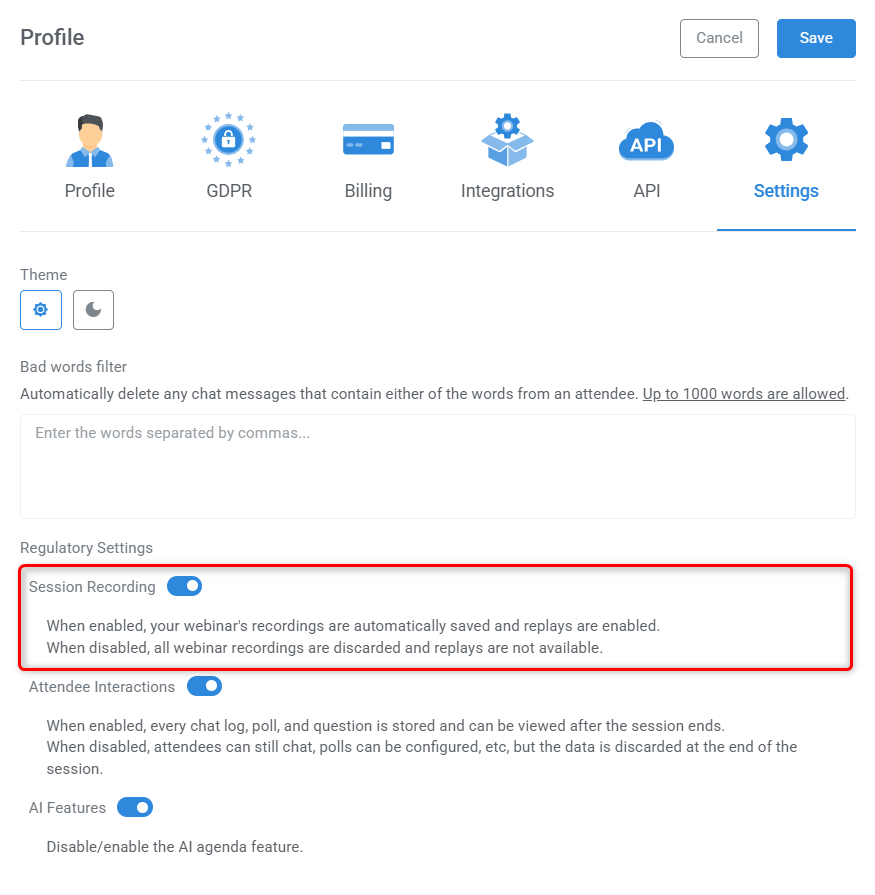
Enable the webinar replay
To turn on your webinar replay:
- Edit your webinar in Full configuration
- Go to the Replay tab
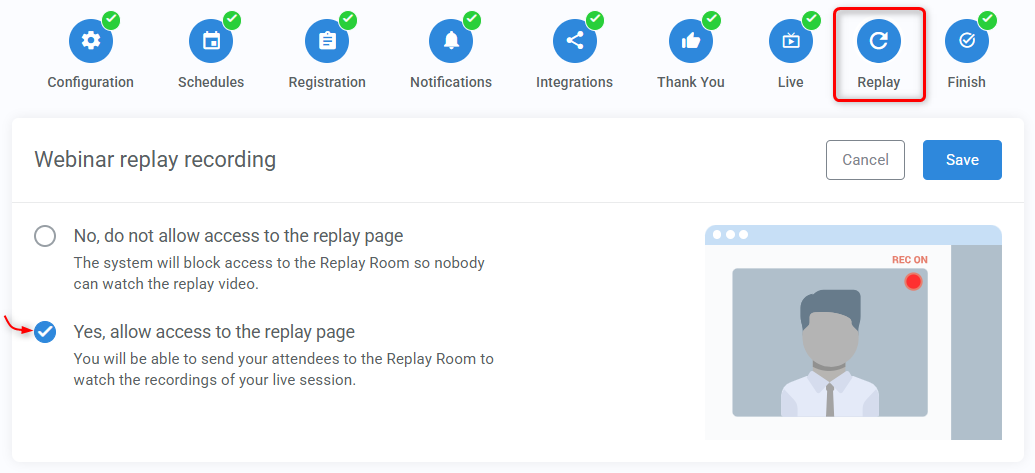
- Open the Webinar replay recording module
- Select Yes, allow access to the replay page
- Click Save
Once enabled, additional replay configuration options will appear.
Pro tip
A replay link is still generated even if the replay is disabled. Visitors who open the link will see a "Webinar/Replay has expired" message.
Replay configuration options
After enabling the replay, you can customize how it works using the following modules.
Webinar replay contents
Choose what viewers see when they access the replay link.
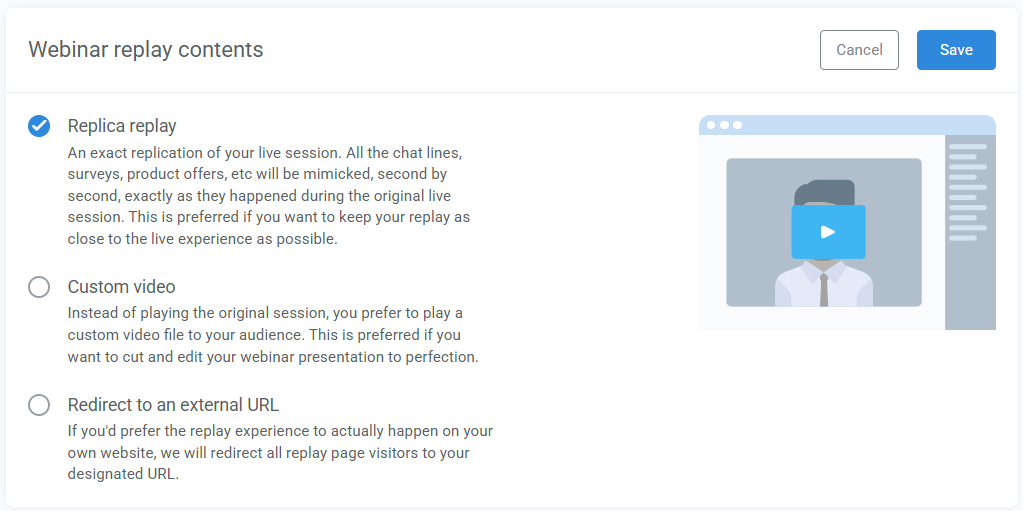
Replica replay
- An exact recreation of your live session
- Chat messages, surveys, offers, and timing are reproduced exactly as they occurred during the live event
- Best if you want the replay to feel as close as possible to the original experience
Custom video
- A separate video file
- Chat messages and offers will not appear
- Product offers can be added separately to show during the custom video
- Best if you have a premade version of your presentation
Redirect to an external URL
- Redirect viewers to a page on your own website
- Best if you want to embed the replay inside your own funnel for full design control
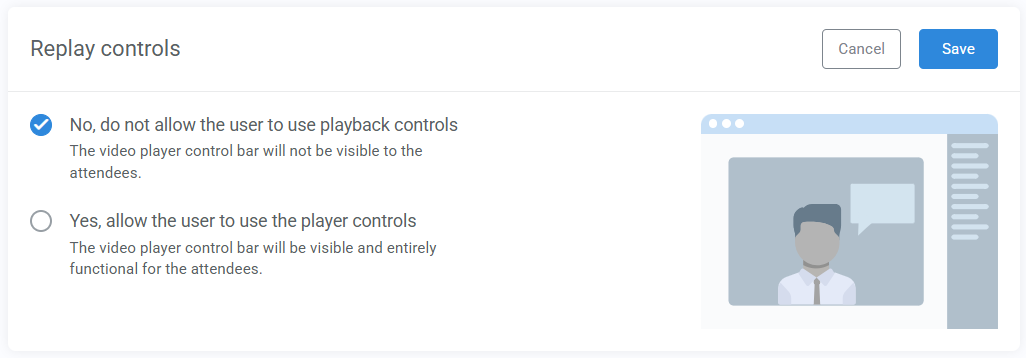
Replay controls
Decide whether viewers can control video playback. Hiding controls can help recreate a live-event experience.
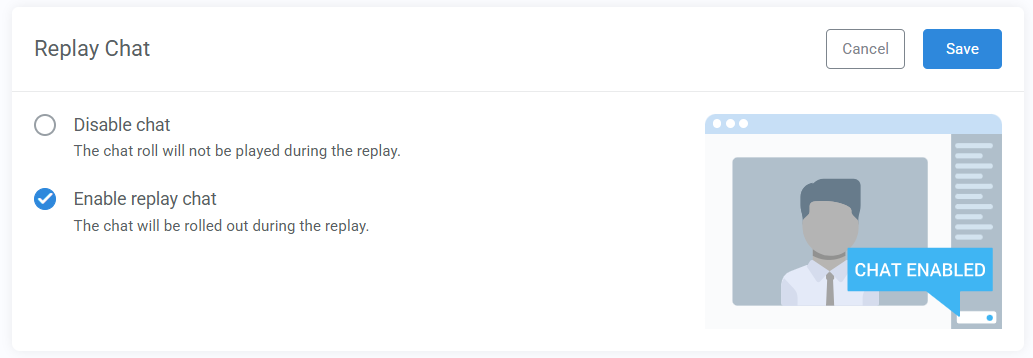
Replay chat
Choose whether to display the chat messages from the original session alongside the replay. When enabled, viewers can see the conversation that took place during the live webinar.
Replay page expiration
Limit how long the replay page remains available. You’ll enter the number of hours after the live session that the replay should remain accessible.
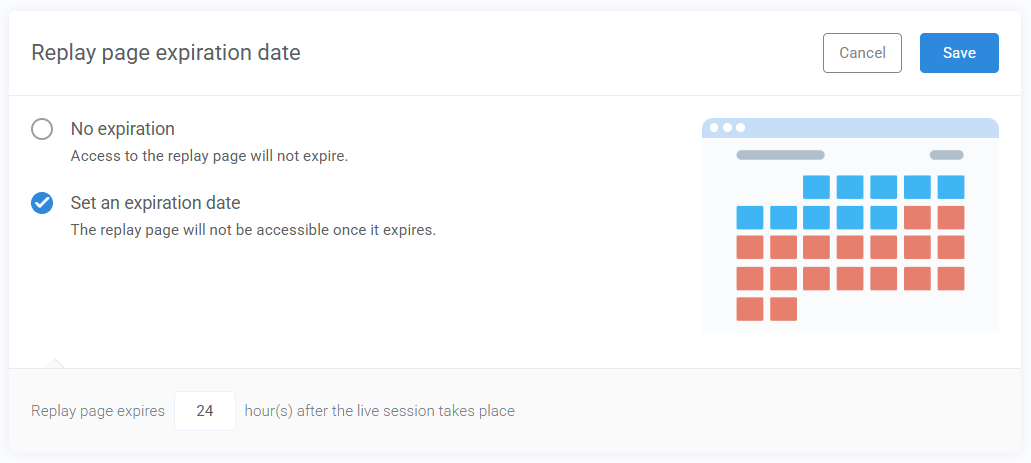
Once the expiration time passes, the replay page will no longer be available.
This is useful for:
- Creating urgency
- Limiting access for promotional events
- Running time-sensitive offers
Allow users to submit questions
Enable a question box for replay viewers.
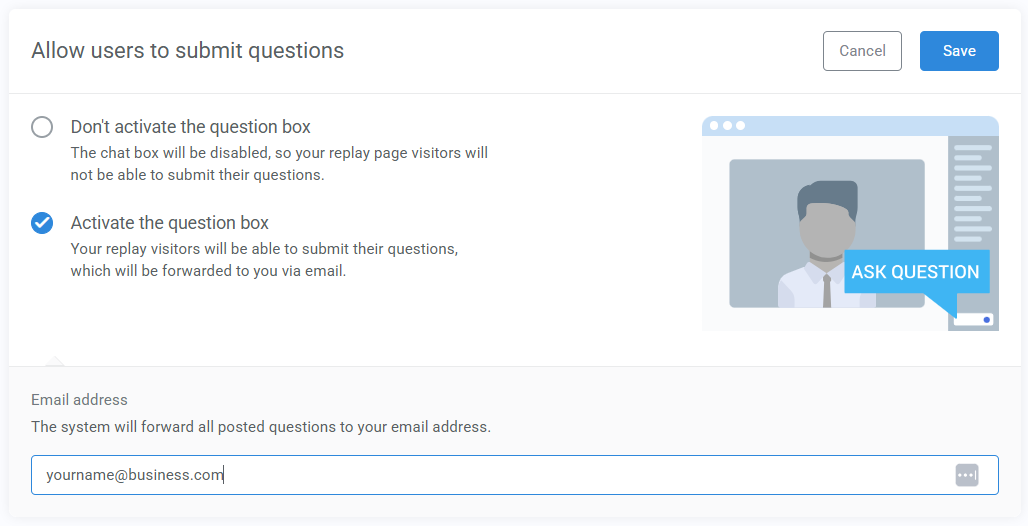
When enabled:
- Replay attendees can submit questions
- Questions are forwarded to an email address you specify
This allows you to continue interacting with viewers even after the live event has ended.