
Applies to: WebinarJam and EverWebinar
Inject product offers into your webinars and convert attendees to customers.
Product offers allow you to promote a product or service directly inside the webinar room. When an offer is active, attendees see a panel with the offer details and a button that links to your sales page.
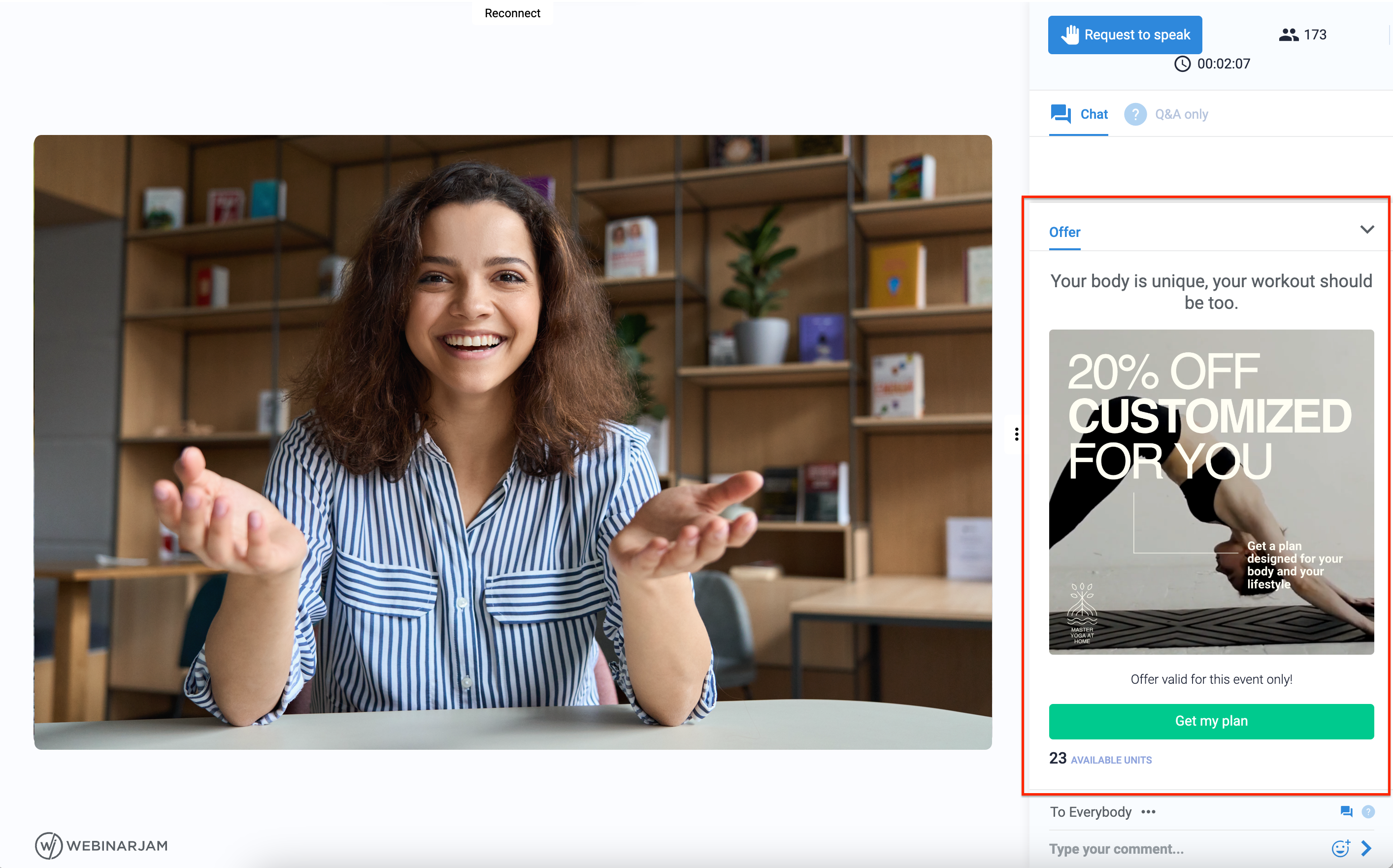
Example above shows an attendee's view of the live webinar room with an active product offer. Attendees can collapse the panel and reopen it as long as the offer is active in the room.
Add an offer to WebinarJam
To configure a product offer:
- Edit your webinar and go to the Live step of the webinar configuration.
- Open Product offers and click Add new offer
- Add the details of your offer. The right-side panel shows a preview.
- Required fields:
- Name
- Headline
- Button text
- Button link

- Toggle ON any advanced options you wish to use:
- Broadcast sales in real time
- Apply scarcity in your offer
- Apply urgency in your offer
Advanced Options
Encourage attendees to purchase during the webinar by limiting inventory or sharing sales activity with the webinar room.
- Broadcast sales in real-time displays, "Name has just purchased," each time a sale is completed.
- Important: Sales goal tracking and code installation are required. If the tracking code is not correctly installed, sales will not be displayed.
- Apply scarcity displays the number of available units in the offer panel.
- Scarcity is updated automatically during a single webinar session if sales goal tracking is configured.
- In the live room panel, presenters can click to reduce the inventory number manually as sales are made.
- Apply urgency displays a countdown timer.
- The timer begins when the offer is first displayed and expires according to your configuration.
Add an offer to EverWebinar
In EverWebinar, product offers are scheduled as part of the automated webinar timeline. To configure a product offer:
- Edit your webinar and go to the Live step of the webinar configuration.
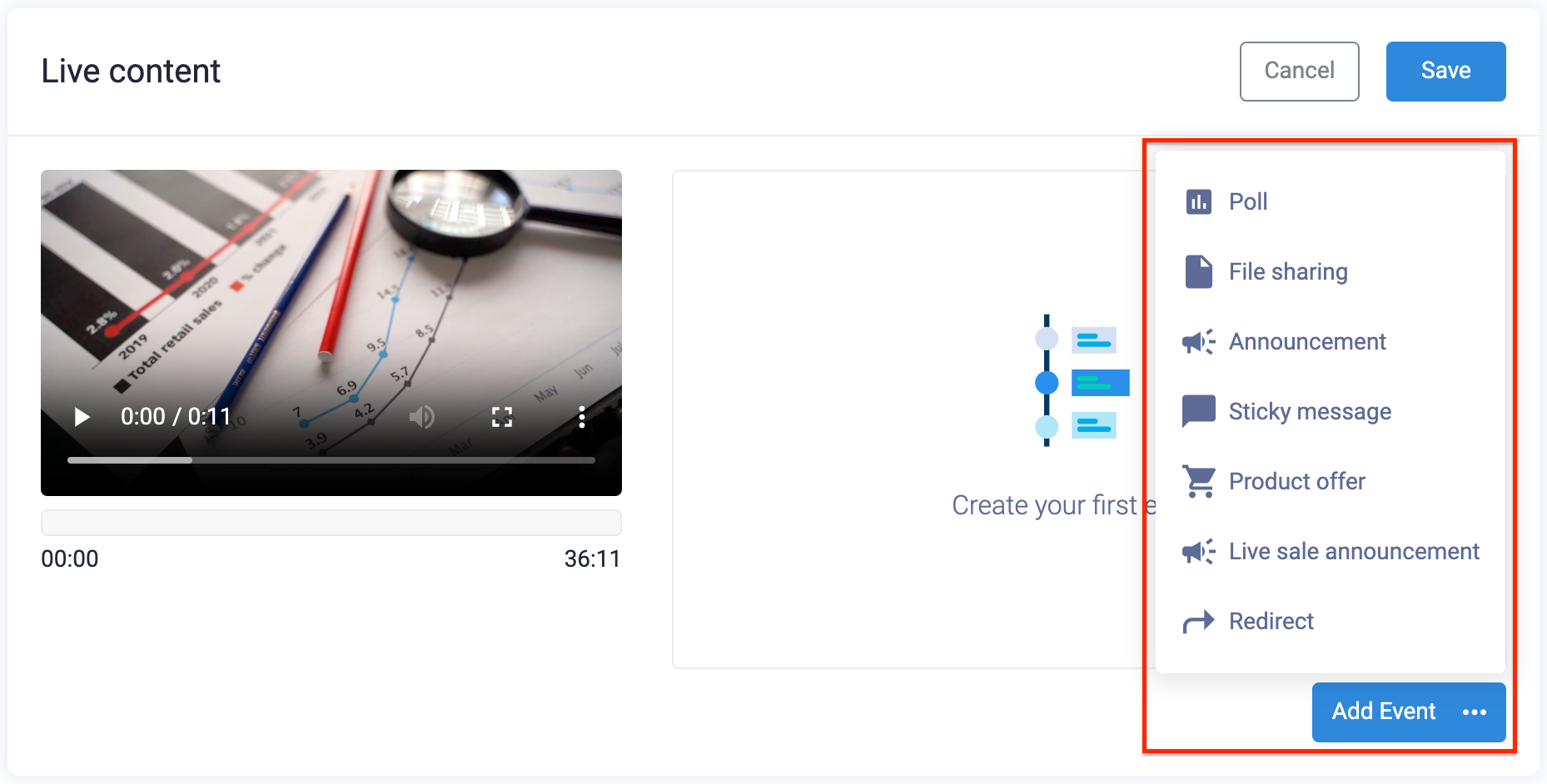
- Open Live content and click Add event > Product offer
- Add the details of your offer. The right-side panel shows a preview.
- Add a Start and End time for the automatic offer
- Toggle Apply urgency ON to display a countdown timer
When the automated webinar runs, the product offer appears at the scheduled time for attendees.