Applies to: WebinarJam and EverWebinar
Allow attendees to view your webinar in fullscreen for a more immersive experience.
The fullscreen feature is enabled by default when you create a webinar. You can turn it off at any time.
Enable or disable fullscreen
To manage fullscreen settings:
- Edit the webinar and go to the Live step of the wizard.
- Edit the Fullscreen button module.
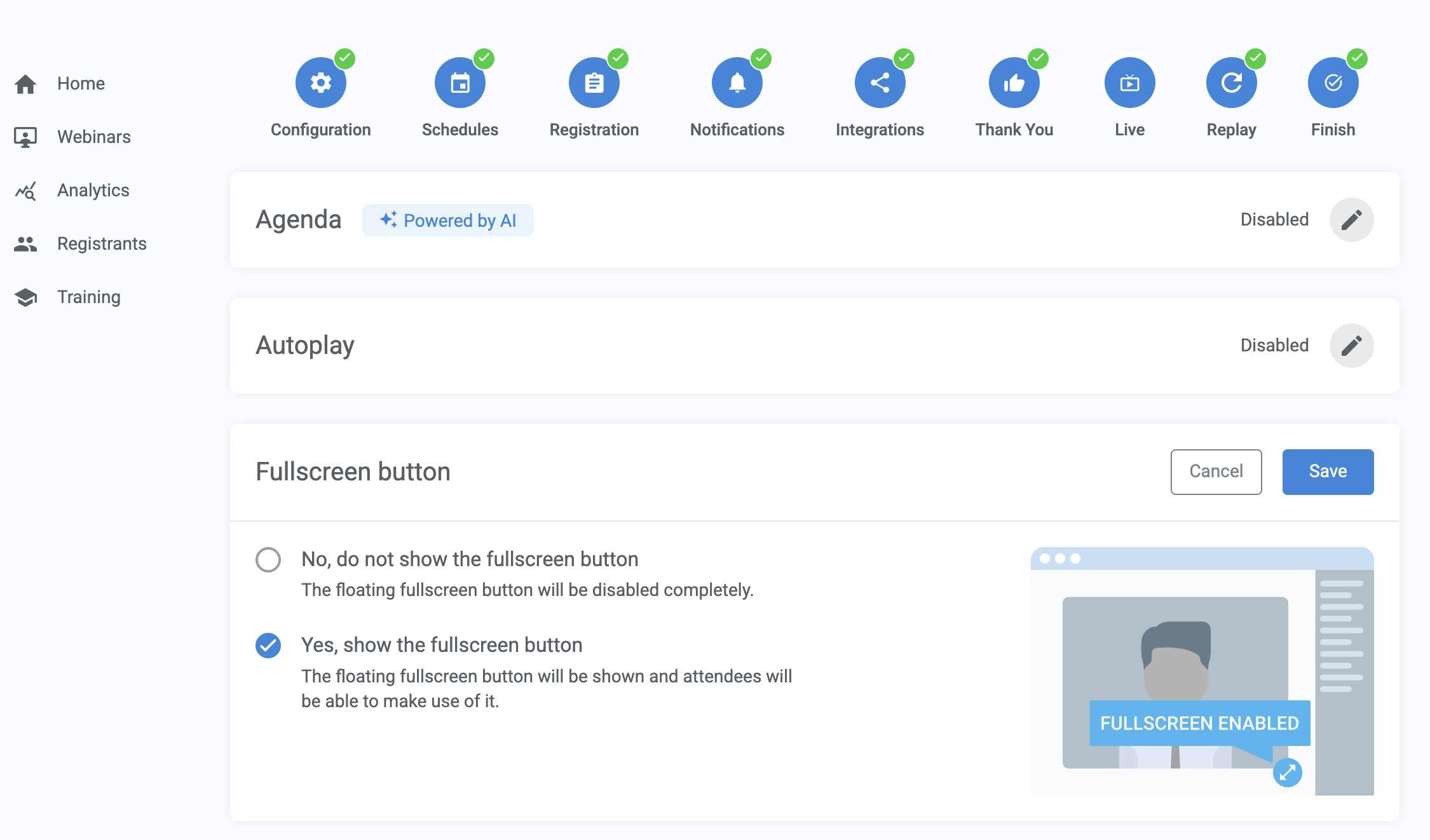
- Enable or disable the option, then Save.
What attendees see
Desktop/PC
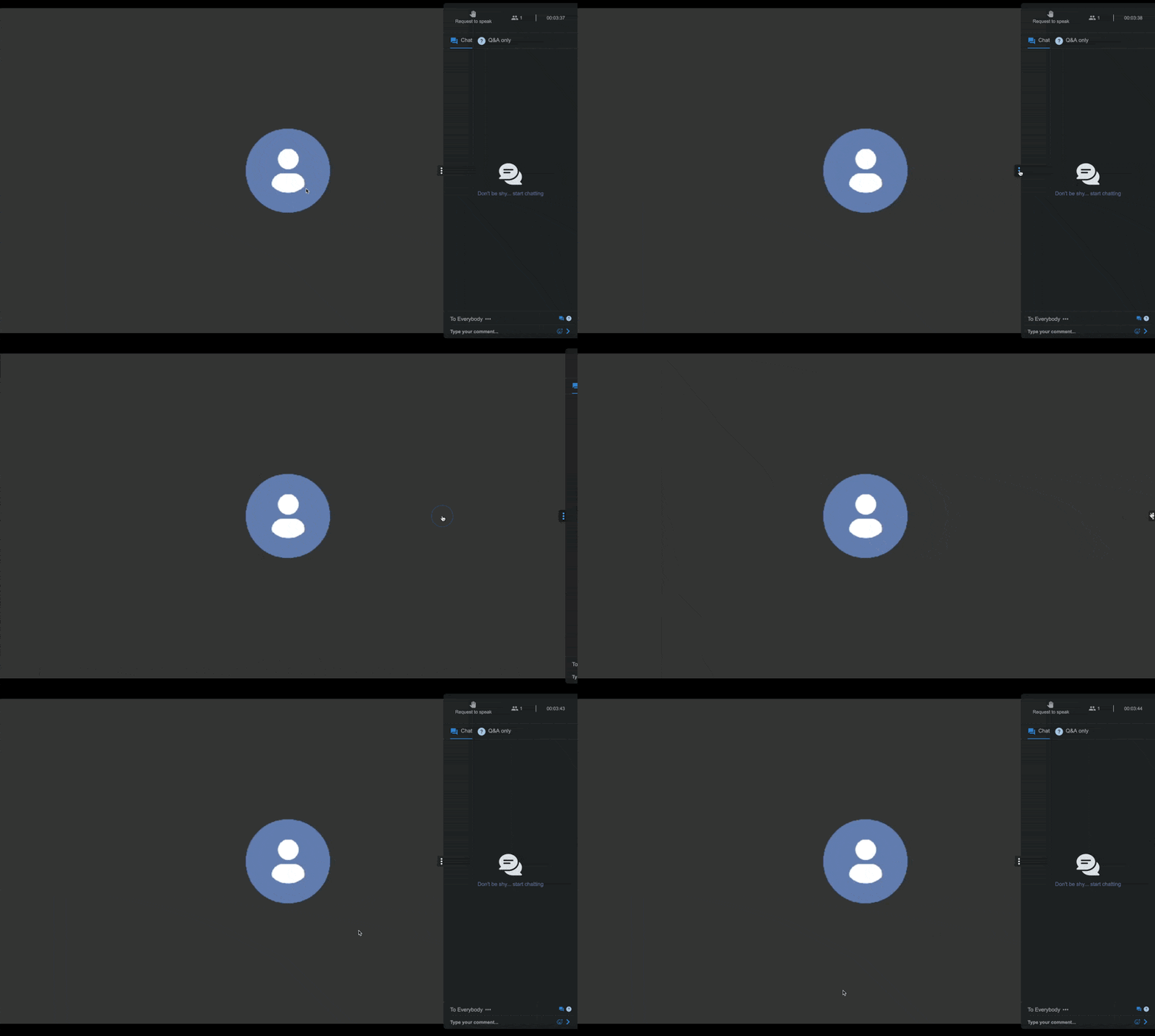
When fullscreen is enabled:
- A Fullscreen button appears in the bottom-right corner of the webinar room
- Attendees can expand the video to fill their screen

- The chat panel can be collapsed while in fullscreen mode
Mobile devices
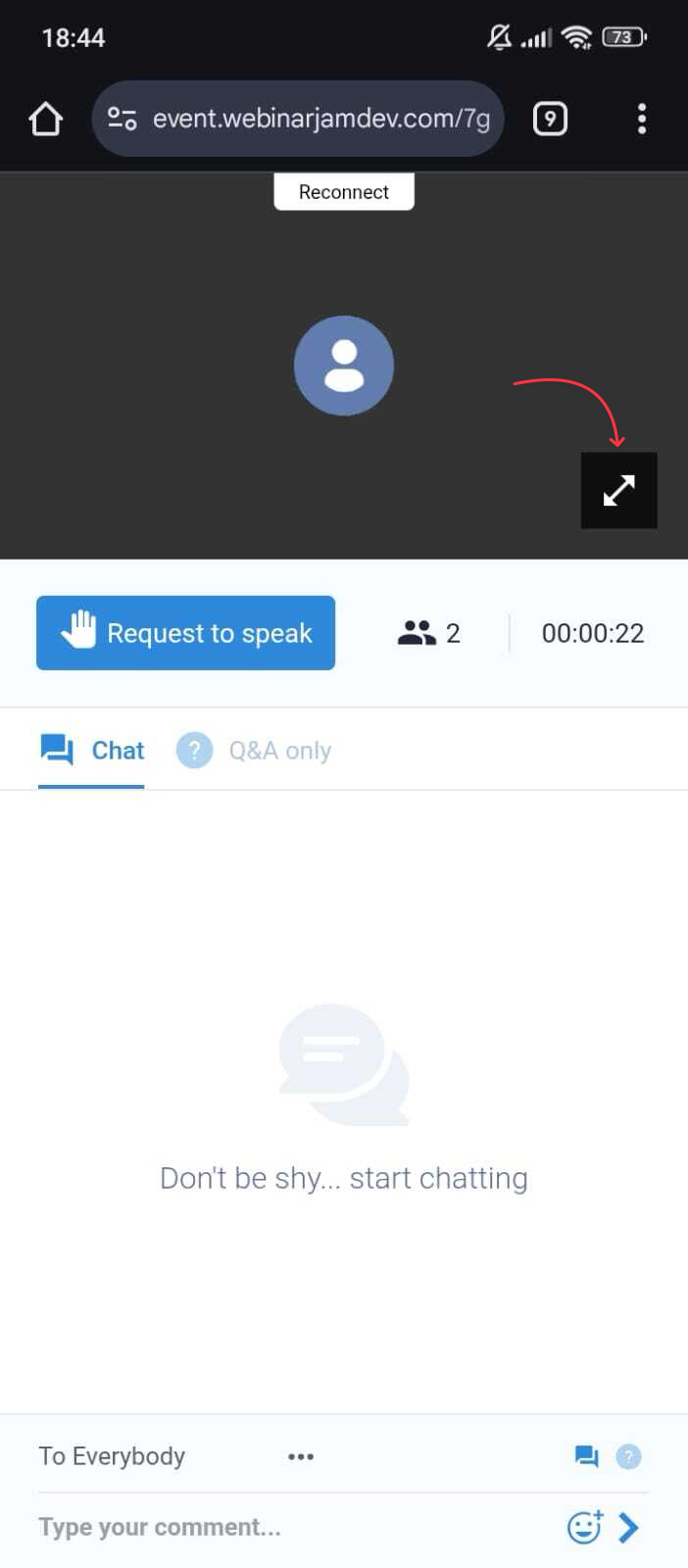
The attendees will see a full-screen icon on the bottom right side of the screen when the feature is enabled.
Note: Due to Apple platform limitations, fullscreen mode does not function on iOS devices.
How live features appear in fullscreen
When attendees view the webinar in fullscreen, interactive elements adjust based on screen orientation.
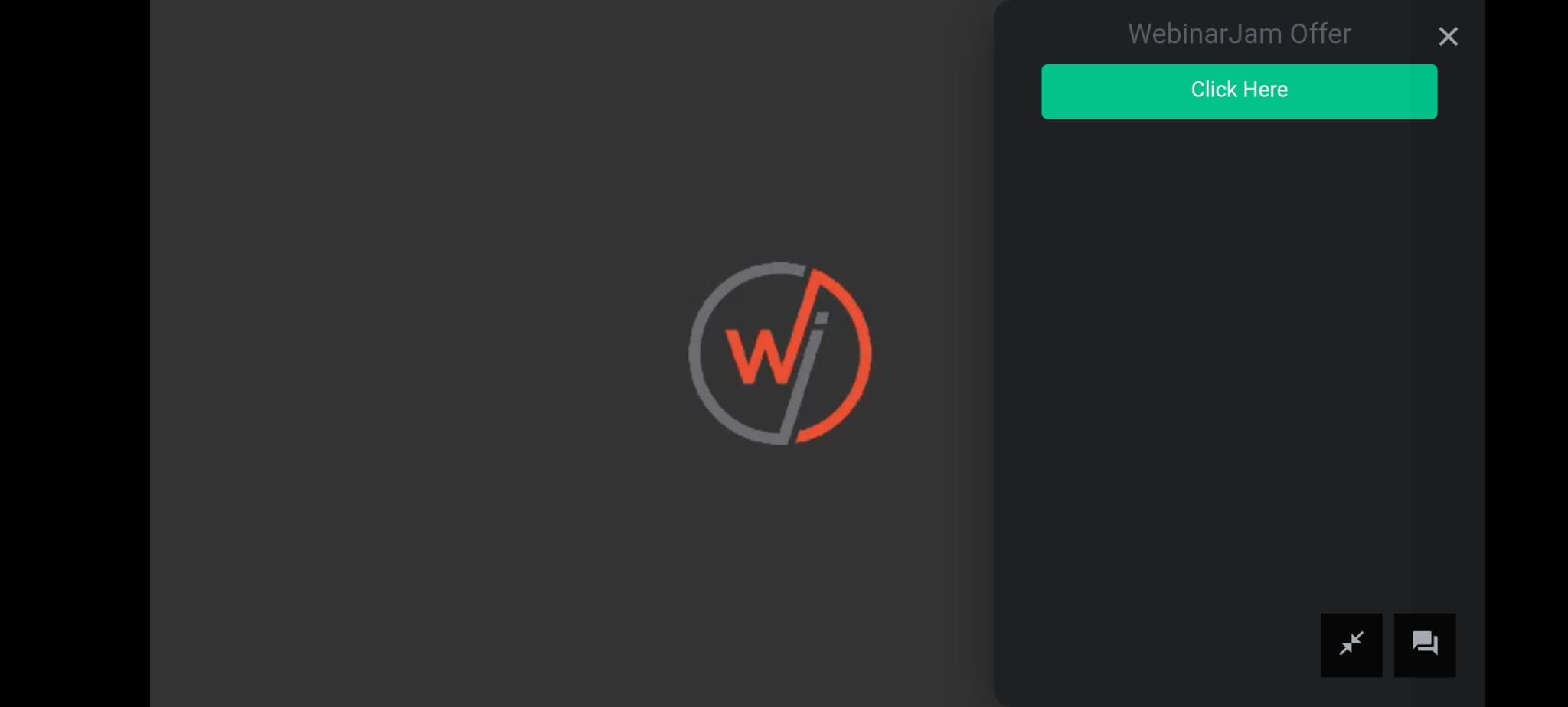
Landscape mode: Chat, offers, and polls appear on the right-hand side of the screen.
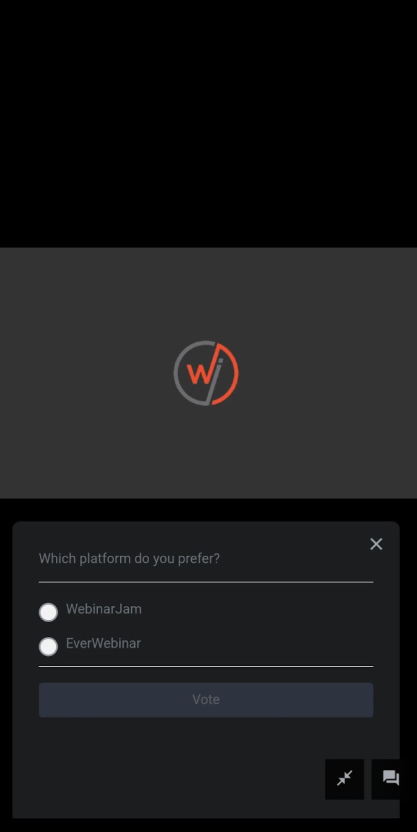
Portrait mode: Chat, offers, and polls appear at the bottom of the screen.
When a new chat message appears:
- The chat icon turns blue
- A red notification dot appears