
Applies to: WebinarJam and EverWebinar
Click on the Profile icon in the top-right corner of the dashboard to open the settings. 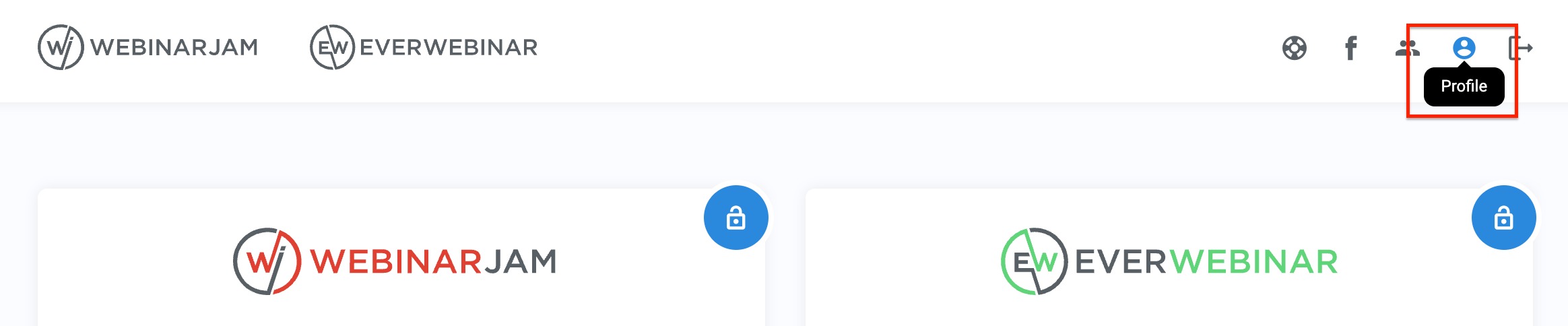
Update account details
Use the profile tab to manage your core account information.
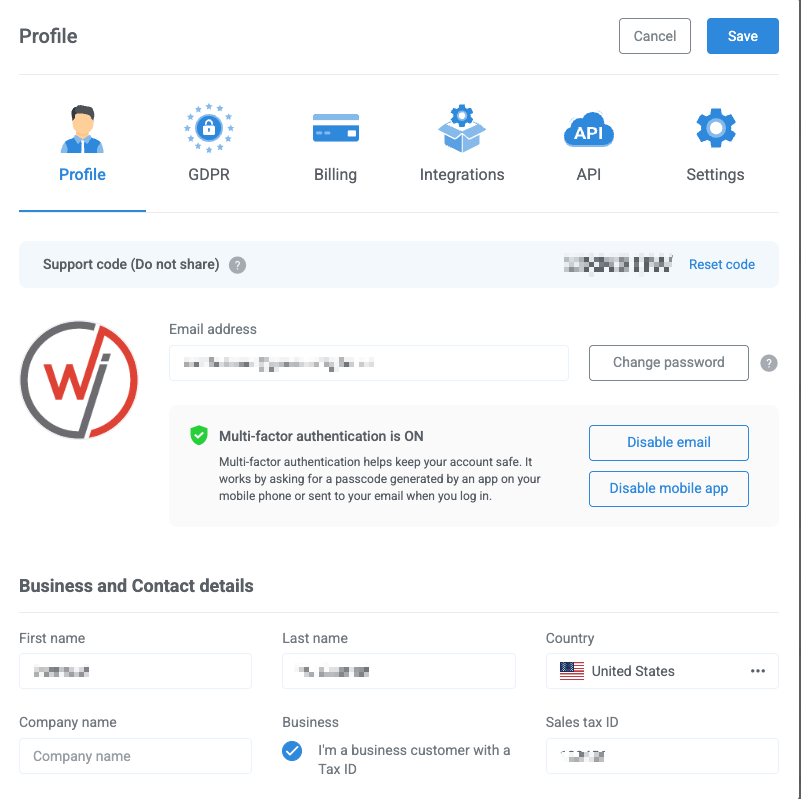
You can:
- Update your name and company details
- Change your login email and password
- Add your country and tax information
Important:
- Changing your email updates your login credentials
- Billing and account notifications are sent to the updated email
- Use the new email to log in after making changes
Manage billing and tax details
Add your billing details for accurate invoicing.
- Enter your country and company name
- Add your Sales Tax ID or VAT number (if applicable)
- Select business status if you have a valid VAT number
Use your support code
Your support code verifies your identity when contacting support.
- The code is unique to your account
- Share it only with authorized team members
Important:
- If your code is compromised, reset it immediately
- Use the reset option to generate a new code
Access profile settings
Your profile also gives access to key account-level settings:
- GDPR and data privacy settings
- Subscription and billing details
- Third-party integrations, including:
- Autoresponder integration
- SMS integration
- DKIM settings
- SMTP integration
- API key application
- Interface theme (dark or light mode)
- Global bad words filter
- Regulatory settings, including:
- Session recording
- Attendee interactions
- AI features