
Applies to: WebinarJam and EverWebinar
Integration automation rules allow you to send registrant and attendee data to connected third-party services (such as autoresponders or CRMs) based on specific webinar actions.
Each rule defines when data is sent and what action should occur inside the connected integration.
You can create as many automation rules as needed to record the actions and engagement of your registrants.
How automation rules work
Each automation rule consists of:
- A trigger (for example, if they register or attend)
- An action (for example, add the contact to a list or apply a tag)
When the trigger condition is met, WebinarJam sends the corresponding data to the selected integration.
Important: The “tag” and “list” terminology used in the integration rule configuration may not exactly match the naming conventions in your connected autoresponder. When in doubt, create test rules to understand how your autoresponder interprets the selected action.
Replay attendee limitations
For webinar replays, only the following triggers apply:
- If they register
- If they attend the webinar replay
- If they purchase your product
All available triggers, including the three listed above, apply to live webinar attendees.
Create an automation rule
In WebinarJam or EverWebinar:
- Edit the webinar.
- Go to Integrations > Email autoresponder integration
- Select the autoresponder you want to use.
- Choose a trigger condition (for example, If they register).
- Select the corresponding action (for example, Add to list).
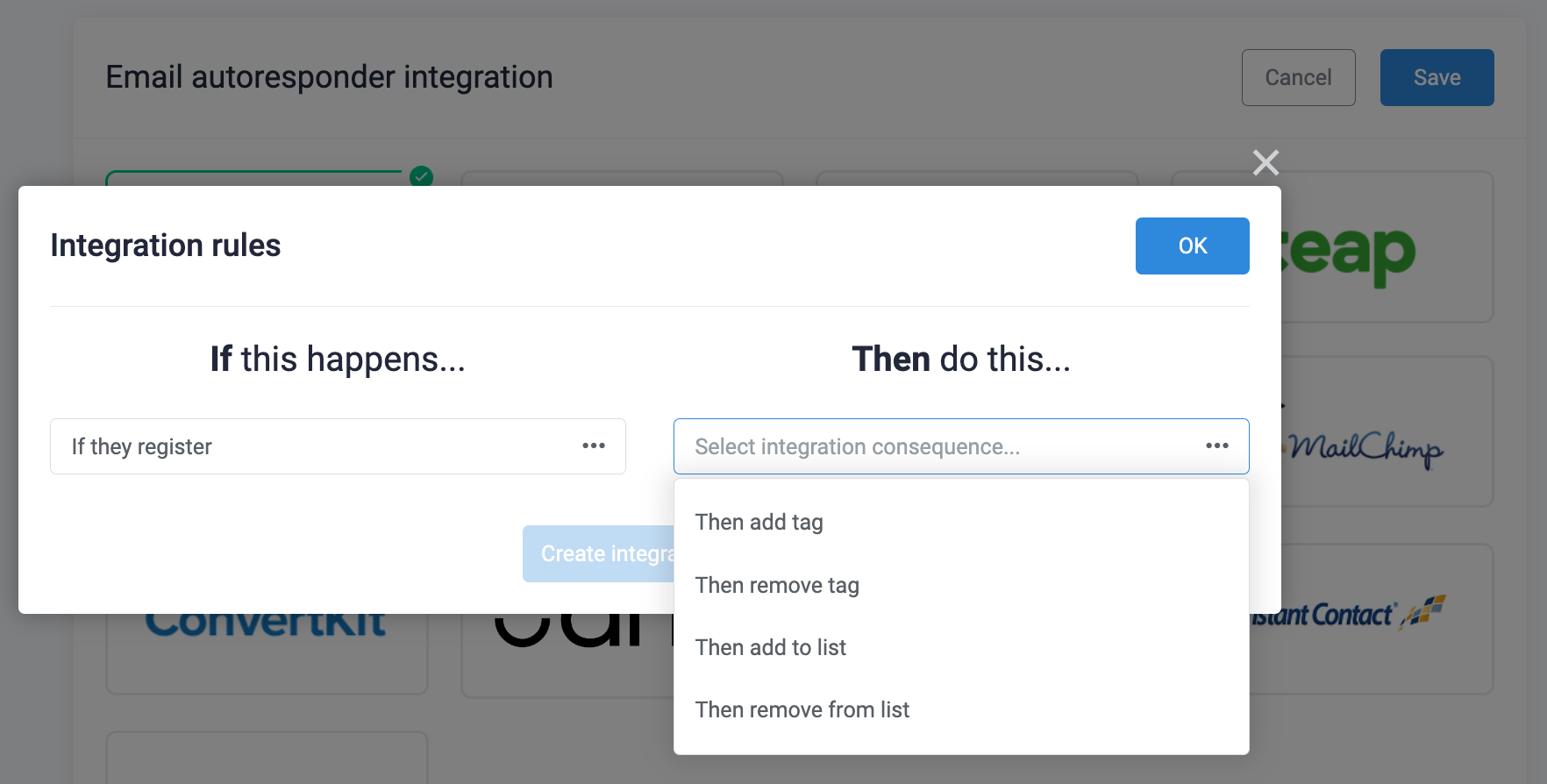
- Click Create integration rule.
- Click OK and save the section.
The rule will apply to new registrants or attendees based on the selected trigger.
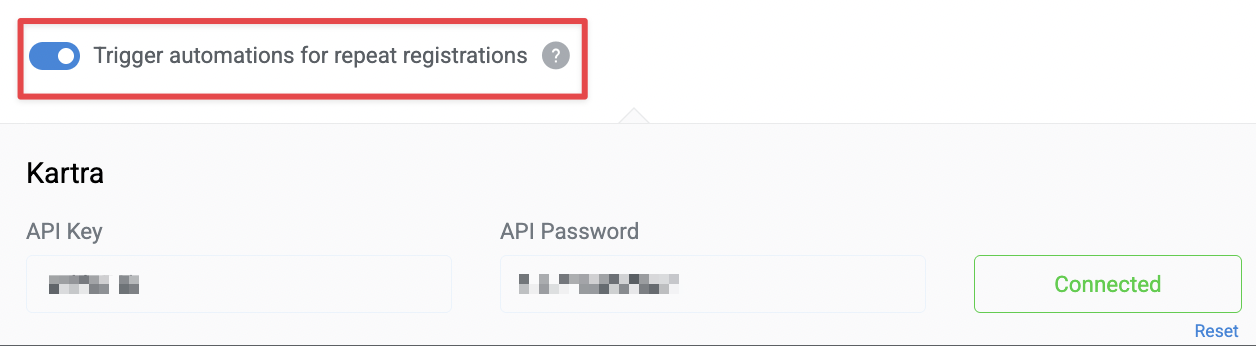
Custom webhook
Use this option to send registrant data to an external endpoint based on attendee behavior.
- Select a condition (for example, Registered, Attended, or Missed).
- Enter the webhook URL where the data should be sent. This can be:
- A path appended to your base webhook URL, or
- A full URL to a different endpoint
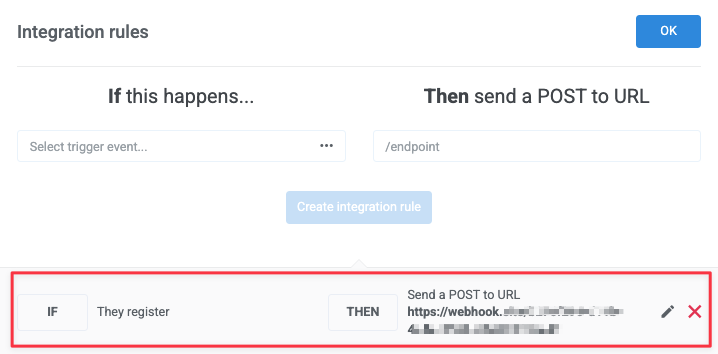
You can include additional paths or parameters in the URL, depending on how your webhook is configured.
Each rule can use a different webhook URL, allowing you to handle different events separately.
Automation Timing
Positive triggers are executed as soon as the event occurs. Examples include:
- If they register
- If they attend the live webinar
- If they purchase your product
Negative triggers are evaluated after the webinar session concludes. Examples include:
- If they miss the webinar
- If they leave early, etc.