
Applies to: WebinarJam and EverWebinar
Account settings let you control how your workspace looks, how chat is moderated, and what data is stored after your webinars.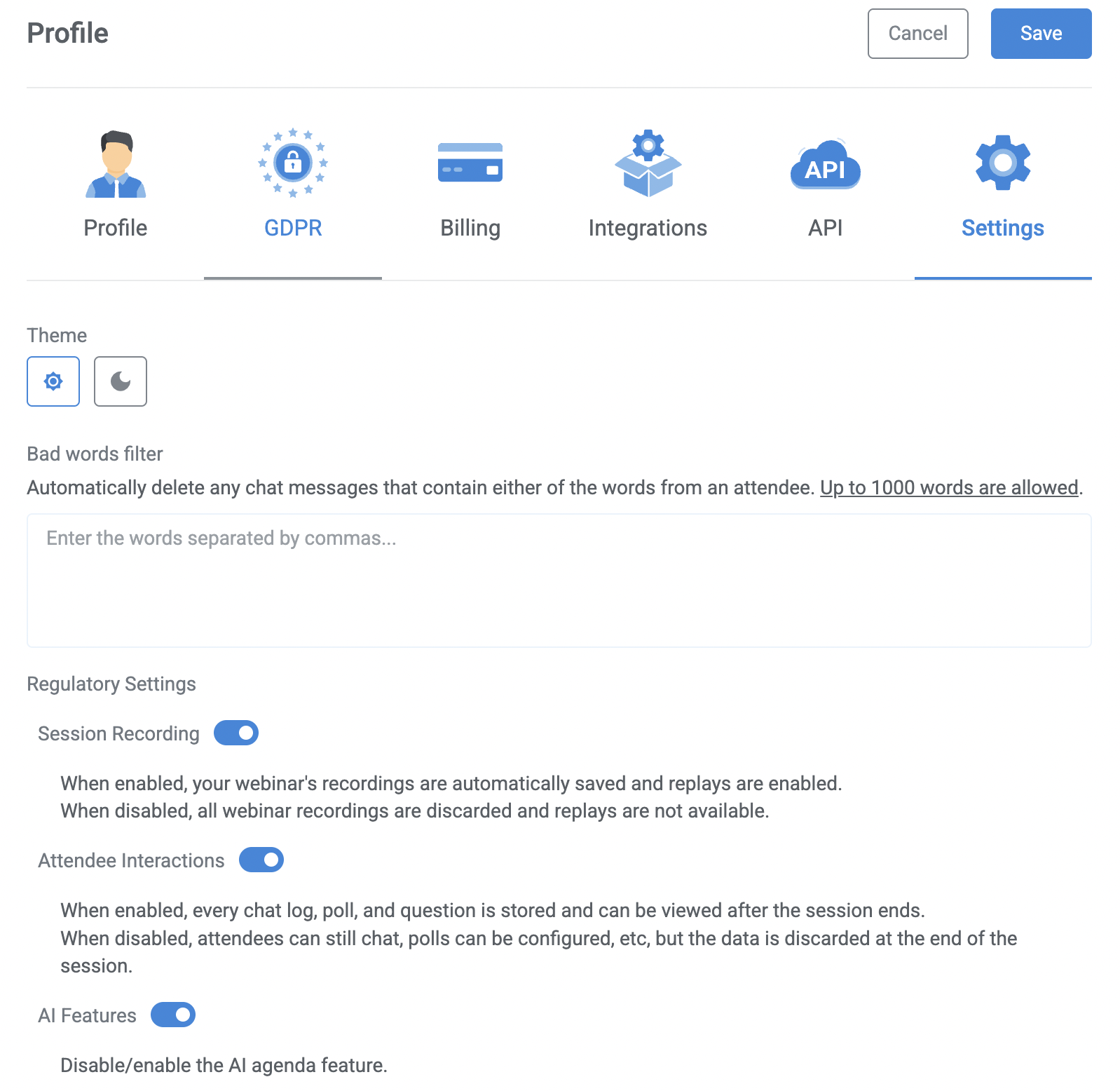
Dark or light mode
Apply a theme to your account interface, so you can work in the mode you prefer. Dark mode or light mode impacts your logged-in account areas only. Public content like registration pages, the webinar Live Room, and Control Panel are not affected by this theme.
Filter chat messages using the bad words filter
Add words to the Bad words filter that you want to block attendees from using in the chat during your events.
- Add words you want to block (separate with commas, up to 1000 words)
- Messages containing blocked words are automatically removed
Note:
- This filter applies only to attendees
- Presenters and moderators are not restricted
Regulatory Settings
Use these settings to control what webinar-related information is stored after a session ends. Reviewing and adjusting these options helps ensure your data retention practices align with the regulatory requirements of your industry.
Session Recording
- Enabled: webinars are recorded and saved for replay
- Disabled: no recording is created
Attendee Interactions
- Enabled: chat messages, poll responses, and replay questions are saved
- Disabled: this data is not stored after the webinar ends
AI Features
- Enabled: The AI Agenda planner helps you to generate a webinar agenda automatically.
- Disabled: The agenda must be created manually using the agenda text box
Learn more about creating a webinar agenda.