
Applies to: WebinarJam and EverWebinar
Custom fields let you collect additional information from registrants beyond standard fields such as name and email.
Use custom fields to:
- Ask attendees how they heard about the webinar
- Collect company name, job title, or industry
- Gather event-specific questions in advance
- Capture product interest or background information
The information collected through custom fields appears in the Registrant list, alongside standard registration data.
Note: Custom fields are created account-wide. Create them once and reuse them across any webinar.
Create a custom field
To create a custom field:
- Edit your webinar.
- Go to the Registration tab.
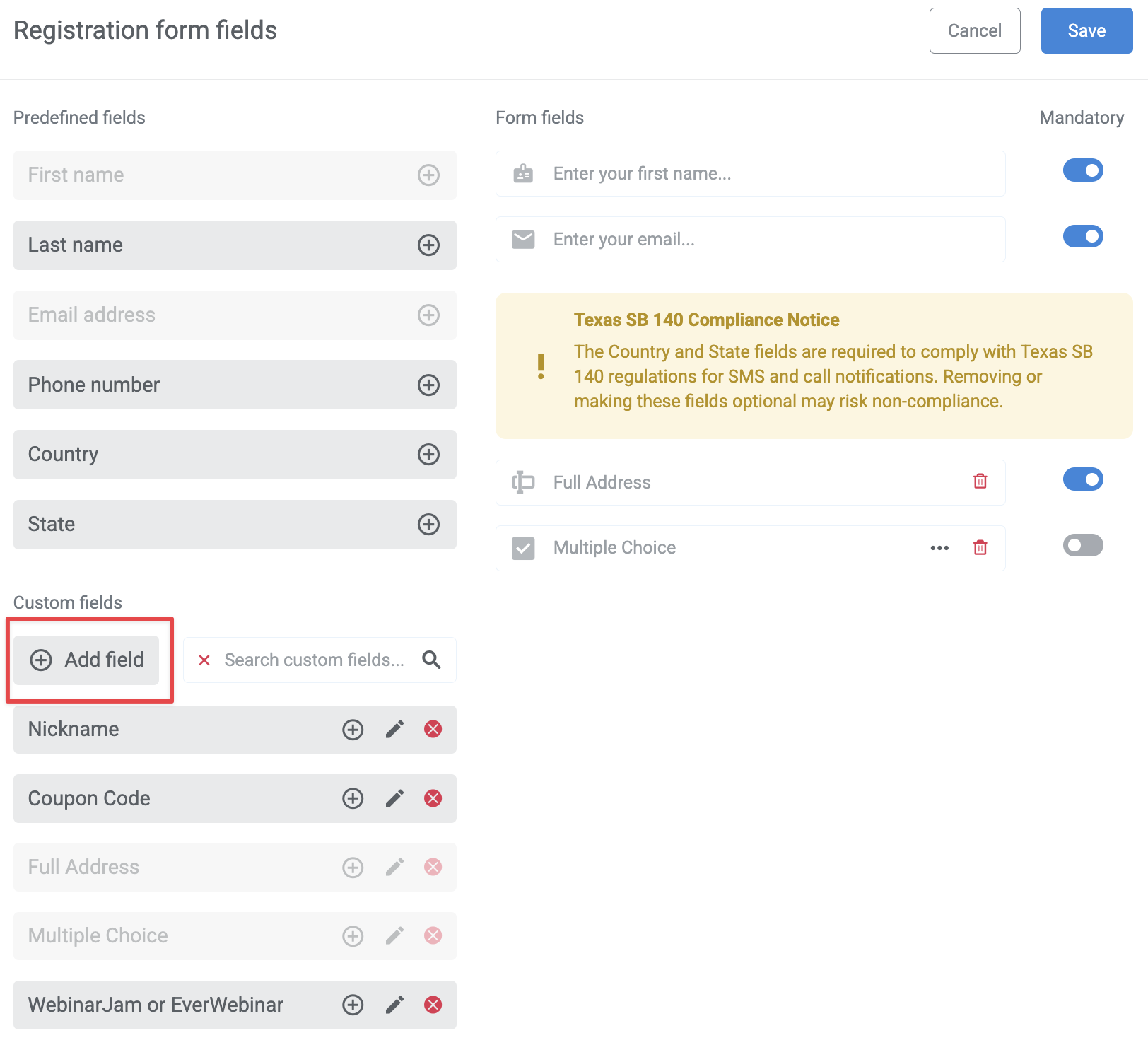
- In the Registration form fields, click Add Field under Custom Fields.
- Select a field type between Text field or Dropdown.
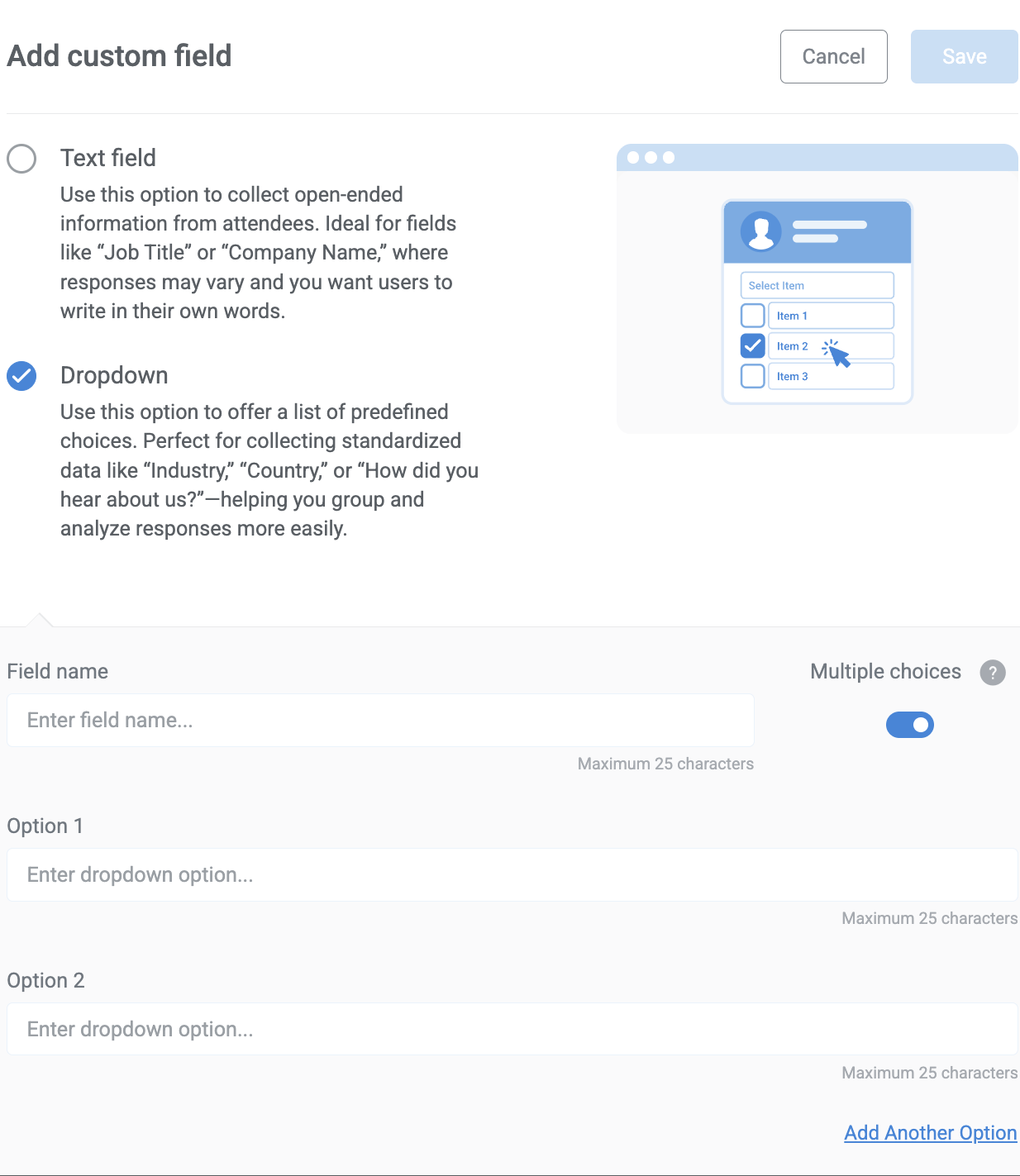
- The character limit for every field and option is 25 characters.
- If you select Dropdown:
- You can add multiple options as answers. There is no limit on the number of options you can add.
- The Multiple Choice checkbox is enabled by default.
- Click Save.
Add or remove a field from the registration form
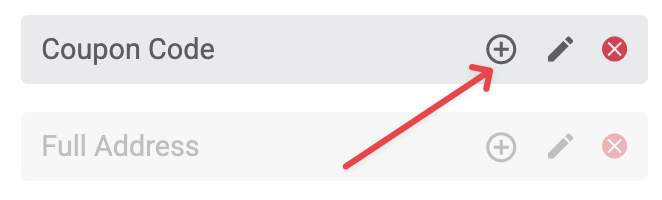
- To add a field to the form, click the + icon next to the custom field.
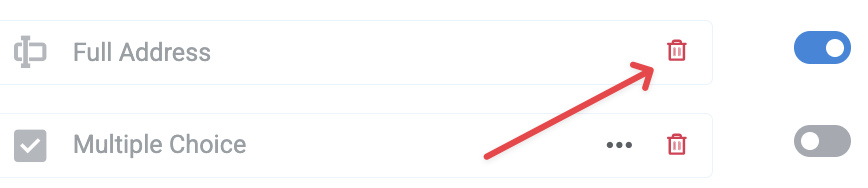
- To remove a field from the form, click on the red bin icon.
Delete a custom field permanently
If you wish to remove a field from your account, follow the steps below:
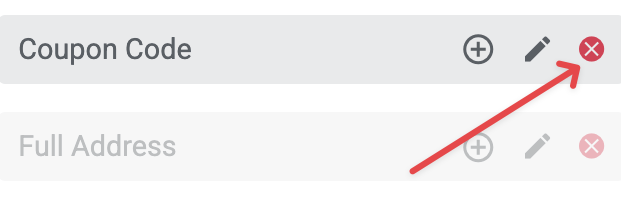
- Click the red cross icon next to the field under Custom Fields.
- A warning message will appear explaining the field and the associated data will be removed once you delete the field.
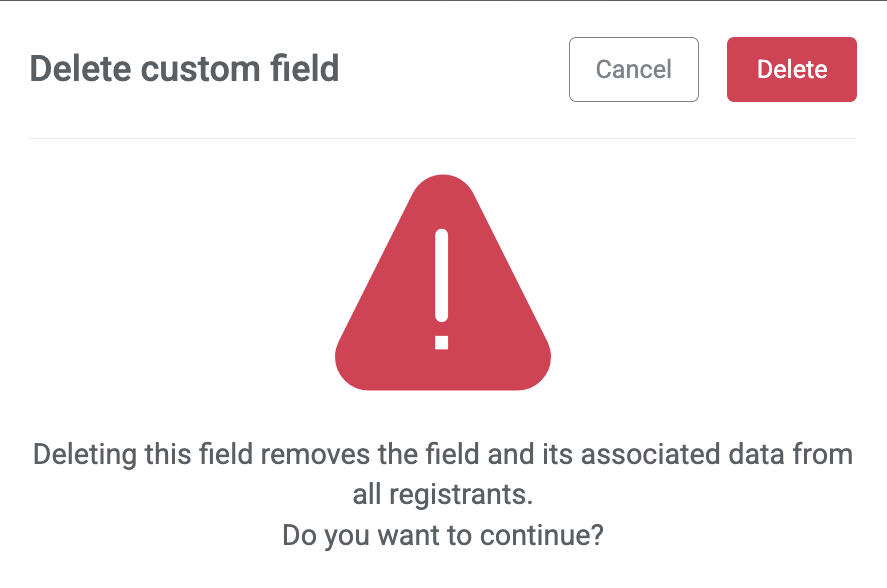
- Click Delete.
Important: Once a field is deleted from the account, the associated registrant data cannot be recovered.