
Applies to: WebinarJam and EverWebinar
Track sales generated during your webinar by installing goal-tracking codes on your product and confirmation pages.
WebinarJam generates two types of tracking codes for your offers, and each must be placed on a different page:
- Your product page: the page your offer links to
- Your success page: the page that confirms the purchase
When configured correctly, WebinarJam can record:
- Sales from the live webinar room
- Sales from the replay room
- Total revenue generated by your event
How sales tracking works
To record a sale in webinar analytics, three events must happen:
- An attendee enters your webinar
- They visit your product page after clicking an offer inside the webinar
- They complete a purchase and land on your purchase confirmation (success) page
Keep in mind:
- No retroactive tracking: Tracking codes must be installed before the webinar runs.
- Product offer needed: Tracking codes are generated automatically when an offer is added to your webinar. If no offer is configured, the Goal Tracking tab will be empty.
- Recurring payments: The tracking code is designed to record one-time payments. If your product uses recurring billing, you can choose which value to track:
- The first payment amount for indefinite subscriptions
- The first payment or the total value of a set of installments
- Cookies: Browser cookies are used to identify attendees and track the actions required for sales attribution.
- They stay on the attendee’s browser for 48 hours unless cleared manually.
- They differentiate between sales from the live room and those from the replay room.
- Multiple offers: Each offer should use its own success (thank you) page. The page must contain only one tracking code.
Goal Tracking Code
To find the tracking codes:
- Go to Webinars
- Locate your webinar and click Advanced

Under Goal tracking, you will see:
- The tracking code for your product page
- The tracking code for your confirmation page
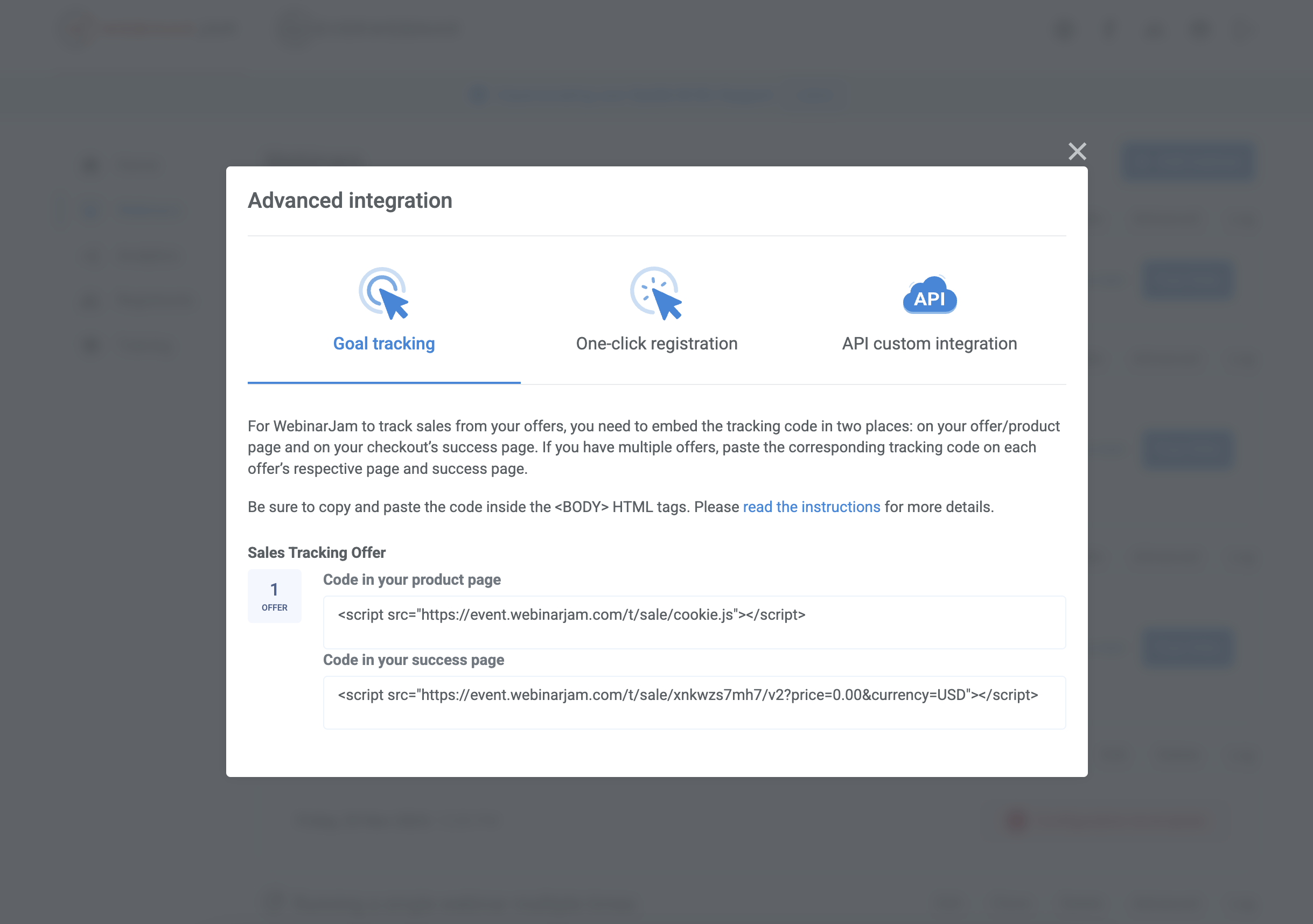
Configure the Tracking Code
The code for your confirmation page contains two customizable parameters:
- Price: price=0.00
- Currency: currency=USD
What to do:
- Replace 0.00with the amount collected for each sale.
- Example: If your product costs $40, price=40.00
- Modify USDwith the appropriate currency code.
- Supported currencies include: USD, EUR, GBP, JPY, CAD, AUD, CHF, NZD, INR, BRL, DKK, NOK, SEK, TRY, PLN, CZK, RUB, RON, BGN, HUF, ILS, ZAR, HKD, RSD, MYR
If the currency parameter is left blank or contains a value unrecognized by the WebinarJam system, sales analytics default to USD.
Embed the tracking codes
To install the tracking codes on the relevant pages:
- Open your page’s source code
- Scroll to the bottom
- Paste the code immediately before the </body> tag
- Save and publish the page
If your page builder includes a dedicated field for tracking, you can paste the tracking code there instead of editing the page source. If unsure, confirm placement with your platform’s support team.
Review analytics
After the event:
- Go to Analytics
- Select a webinar and session
- Scroll to Monetization
You can view:
- Registration fees (if you set up a fee to attend the webinar)
- Sales from the live room
- Sales from the replay room
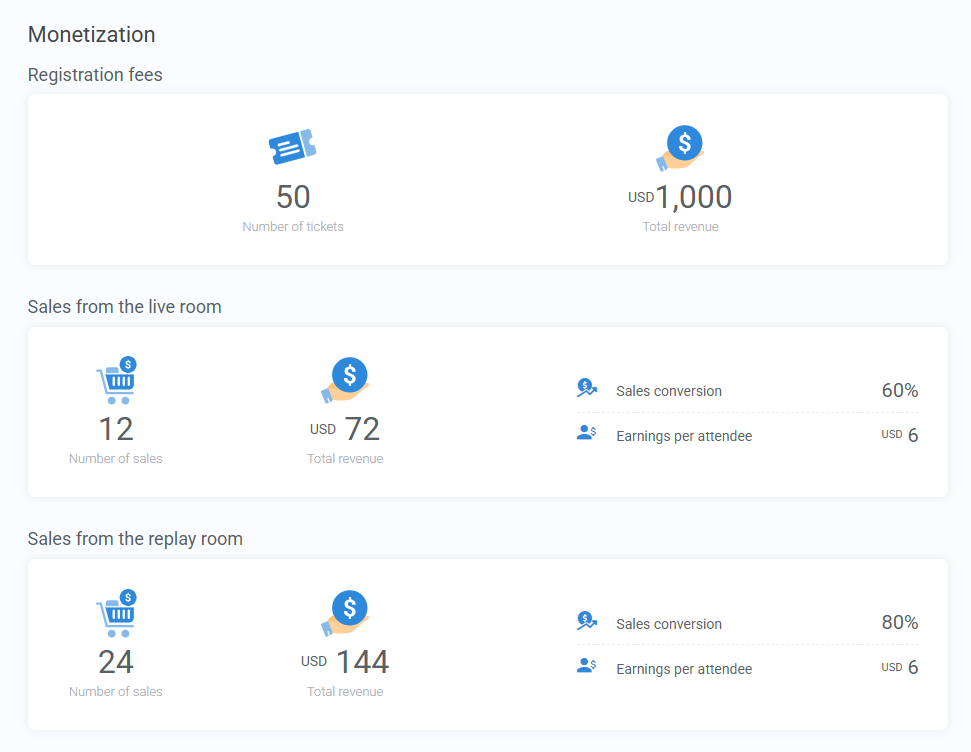
To review which attendees purchased:
- Access Registrants
- Select a webinar and session
- Scroll the table to the right to locate the Purchased from live room and Purchased from replay room columns