
Applies to: WebinarJam and EverWebinar
You can send an automated voice call reminder to registrants shortly before your webinar begins. Voice reminders are delivered through a Twilio integration and use a pre-recorded audio message hosted online.
Voice calls are typically used as a last-minute reminder to increase live attendance.
Before you begin
To send a voice call reminder, you must:
- Connect a Twilio account in your integrations.
Learn more about it here: Connect and Use Twilio for Webinar SMS/Voice Reminders - You have a publicly accessible MP3 file containing your recorded message. Record an audio message with your reminder and upload it to the internet. You can upload the file anywhere that will provide you with a direct MP3 URL for the uploaded file.
- Tip: Upload your file to Twilio Assets in your Twilio console and set it to public access to get an MP3 URL. Learn more from Twilio.
- Your registration form collects phone numbers.
Configure a voice call reminder
- Open the webinar you want to edit
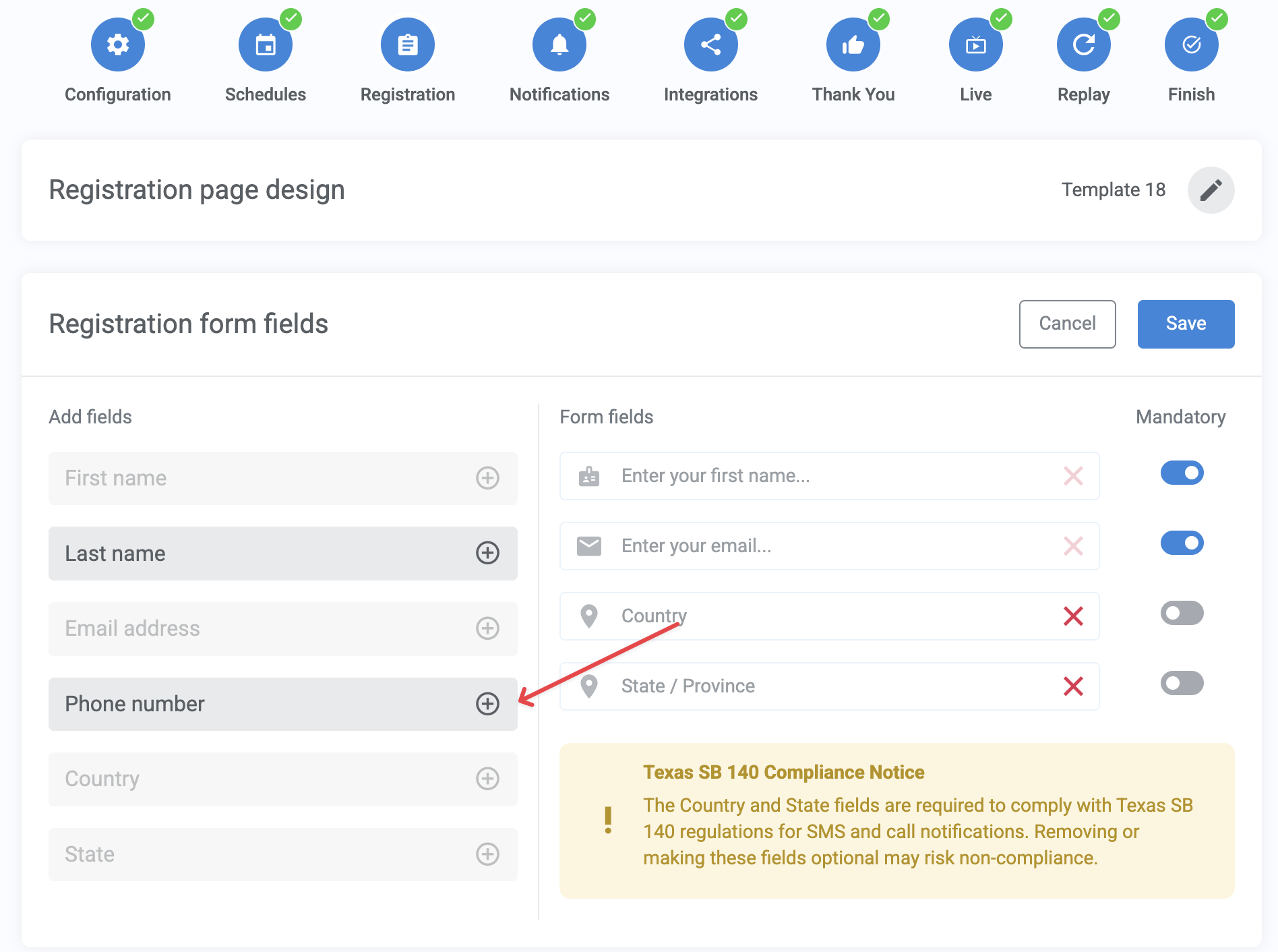
- Go to Registration > Registration form fields
- Add the Phone Number field
- Go to Notifications > Reminder notifications

- Under Last-minute notification, click Add call
- Enter a direct URL to a hosted MP3 file with your voice reminder and Save
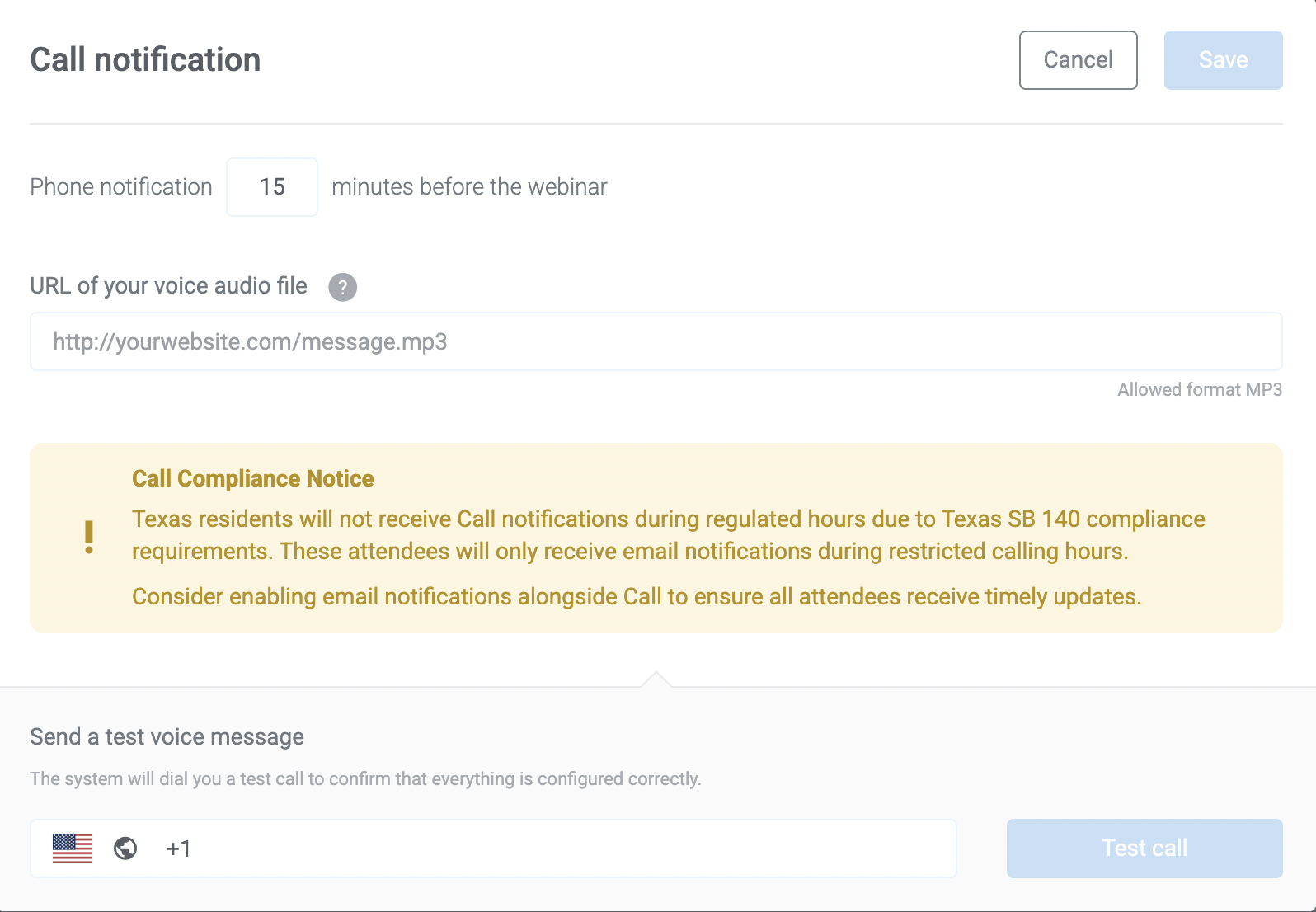
Regulatory Notice: To comply with the necessary Texas SB 140 regulations, Texas residents will receive SMS or calls during the specific hours only - Monday to Saturday, 9 AM to 9 PM and Sunday, 12 PM to 9 PM.
Pro tip
- Voice call reminders are sent 15 minutes before the scheduled webinar session. This timing cannot be modified.
- Only one voice call reminder can be configured per webinar.
- The audio file must be publicly hosted online and accessible via a direct MP3 URL.
- Enter a phone number and click Test call to ensure that your integration is working correctly.