
Applies to: WebinarJam
Upload slide presentations during webinar setup so they’re ready to present in your live session.
When added in advance, your slides appear in the live room menu and can be quickly displayed to attendees during the broadcast.
Before you begin
- Supported file formats:
- Microsoft PowerPoint (.PPT, .PPTX)
- Apple Keynote (.KEY)
- File upload: You must upload presentation files directly from your computer. Google Slides links and other cloud-based presentation links cannot be added directly.
- Processing time: The upload process may take up to 5 minutes.
- Static images: Slide animations do not play in WebinarJam. Slides are displayed as static images during the live session.
Upload a slide presentation
To upload slides from your computer:
- Edit your webinar and go to the Live step
- Open the Slide presentations module
- Click Add new presentation

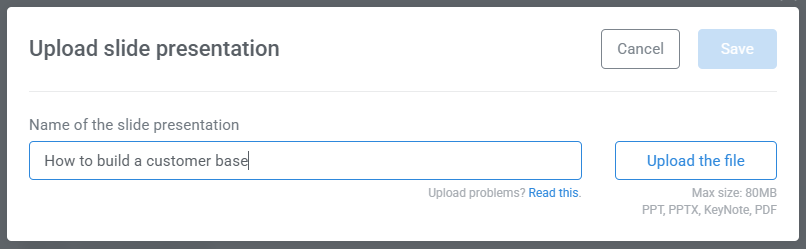
- Enter a display name
- Click Upload the file, select your presentation, then Save
Why upload your slides?
While you can present slides using screen share from your computer, we recommend uploading them directly to WebinarJam.
When slides are uploaded:
- They don’t rely on your local internet connection to display.
- Image quality is generally more stable and consistent for attendees.
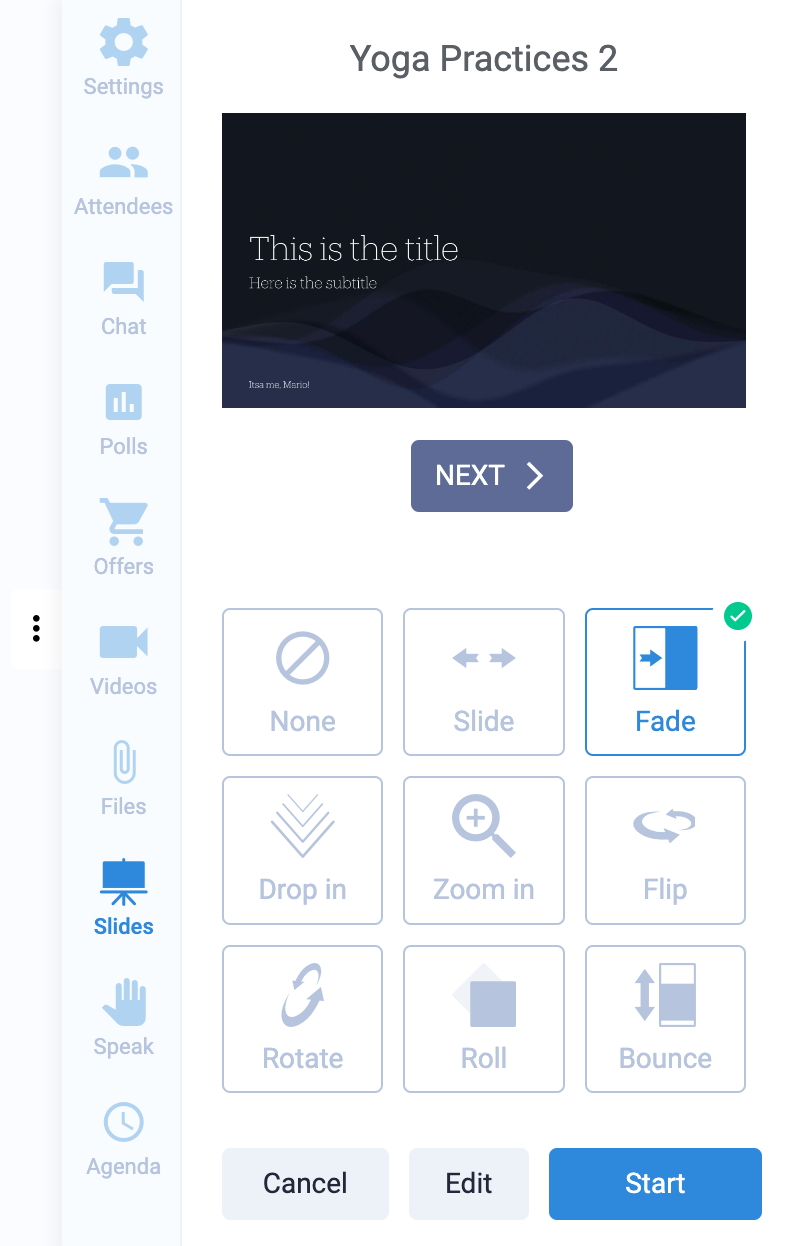
- You can use built-in slide transition effects inside the live room.
During your webinar, click the Slides menu in the live room to select and present your uploaded file.
Optimize presentation files
Smaller files load faster and more reliably for attendees. The maximum upload size is 80 MB.
If your file exceeds 80 MB:
- Images may be saved at too high a resolution
- Video or audio files may be embedded in the slides
Optimization tips
- Save slides at a maximum resolution of 720p for live streaming
- Remove embedded video or audio files
- Split large presentations into multiple files if needed
Troubleshooting
If you’re having trouble uploading a PowerPoint or Keynote file:
- Export it as a PDF (one slide per page)
- Optimize the PDF to reduce its file size
Learn more about using slide presentations in the Live Room