
Applies to: WebinarJam and EverWebinar
Learn how to create a DMARC record to monitor and improve email authentication for your webinar notifications.
Before you begin
DMARC works together with DKIM and SPF to protect your domain and improve email deliverability.
- Make sure you have already set up DKIM (required)
- Set up SPF if you are using an integrated SMTP
- DMARC does not work on its own: it relies on DKIM and SPF
What is DMARC?
DMARC (Domain-based Message Authentication, Reporting, and Conformance) is a DNS record that tells email providers:
- How to handle emails that fail authentication
- How to report those failures back to you
In simple terms, DMARC helps you:
- Monitor who is sending emails from your domain
- Detect unauthorized use (spoofing)
- Improve inbox delivery over time
Step 1: Identify your sender domain
Your sender domain is the part of your email address after the @ symbol.
Example: you@yourdomain.com → yourdomain.com
In WebinarJam and EverWebinar:
- The Webinar Host & Presenter email is used as the sender
- Only the host’s domain needs to be configured
- Secondary presenter emails do not need DMARC setup
If you use multiple domains, each one must have its own DMARC record.

Step 2: Access your DNS settings
Log in to your domain provider (such as GoDaddy, Namecheap, or Cloudflare).
Locate your DNS settings or DNS management section.
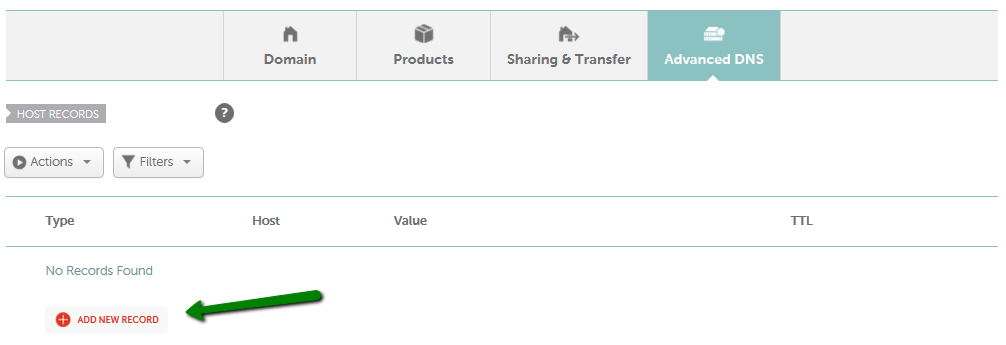
Example of Advanced DNS settings in Namecheap domain management
Source: How do I add TXT/SPF/DKIM/DMARC records for my domain?
Step 3: Create your DMARC record
A basic DMARC record looks like this:
v=DMARC1; p=none; rua=mailto:your@email.com;
What each part means:
- v=DMARC1 → identifies the DMARC version
- p=none → policy (monitor only, no action taken)
- rua=mailto:your@email.com → where reports are sent
Replace the email address with one you control.
Understanding DMARC policies
The policy (p=) defines what happens when an email fails authentication:
- p=none → monitor only (recommended starting point)
- p=quarantine → send suspicious emails to spam
- p=reject → block emails completely
Recommendation:
Start with p=none, review reports, then increase strictness later.
Step 4: Publish the DMARC record
To add your DMARC record:
- Go to your DNS settings
- Add a new TXT record
- Enter the following:
- Host / Name: _dmarc
- Value: your DMARC record
- TTL: Default or Automatic
- Save your changes

Example of a DMARC TXT record in GoDaddy domain management
Allow up to 1 hour for the record to update.
Step 5: Test your DMARC setup
Before testing: Confirm that DKIM and/or SPF are already working
Learn more
- Create DKIM authentication records
- Create SPF authentication record (integrated SMTP only)
Then:
- Use an online DMARC checker tool (such as MXToolbox)
- Verify that your record is detected correctly
Step 6: Monitor and analyze reports
DMARC sends reports to the email address defined in your record.
These reports show:
- Which emails passed or failed authentication
- Which services are sending emails from your domain
Pro tip
Use a DMARC monitoring service like Valimail to make reports easier to understand.
Over time, you can:
- Identify missing SPF/DKIM entries
- Detect unauthorized senders
- Increase your DMARC policy from none → quarantine → reject