
Applies to: WebinarJam and EverWebinar
Use Twilio to send SMS and voice call reminders to your webinar registrants.
This helps you improve attendance with timely reminders, such as a message sent shortly before your webinar starts. You can set up a last-minute reminder to your participants, which will be sent 15 minutes before the webinar.
You Will Need:
- A Twilio account
- The Twilio Account SID and Auth Token
- A Twilio phone number
Set up Twilio
- Go to Twilioand log in or create a new account.
- Trial accounts allow message sending to verified numbers in specific countries only.
- In the account Console, click Get a phone number or go to Phone Numbers > Manage to create one.
- Important: Verify the phone number if required. Unverified phone numbers cannot be used to send notifications.
- In the account Console, get the information you need to integrate with your webinars:
- Account SID
- Auth Token
- Twilio phone number appears in this module when the number is created

Integrate Twilio with WebinarJam/EverWebinar
Connect Twilio with your account to enable SMS and voice messaging reminders for your webinars.
In WebinarJam:
- Go to Profile > Integrations
- Click SMS Gateways
- Enter your Twilio account credentials:
- Account SID
- Auth Token
- Twilio Phone Number (do not include dashes in the phone number)
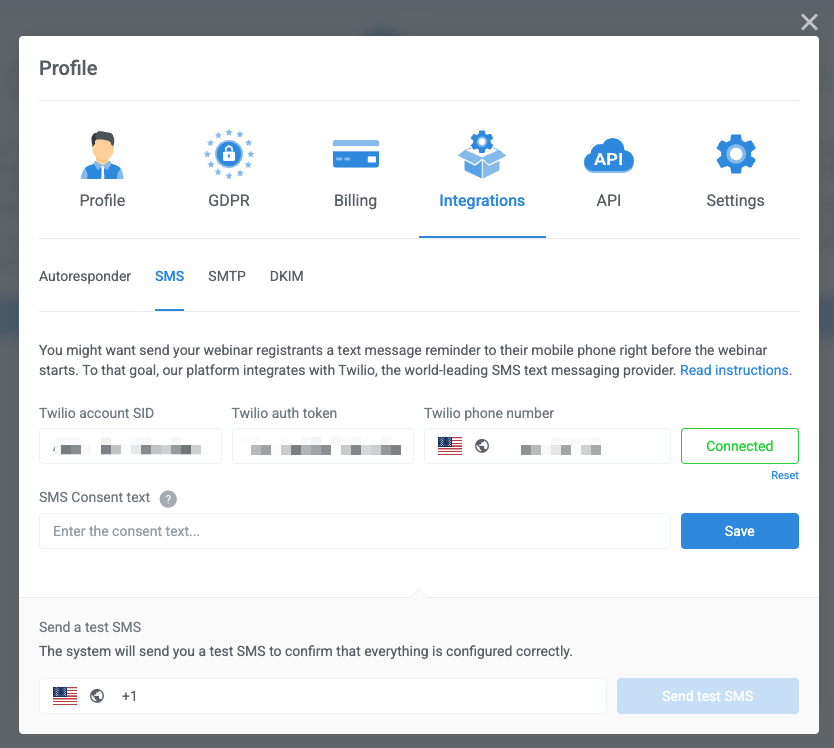
- Click Connect to add the account
Add SMS Consent
In accordance with Twilio's Messaging Policy, opt-in (user consent) is required when sending messages through Twilio. The SMS Consent text box ensures that you obtain user consent before sending an SMS reminder.
By default, the box displays the text: "I consent to receive SMS messages as part of this service." You can change this text as needed.

Test the connection
Send a test SMS to verify that the credentials are correct. Enter a valid phone number and press Send Test SMS. 
To remove the integration or link to a different Twilio account, click the reset link below the Connected status indicator.
Use Twilio in your webinars
After connecting to Twilio, you can:
Troubleshoot delivery issues
Enable international messaging
If you are in a country outside of the United States, you may need to enable global permissions and the country or number range to which you want to send SMS messages. Twilio has global permissions to protect your account from abuse.
- In your Twilio account, look for SMS Geo Permissions
Messages are not delivered
- Refer to Twilio help documentation: Debugging Common Issues with SMS
If the Twilio message log says your messages were sent, the delivery failure may be due to the phone provider. Providers may block certain types of messages or numbers to protect their customers from spam.
If you just created your Twilio account, you may need to confirm your account. If you need help, contact the Twilio support team.