
Applies to: WebinarJam and EverWebinar
Schedule reminders before your webinar and follow-ups after it ends.
Webinar notifications are automated emails sent to people who register for your event.
For each webinar, you can create up to:
- 10 pre-webinar notifications
- 10 post-webinar notifications
These emails help confirm registrations, remind attendees to join, and continue communication after the event.
Types of notifications
Notifications are divided into two groups: pre-webinar and post-webinar.
Pre-webinar notifications
These are sent to all registrants before the event begins.
- Double opt-in confirmation: Sent immediately after someone registers if double opt-in is enabled
- Signup Confirmation Message: Sent immediately after someone registers. (Enabled by default)
- Pre-webinar reminders: Scheduled reminders sent before the webinar start time. You define the timing.
- Last-minute reminder: Sent 15 minutes before the webinar. (Enabled by default)
Pro tip
You can resend the last-minute reminder if you have access to the Control Panel. Learn more about it here.
Post-webinar notifications
These are optional emails sent after the event ends.
You can:
- Configure timing (calculated based on the scheduled start time of the webinar)
- Use them to send a replay link
- Choose who receives them based on attendee behavior
Pro tip
Add a post-webinar follow-up to automatically send a replay to registrants who missed your live session.
Add or edit notifications
To manage notifications:
- Edit your webinar in Full configuration
- Go to Notifications > Reminder notifications
In Express configuration, scroll down to the Reminder notifications section on the same page.

To edit an existing email:
- Click the pencil icon to edit
- Click the envelope icon to send yourself a test email
- Click the X icon to delete (cannot be undone)
To add a new email:
- Click Add email
- Customize the email you want to enable in the editor window
- Save and complete the Notifications step of the wizard
Customization options
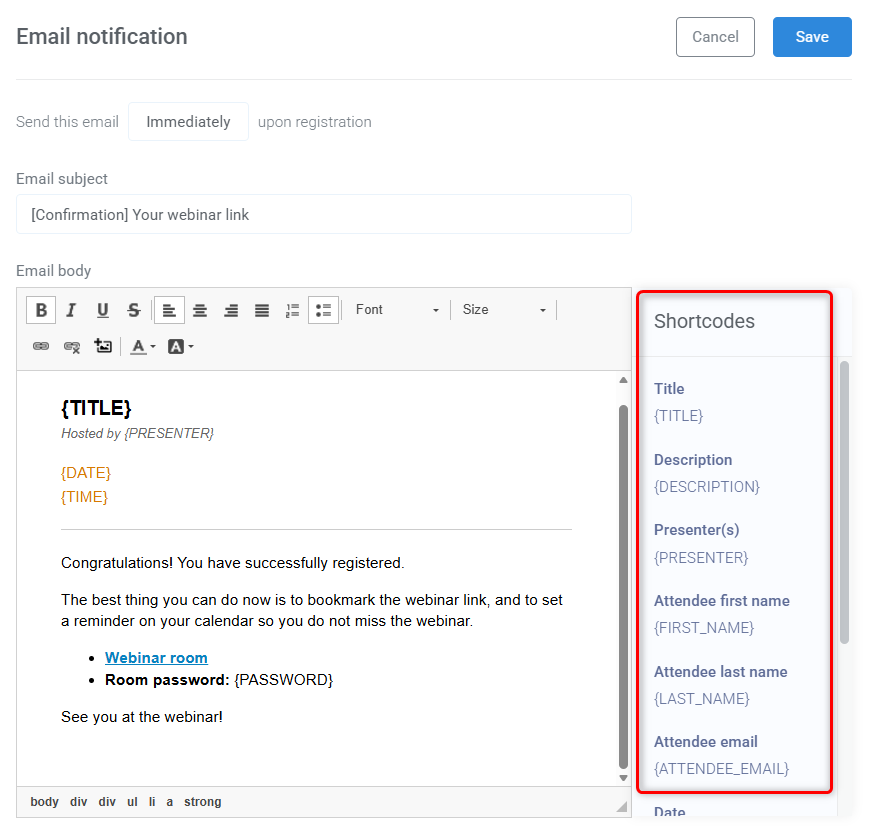
You can customize the subject line, message content, and links using the built-in editor.
The right-hand panel of the editor contains shortcodes you can copy and paste into your email. Shortcodes are variables placed inside {curly_brackets}. They automatically insert webinar or registrant information when the email is sent.
Test emails
At the bottom of the email editor, you can send yourself a test email to review formatting and layout.
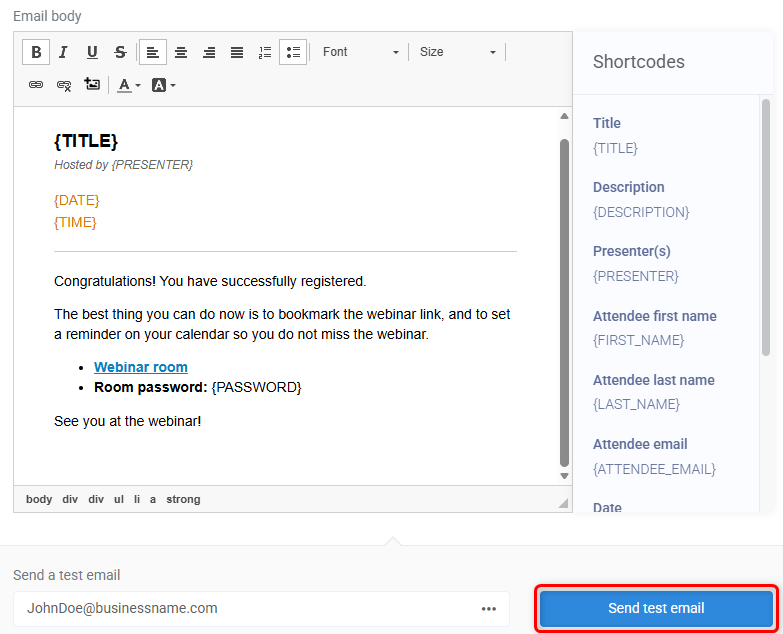
Shortcodes cannot retrieve information in test emails, as they do not include registrant data.
Timing rules
Email notification timing is based on the scheduled start time of the webinar (configured in the Schedules step).

If someone registers after a reminder was scheduled to send, they will not receive that reminder.
Example: If a reminder is set to send 24 hours before the webinar and someone registers 3 hours before the start time, they will not receive the 24-hour reminder.
Follow-up recipients
You can choose who receives each post-webinar email based on how they interacted with your webinar.
Use recipient filters to send follow-ups to:
- All registrants
- Those who attended
- Those who did not attend
- Those who attended and did or did not order
- Those who left before a certain time
- Those who stayed to a certain time but did not purchase

If you send follow-ups based on purchase behavior, the required sales goal tracking codes must be embedded in your sales funnel. Without tracking codes, WebinarJam cannot determine who purchased.
Review notification delivery issues
You can review notification delivery issues in your webinar analytics. To do so:
- Go to Analytics and choose the webinar and session.
- Scroll down to the Notifications section.
- Hover over the Issues column for any notification to understand possible delivery issues.
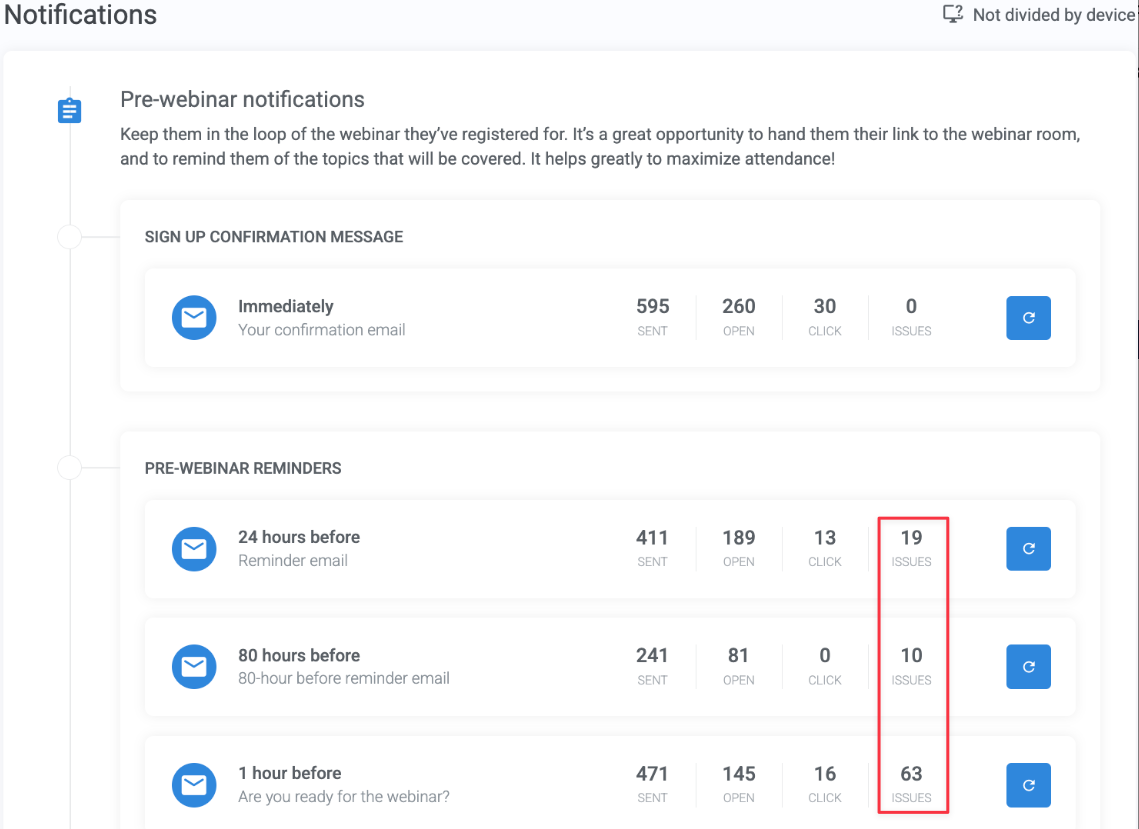
Common reasons include:
- Blacklisted email address
- Deleted lead
- Cancelled subscription
- GDPR not accepted
- Not attended but notification is sent to those who attended
- Attended but notification is sent to those who did not attend
- Did not make a purchase but sent to those who did + vice-versa
- Left before/stayed until configured notification time
- SMS/call notification but the lead is missing their phone number