
Applies to: WebinarJam
Choose the right schedule type depending on your goal.
When setting up a webinar, you’ll choose how and when your sessions run. WebinarJam supports single events, multi-session events, and recurring series, depending on your goal.
Before you begin
Some schedule changes affect existing data. If you’re editing a webinar that already has a schedule, keep in mind:
- Changing the session type (for example, from single session to multiple sessions) deletes the original session from the database. Any files and analytics associated with that session will also be removed. If you need a different schedule structure, create a new webinar instead.
- Changing the date or time of a past session that already has registrants is not recommended. Editing the session resets each registrant’s unique access link, and the link sent in their original confirmation email will no longer work.
- Changing the timezone after sessions have already been created is not recommended. To use a new timezone, you must delete the existing sessions and create new ones. Deleting sessions also removes all associated data, including registrants and replays.
Create the schedule
To configure scheduling:
- Edit your webinar
- Go to the Schedules step and edit Webinar schedule
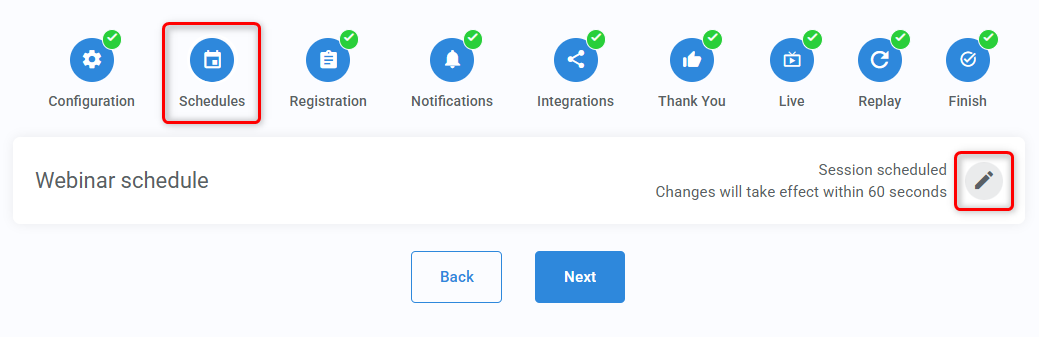
- Choose the schedule type
- Select your date(s), time(s), and number of sessions, if applicable.
- (Optional) Disable/enable time-zone conversion
- Save
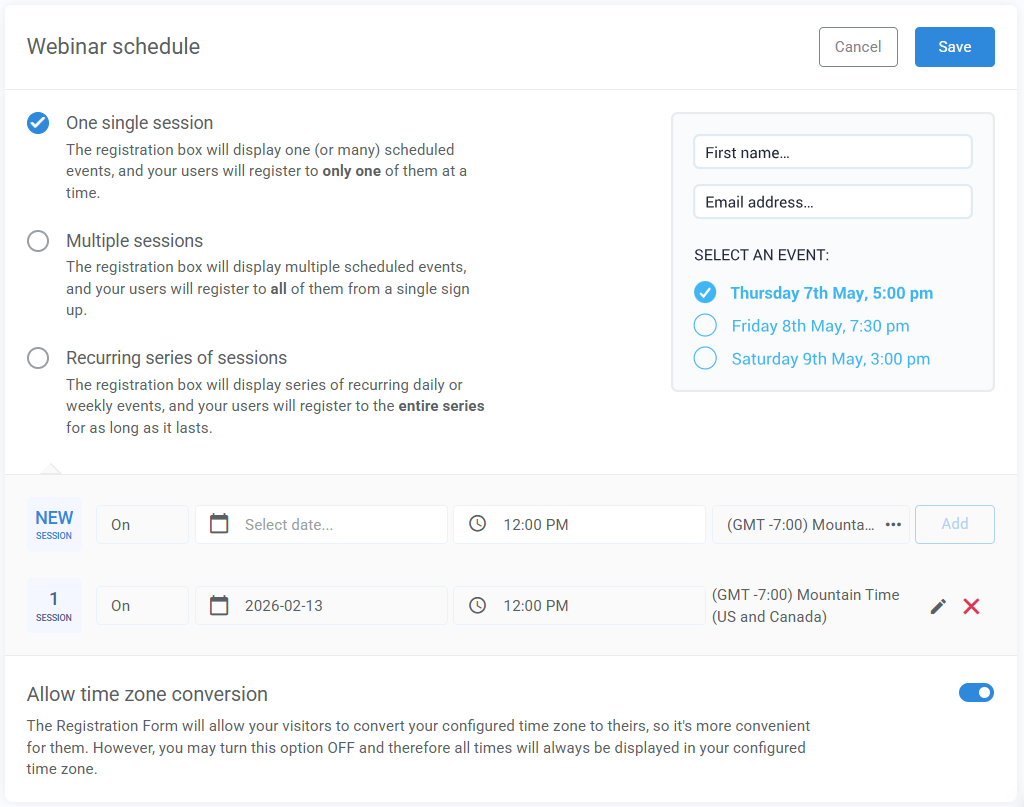
Choosing a schedule type
Choose one of the following schedule types based on how your webinar will run.
Single session
Use single session when you have one presentation that you want to run once or repeat on different dates or at different times.
How it works:
- You create one or more date and time options
- Registrants choose a single session to attend
Best for:
- A one-time live presentation or announcement
- An introductory class or demo
- A live Q&A session
Multiple sessions
Use multiple sessions when your webinar consists of several different but related presentations.
How it works:
- You create multiple sessions with different dates and times
- Attendees register once and attend all sessions
Best for:
- Workshops or programs with non-uniform dates or times
- Courses where sessions don’t follow a daily or weekly pattern
- Events with gaps between sessions
- Training spread across specific dates you want full control over
Recurring series of sessions
Use a recurring series when you want to run the same presentation on a repeating schedule.
How it works:
- Attendees register for a daily or weekly series
- The series can run for a limited number of sessions or indefinitely
- You can create more than one recurring series in the same webinar
Best for:
- Events that run on a predictable daily or weekly schedule
- Office hours or weekly Q&A sessions
- Ongoing demos or presentations offered on the same cadence
- Training that repeats
To create a recurring series:
- Select your preferred recurrence and the time of the event: every day, or on a specific day of the week
- Choose Unlimited or Limited to define how long the series runs
- If limited, enter the number of sessions
- Click Add to create the series
You can create multiple series.
Example: One series runs every Monday, and a second series runs every Wednesday.

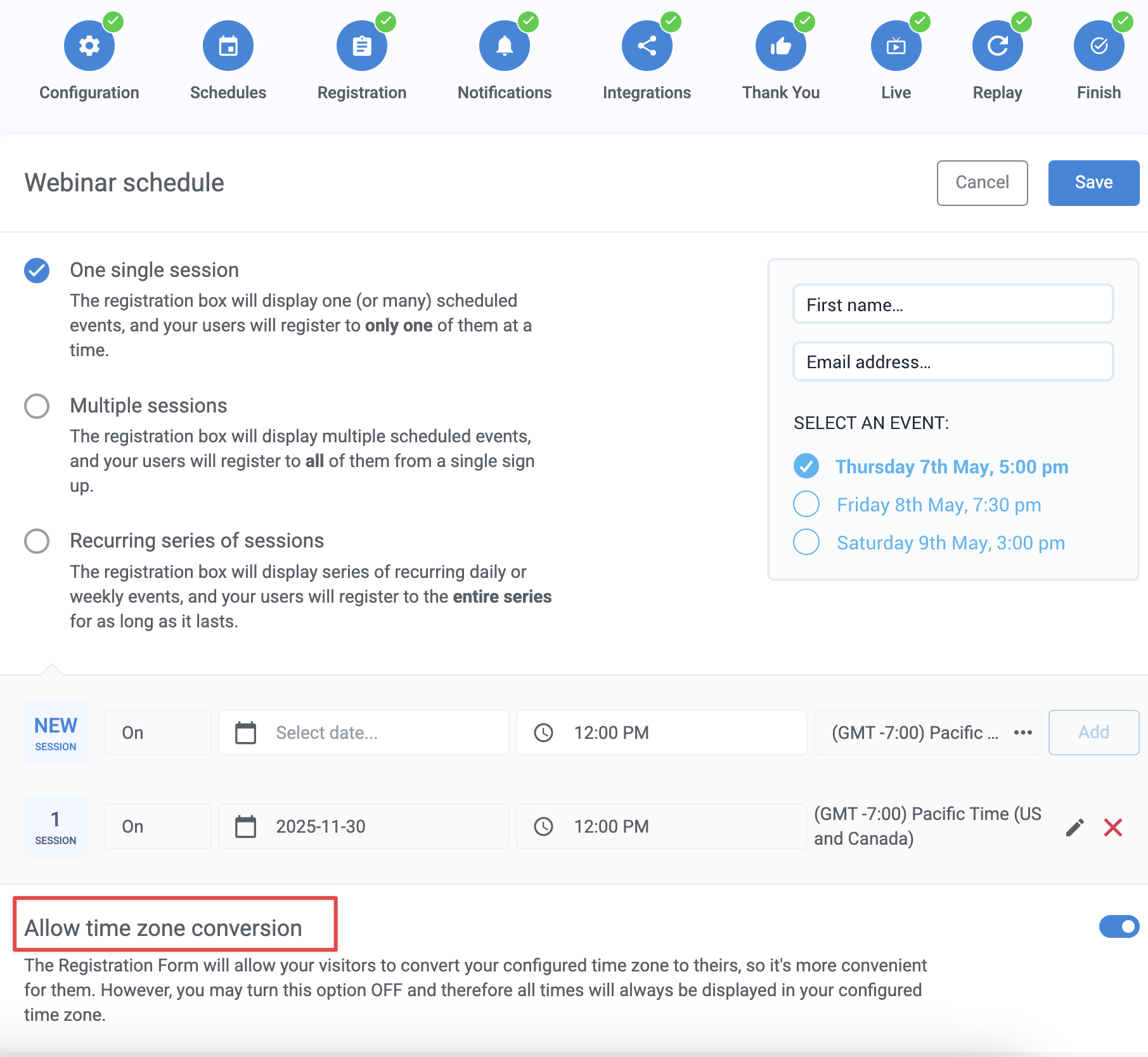
Allow Time Zone Conversion
Time zone conversion controls how session times are displayed to viewers.
When enabled, WebinarJam allows visitors to show the webinar time in their local timezone on:
- the registration page
- in email notifications
The registration page and form will show the configured timezone. However, the visitors will get an option to select their timezone from a dropdown on the registration form. Time zone conversion is on by default. Turn it off if you prefer to display all session times in a single, fixed time zone.
Pro tip
The time format shown to viewers (12-hour or 24-hour) depends on the language and country selected in the webinar configuration.
Learn more about time formatting settings.