
Applies to: WebinarJam
You can choose YouTube Live as the streaming service for a live webinar if you want to broadcast your event directly to a YouTube channel, in addition to the WebinarJam live room. This option is entirely optional and is best suited for users who already have an active YouTube presence.
When a webinar is streamed through YouTube Live:
- The live broadcast is automatically published to the connected YouTube channel when the event starts
- The recording is saved to the channel when the webinar ends
- Live room elements configured in WebinarJam (such as polls, offers, and other widgets) are only visible in the WebinarJam live room and do not appear on YouTube
By default, YouTube live broadcasts are public. To restrict viewing to people with a direct link, you’ll need to adjust the video visibility settings in YouTube.
Before you begin
If your YouTube channel is not approved for live streaming, the connection in WebinarJam will fail.
Before connecting WebinarJam to YouTube Live, the following requirements must be met:
- You’re signed in to the correct Google account and YouTube channel you want to use for the broadcast.
- Your YouTube channel is approved for live streaming.
If your channel isn’t already approved for live streaming:
- Go to YouTube
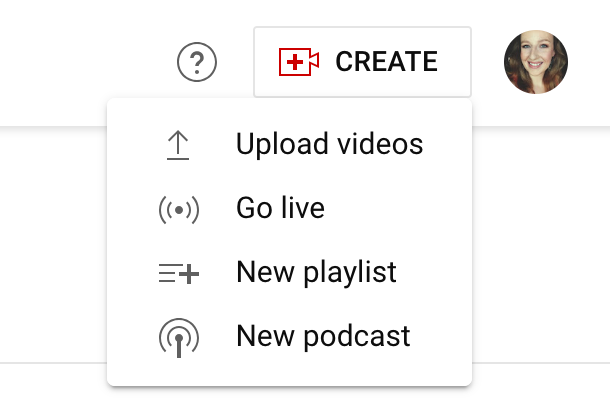
- Click Create in the top-right corner
- Select Go live and follow the on-screen steps to verify your channel
Starting your first live stream may take up to 24 hours after verification is complete.
Learn more about getting started with live streaming.
Configure your YouTube account
Enable required channel features
- Log in to the YouTube account you want to use for live streaming
- Go to YouTube > Settings
- Select Channel and then Feature eligibility
- Enable Standard features and Intermediate features

Set default upload visibility (recommended)
Live webinars streamed through YouTube are automatically uploaded to your channel. To prevent them from appearing in YouTube search results or recommendations, you can change the default upload visibility.
- In Settings, go to Upload defaults
- Under Visibility, select Unlisted
This setting only applies to new uploads. You can still change visibility for individual videos later if needed.

Connect WebinarJam to YouTube
To connect WebinarJam to YouTube Live:
- Open the webinar you want to edit in your WebinarJam account
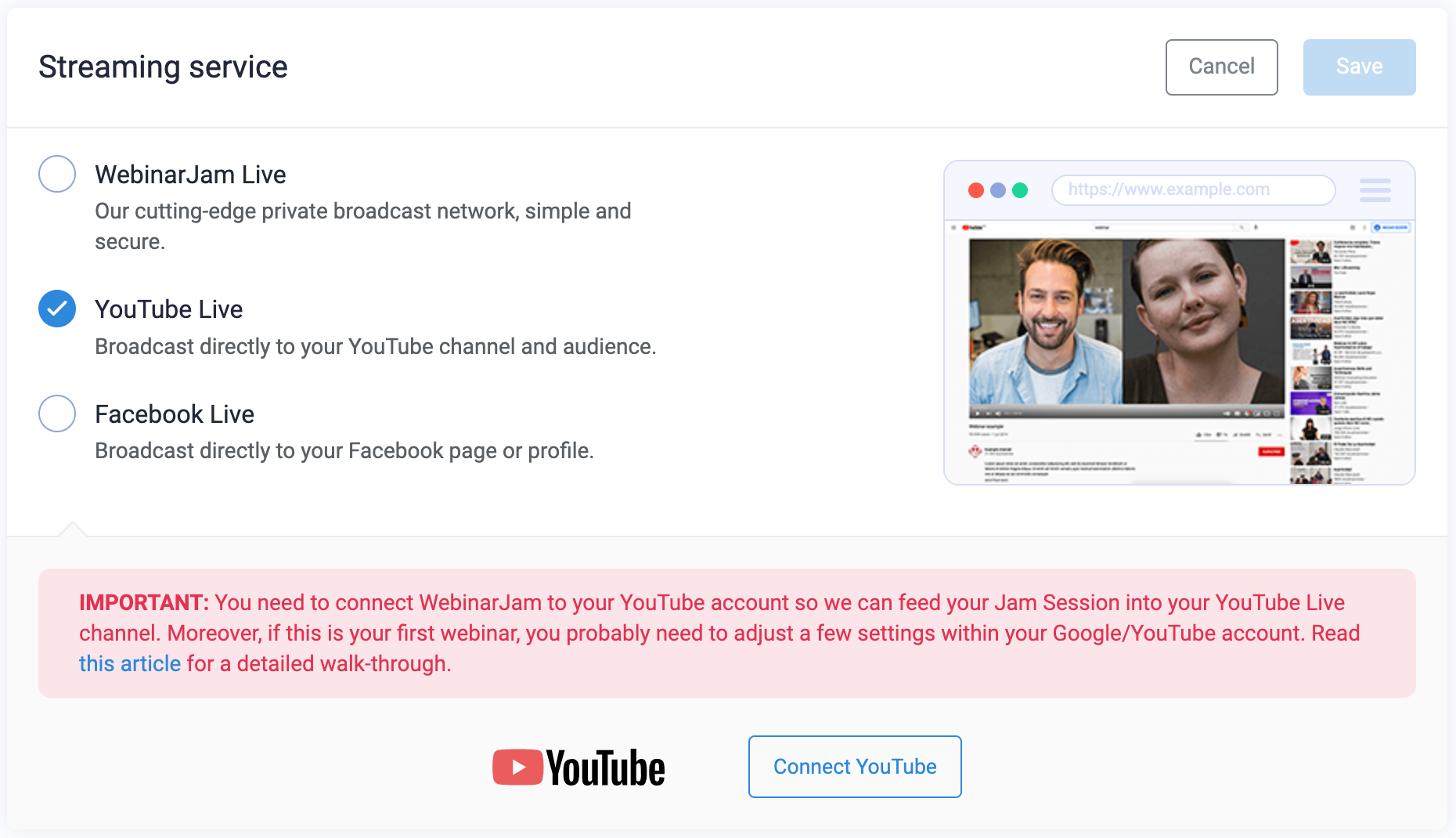
- In the Configuration step of the webinar wizard, open the Streaming service module
- Select YouTube Live and click Connect YouTube
- Log in to Google in the pop-up window
If you’re already logged into a Google account, you’ll see an authorization prompt immediately.
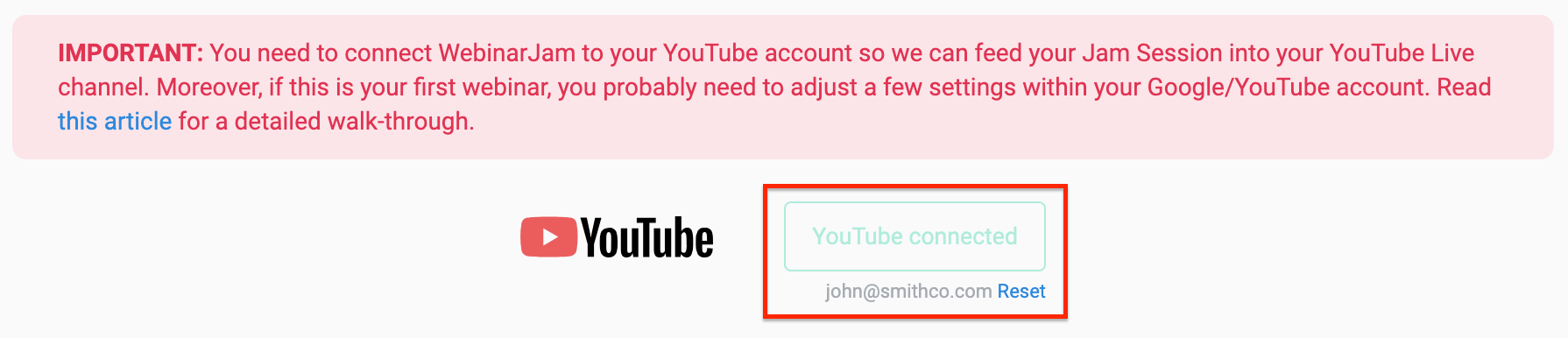
Once the connection is successful:
- A confirmation message appears in WebinarJam showing the connected account email address.
- You can use Reset if you need to remove the connection and sign in with a different account.
Test the webinar
Before promoting your event, it’s recommended to test the YouTube Live connection.
- Clone the webinar you’ve configured
- Launch the clone in the WebinarJam live room as the host or presenter
- Click Go Live to start the broadcast
- In a separate browser or device, join the webinar as an attendee
If you see the broadcast video from both views, the setup is working correctly.
Note: When streaming through YouTube Live, the YouTube logo appears in the lower-right corner of the video. This behavior is controlled by YouTube and can’t be changed.
Troubleshooting
“Playback on other websites has been disabled by the video owner”
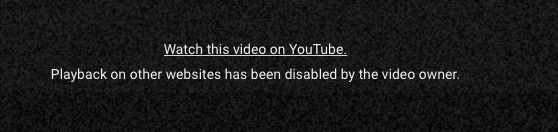 If you see this message in the WebinarJam live room, your YouTube account isn’t configured correctly for embedding.
What to check:
- Confirm you’re using the correct YouTube channel
- Make sure the channel is properly associated with your Google account
If the issue persists after checking these settings, contact YouTube Support for further assistance.
“YouTube misconfiguration” error
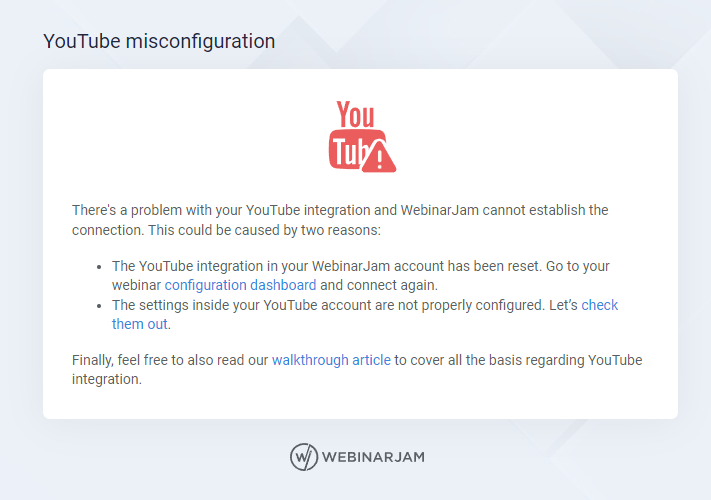
This error indicates a problem with the YouTube connection.
What to check:
- Open the webinar wizard and go to the Streaming service section
- Confirm you’re logged into the same YouTube account shown on the Connect YouTube screen
- Review your YouTube account settings to ensure all required features are enabled
After making any changes, reopen the presenter link and try launching the live room again. If the issue persists after checking these settings, contact YouTube Support for further assistance.