
Applies to: WebinarJam
The live room is where you host and manage your webinar in real time. From here, you can control your presentation, interact with attendees, and manage the entire session.
Below is a video walkthrough of the live room.
Before you go live
Access the live room using your presenter link.
- The room opens in Off Air mode for setup
- The webinar starts only after you click Go Live
- You have up to 60 minutes to prepare before the room expires
Before starting:
- Test your camera and microphone
- Close unnecessary apps and tabs
- Use headphones to avoid audio feedback
- Ensure a stable internet connection
Important: You can launch the live room early to make sure everything is prepared. The live broadcast will not begin until the host clicks the "Go Live" button inside the room. The room will stay off air for up to 60 minutes.
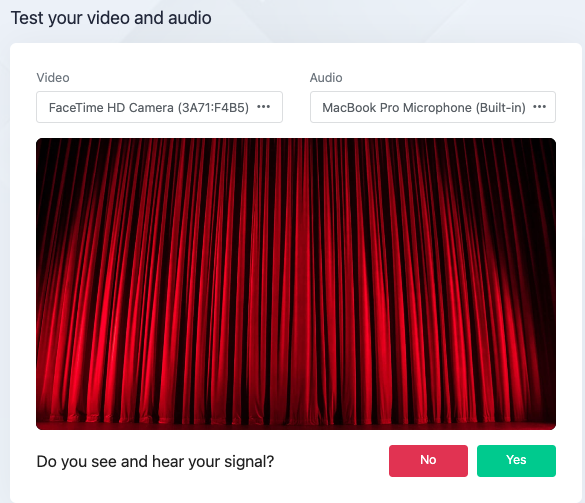
Test your audio and video
You will be prompted to test your camera and microphone when you enter the live room. You can turn them on or off at any time during the webinar.
- Your browser may ask for permission to access your camera and microphone. Allow access to continue
- WebinarJam automatically detects your camera and microphone. Use the drop-down menus to select a different device if needed
- If you can see your video and hear audio, click Yes to confirm
- If not, click No to retry the test
- If the test fails:
- Click the camera icon in your browser’s address bar
- Check if your camera or microphone is blocked
- Make sure the correct devices are selected
- Check your system and headset volume
- Reload the page after making changes
Presenter controls
All presenter tools are located at the top of the screen.
You can:
- Turn the camera on or off
- Turn the microphone on or off
- Apply background effects or blur
- Share your screen
- Use the whiteboard
- Change the camera and microphone devices
Start the webinar

- Click Go Live to start or end the webinar
- Use the Panic button (if available) to refresh the room during issues
Check your plan
The panic button is available in WebinarJam Professional and Enterprise plans. Learn more about using the panic button in a webinar.
Manage presenters
Each presenter appears as a video tile in the live room.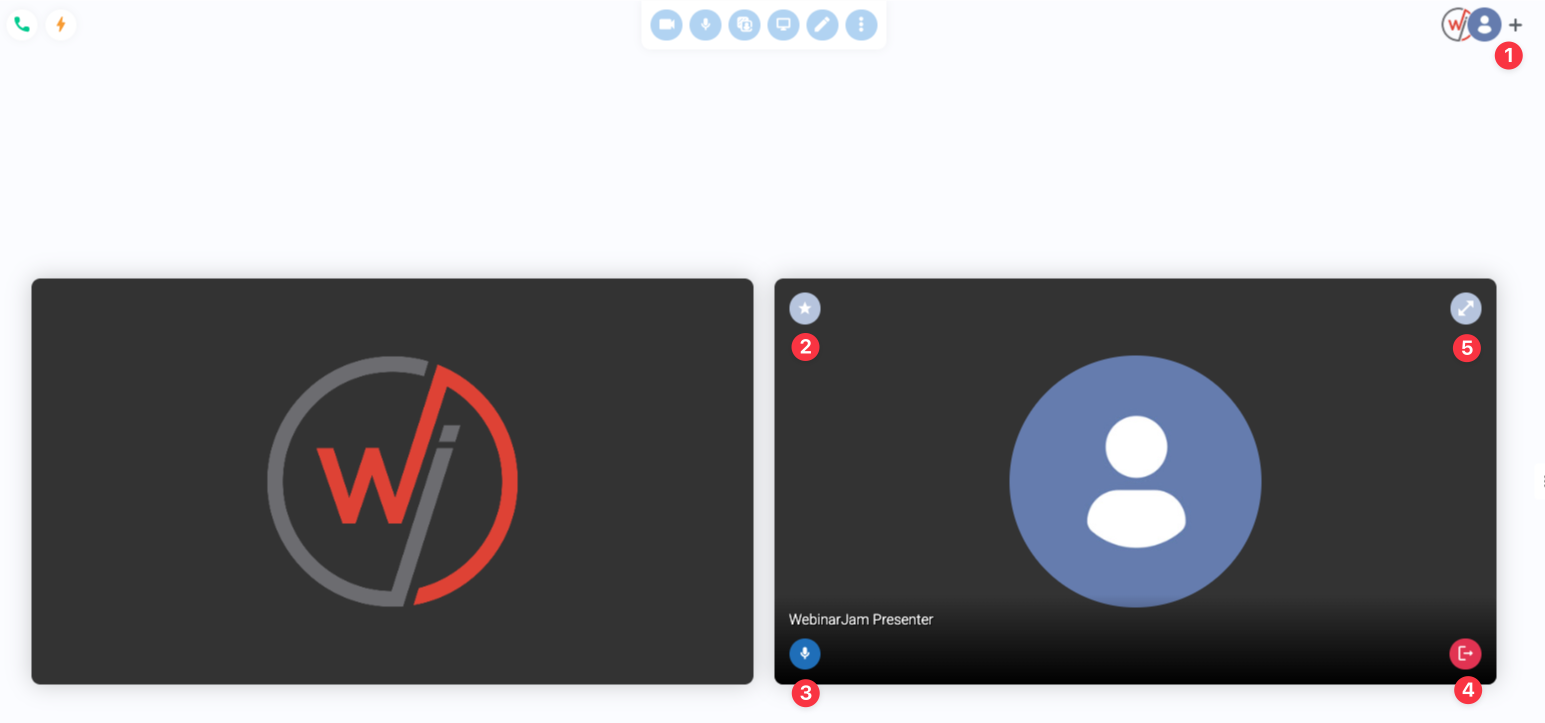
You can:
- Invite presenters using the + button
- Manage permissions (promote to admin)
- Turn off a presenter’s camera or microphone
- Remove presenters from the room
- Maximise a presenter
Maximize a presenter
The room owner can highlight a speaker by maximizing their video feed.
- Click the maximize icon on a presenter’s video tile
- Presenters can maximize or minimize themselves
Use this to focus attention on a single speaker during key moments.
Use chat and moderation
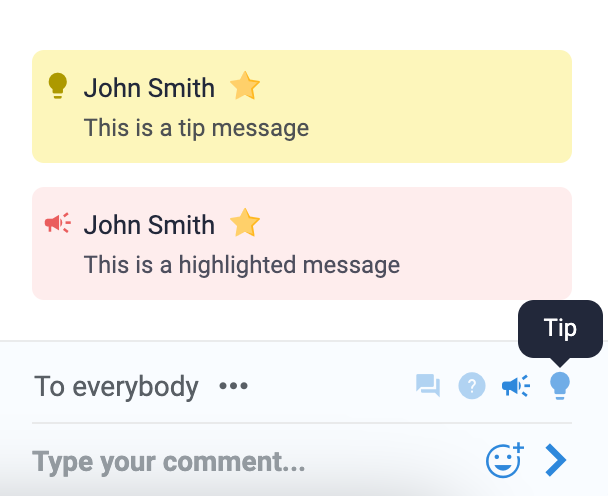
The chat panel is on the right side of the screen and contains all webinar messages. Presenters are identified in the chat by a star next to their name.
You can:
- Send messages to the public room and join the conversation
- Send highlighted messages (red in-line callout)
- Send tip messages (yellow in-line callout)
- Post sticky messages that remain on the screen
- Chat privately with administrators
- Chat privately with individual attendees
- Switch to Q&A mode to organize attendee questions and responses.
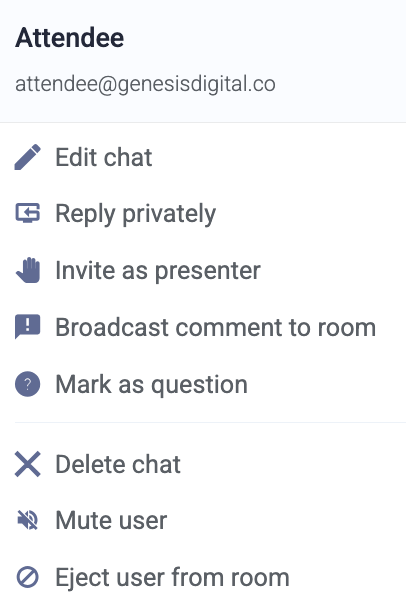
Some of the actions a presenter can take for attendees' messages include:
- Delete messages
- Mute users
- Remove users from the webinar
- Broadcasting a user's comment to the room
Chat limits and behavior
Chat activity is limited to prevent spam. Limits reset every 5 seconds:
- Attendees: Limit is 3 messages within 5 seconds
- Presenters and moderators: Limit is 5 messages within 5 seconds
→ Only the first 2,000 attendees can access chat
→ Attendees joining after that limit cannot use chat
Manage live room settings
Open Settings from the sidebar to control the experience.
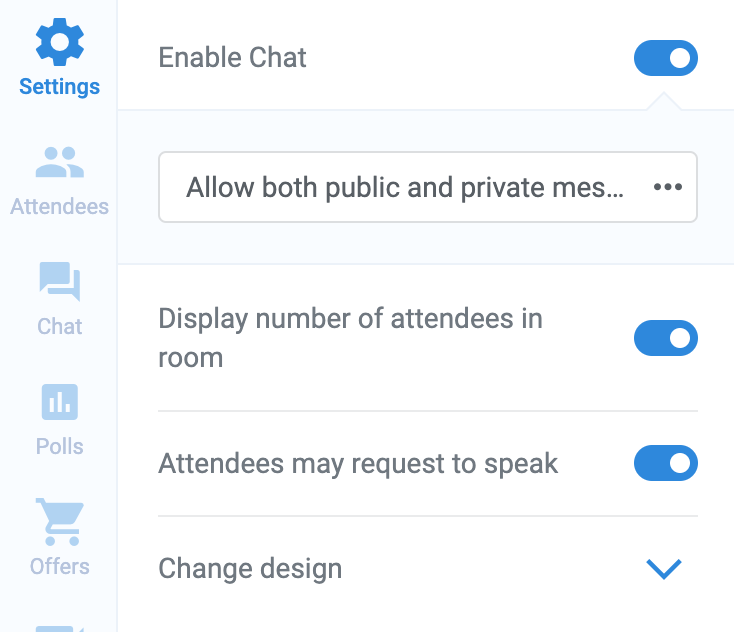
You can:
- Enable or disable chat
- Allow public or private messaging
- Show or hide attendee count
- Enable or disable “Request to speak”
- Customize the room design and branding
Manage attendees
Use the Attendees tab to view and manage participants.
You can:
- View all current attendees
- Refresh the list for real-time updates
- Redirect attendees to a URL during the webinar
Use live injections
Access injections from the sidebar to enhance your webinar.
You can:
- Launch pre-configured content
- Create new content during the webinar
Available injections include:
- Polls
- Offers
- Video injections
- Slide presentations
- File handouts
- Agenda
Use slide presentations
You can present slides using the live room. When you select a presentation:
- It opens in a preview panel before going live
- Click Start to replace the main video broadcast with your slides
Add movement to slide presentations
Transitions and animations from the source file won’t import to WebinarJam. You can add slide transitions in the live or control room.
In the preview panel:
- Choose a transition style or none
- Click Next to move between slides
- Change transitions at any time before advancing
Use agenda and notes
The Agenda tab is visible only to presenters.
You can:
- View your planned flow
- Update notes during the session
Monitor room status
The Off Air indicator shows when the webinar has not started. A room expiration timer appears before going live. The timer updates once you go live to reflect your session duration.
