
Applies to: WebinarJam and EverWebinar
Personalize your webinar emails by automatically inserting details like the attendee’s name, webinar date, or join link.
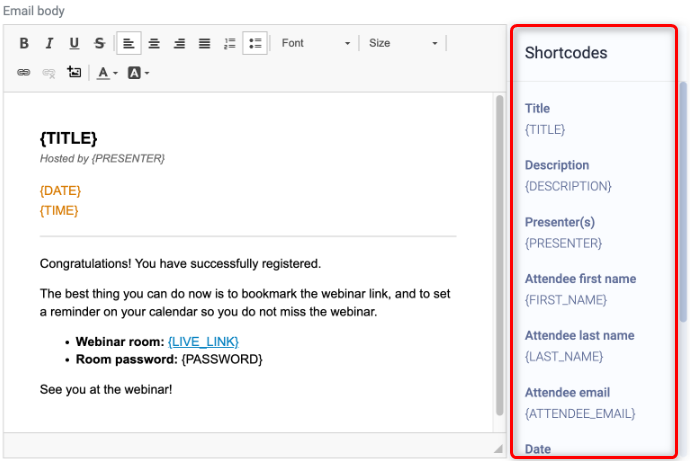
Shortcodes are variables placed inside {curly_brackets} that automatically retrieve webinar or registrant information when the email is sent.
For example:
- {TITLE} will display the public title of your webinar.
- {FIRST_NAME} might display as John in the recipient’s inbox.
Where to find shortcodes
When editing a webinar notification email:
- Open the email editor.
- Look at the right-hand panel.
- Copy the shortcode you want to use and paste it into your email content.
Important:
- Shortcodes must be used exactly as shown. Always copy and paste them from the right-hand panel.
- If altered (even slightly), the system cannot recognize them and the value will not populate.
Available shortcodes
The following shortcodes are available in webinar emails.
Webinar-related shortcodes
| Shortcode | Description |
| {TITLE} | Webinar public title |
| {DESCRIPTION} | Webinar public description |
| {PRESENTER} | The host's and other presenters' names |
| {DATE} | Date of the upcoming webinar |
| {TIME} | Broadcasting time |
| {CONFIRM_LINK} | Double opt-in confirmation URL (if enabled) |
| {LIVE_LINK} | Unique live room URL |
| {PASSWORD} | Room password (if enabled) |
| {REPLAY_LINK} | Replay link (if enabled), available for post-webinar emails |
Registrant-related shortcodes
| Shortcode | Description |
| {FIRST_NAME} | Recipient's first name |
| {LAST_NAME} | Recipient's last name |
| {ATTENDEE_EMAIL} | Recipient's email address |
Create a clickable Join or Replay hyperlink
To create a hyperlink using {CONFIRM_LINK}, {LIVE_LINK} or {REPLAY_LINK}:
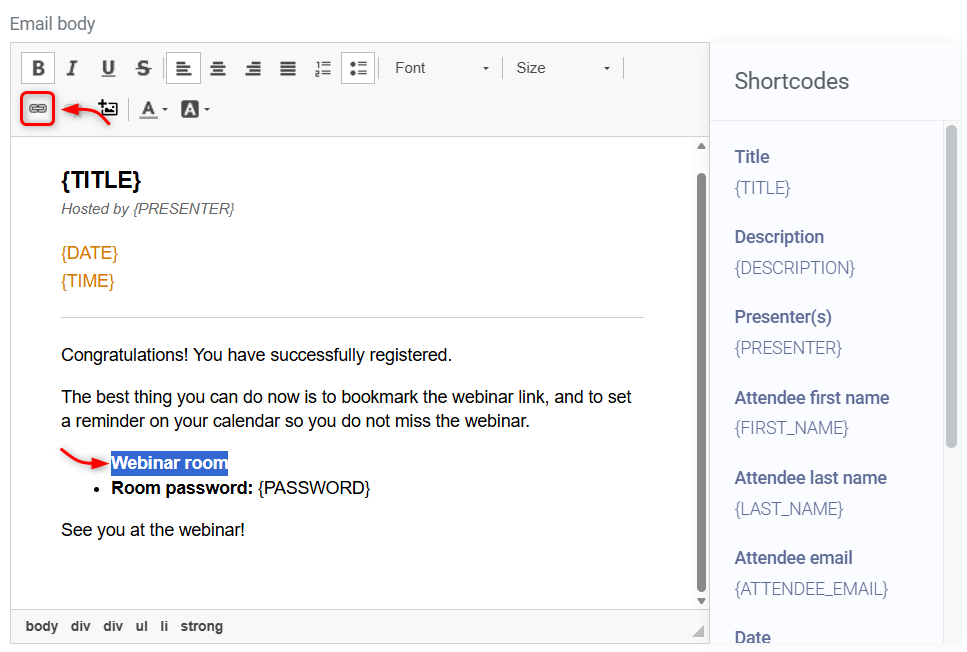
- Highlight the text you want to link
- Click the hyperlink icon in the editor
- Choose the protocol: <other>
- Enter the appropriate shortcode in the URL field
- Keep in mind: {REPLAY_LINK} only works with post-webinar notifications
- Click OK to save.
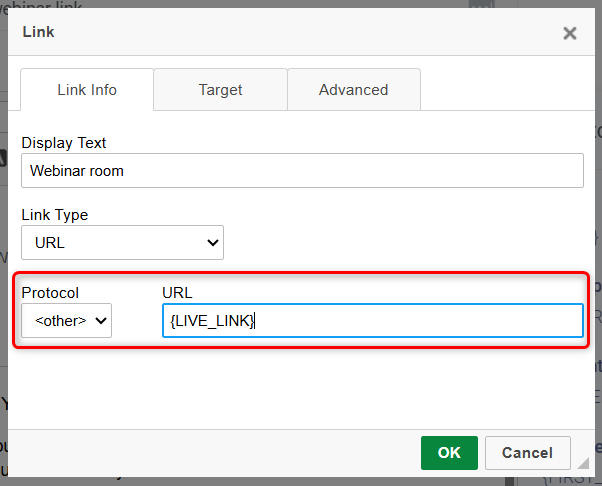
- Make sure there are no spaces before or after the shortcode in the URL field. Extra spaces can break the generated link.
- If you later edit the hyperlink and see %7b or %7d instead of { or }, this is not something to worry about. These are an encoded version of the curly brackets. The system will still generate the correct link when the email is sent.
Test your personalized emails
Shortcodes do not populate in test emails sent from the editor because test emails do not include full registrant data.
To properly test shortcodes:
- Register for your webinar as an attendee.
- Use the Run a test registration link.
- Check the live notification email in your inbox.
This allows you to confirm that shortcodes are working correctly without affecting your live event analytics.