
Applies to: WebinarJam and EverWebinar
You can install Google Tag Manager (GTM) to manage tracking scripts and marketing tags for your webinar pages.
This article explains how to add your Google Tag Manager container to a webinar.
In Google Tag Manager
Follow the instructions from Google Support documentation to create a Tag Manager account and a container for your webinar pages.
- Read: Set up and install Tag Manager (Google Support)
- Choose the container type Web and AMP
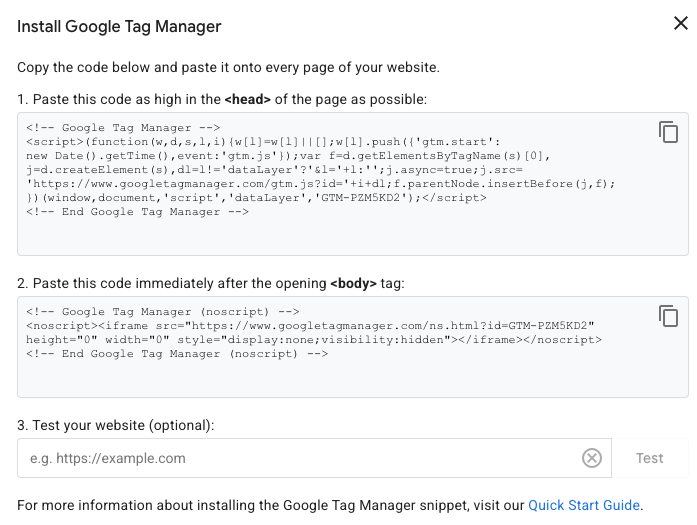
When the setup is complete, Tag Manager will provide you with two code snippets.
In WebinarJam or EverWebinar
- Find the event you want to track
- Click Edit to access the webinar configuration
- Go to the Integrations step and open the 3rd party tracking systems module
- Add both Tag Manager codes to the registration and thank you page fields
- Paste the code snippets one after the other in the same field. There is no accessible <head> or <body> section to place the codes in.
- Add the code snippets to any other fields you wish to track
