
Applies to: WebinarJam
You can choose Facebook Live as the streaming service for a live webinar if you want to broadcast your event directly to a Facebook Page or profile, in addition to the WebinarJam live room. This integration is optional and is typically used by users who want to reach an existing audience on Facebook.
When a webinar is streamed through Facebook Live:
- The live broadcast is automatically posted to the selected Facebook Page or profile when the event starts
- The recording remains available on Facebook after the webinar ends, based on your visibility settings
- Live room elements configured in WebinarJam (such as polls, offers, and other widgets) are only visible in the WebinarJam live room and do not appear on Facebook
Before you begin
Before connecting WebinarJam to Facebook Live, make sure:
- You’re logged into the correct Facebook account that manages the Page you want to stream to
- You have permission to post videos to that Page
- The Facebook Page or profile you want to stream to meets Facebook’s requirements for live streaming
- Review and confirm visibility settings before going live. Depending on your Facebook privacy settings, live broadcasts may be publicly visible.
- Broadcasting to Facebook Groups is not supported. Only Facebook Pages and profiles can be used.
Connect WebinarJam to Facebook Live
To connect WebinarJam to Facebook Live:
- Open the webinar you want to edit in your WebinarJam account
- In the Configuration step of the webinar wizard, open the Streaming service module
- Select Facebook Live and click Connect Facebook
- Log in to Facebook in the pop-up window
- If you’re already logged into Facebook, you’ll see an authorization prompt immediately.
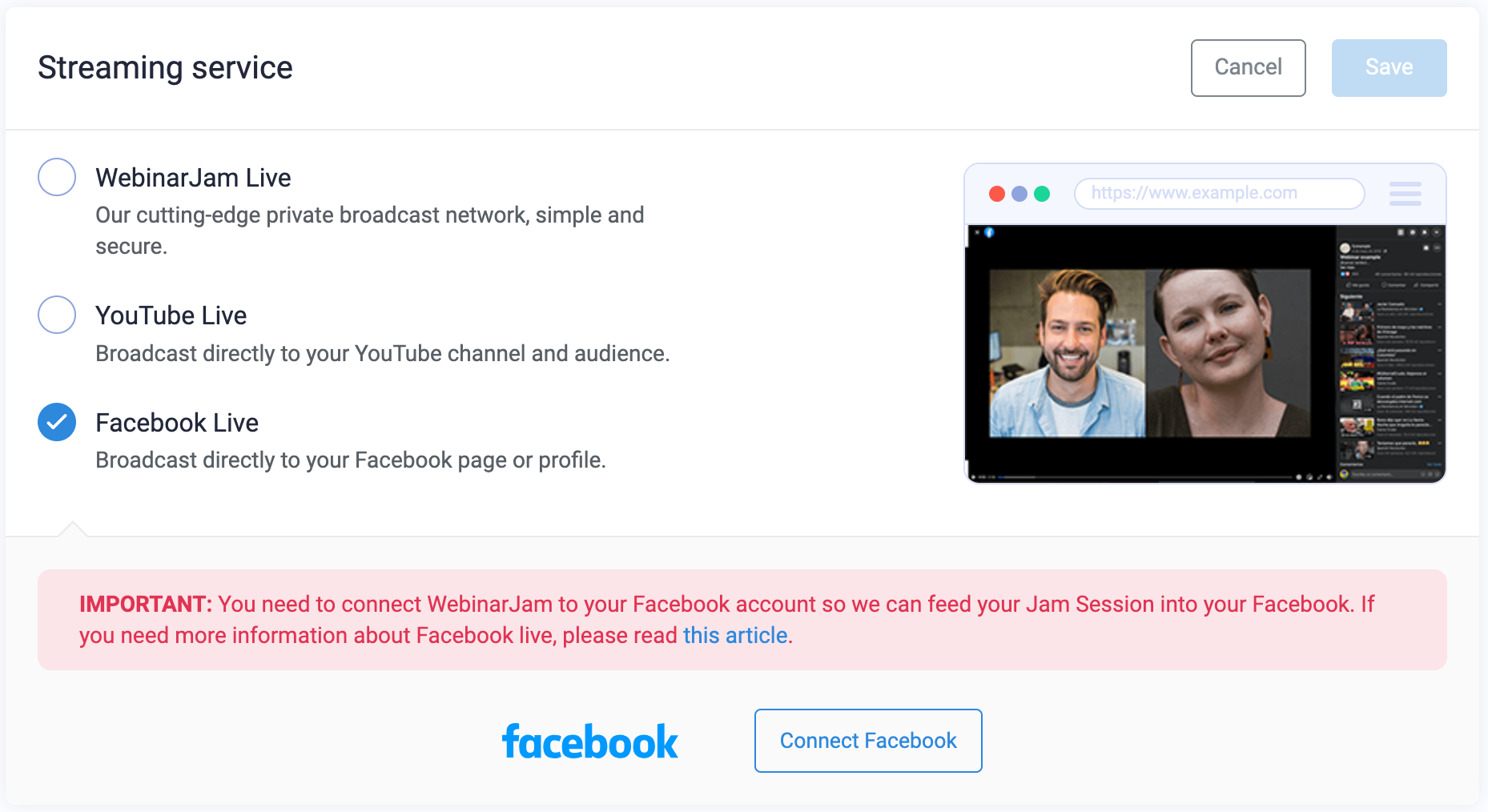
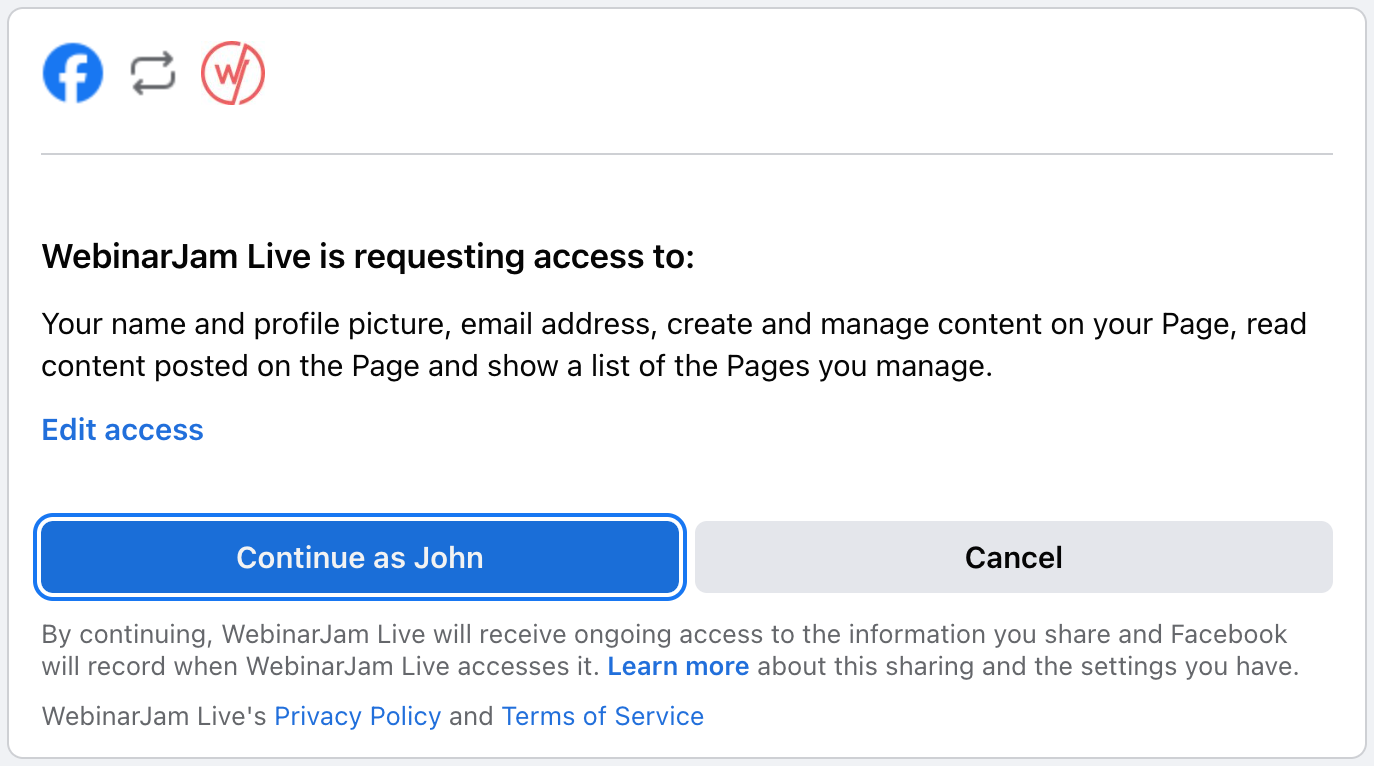
Authorize Facebook access
During the authorization process:
- Click Edit access to select which Facebook Pages WebinarJam can post to
- Review page permissions carefully to ensure video posting is allowed
- Click Continue as [your name]
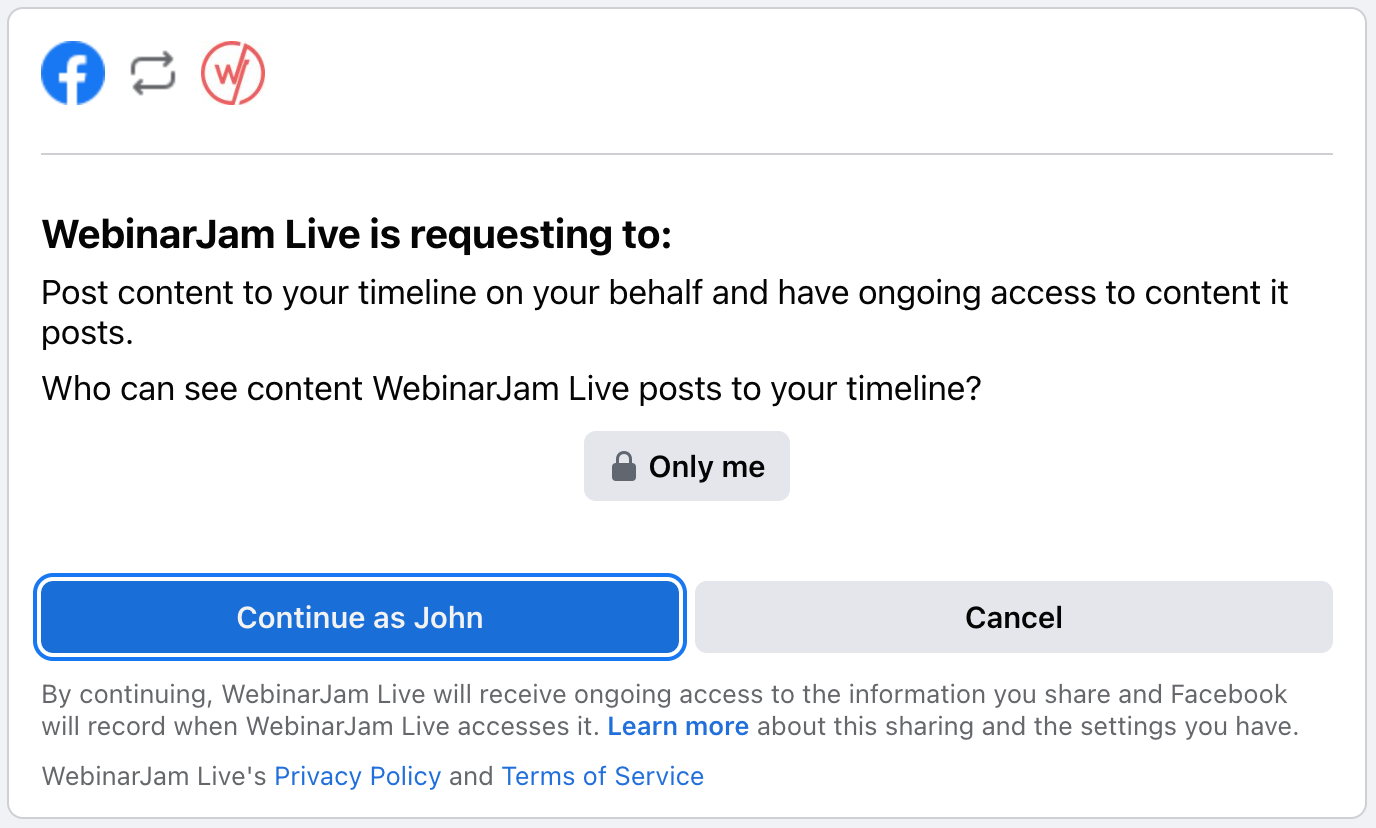
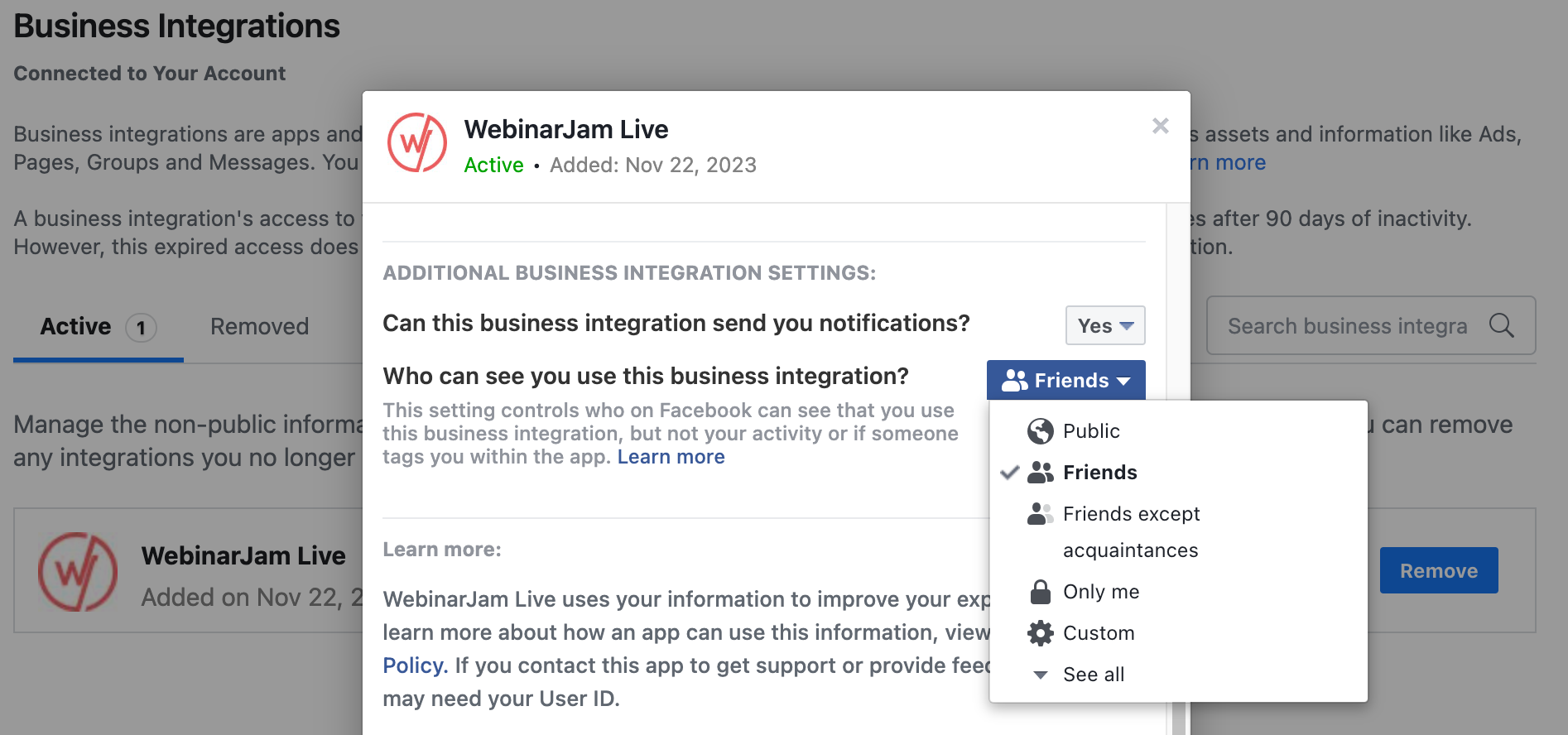
Before you click Continue as [your name] again on the next screen, choose who can see WebinarJam Live posts on Facebook and set the visibility level.
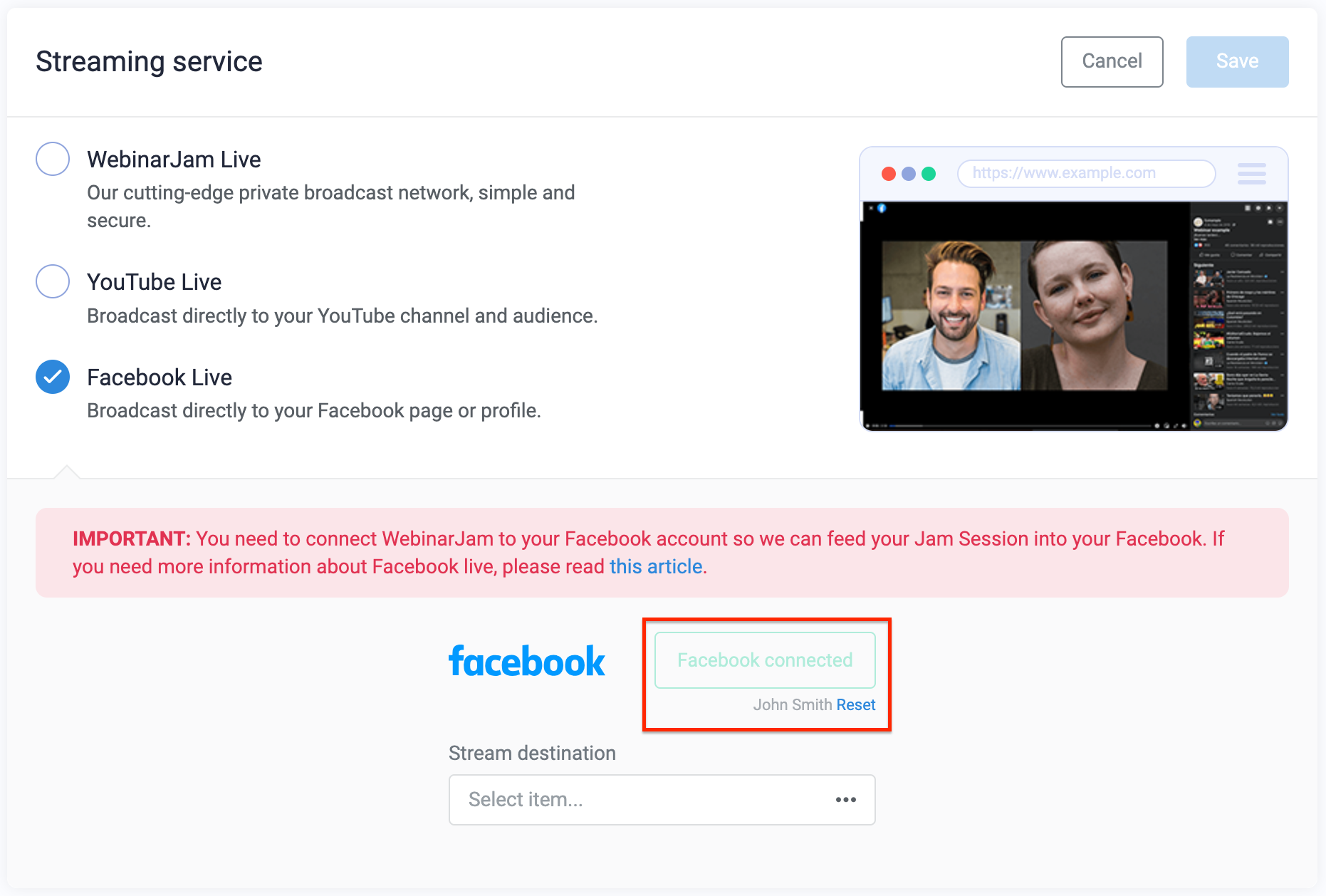
When authorization is complete:
- A green Facebook connected status appears in the webinar setup.
- The Stream destination dropdown lets you select the Facebook Page or profile your webinar will stream to.
- You can click Reset if you need to disconnect the Facebook account
Manage Facebook visibility and connection
To edit Facebook permissions or visibility settings:
- Log in to Facebook
- Go to Settings > Business Integrations
- Locate WebinarJam Live and select View and edit to change visibility
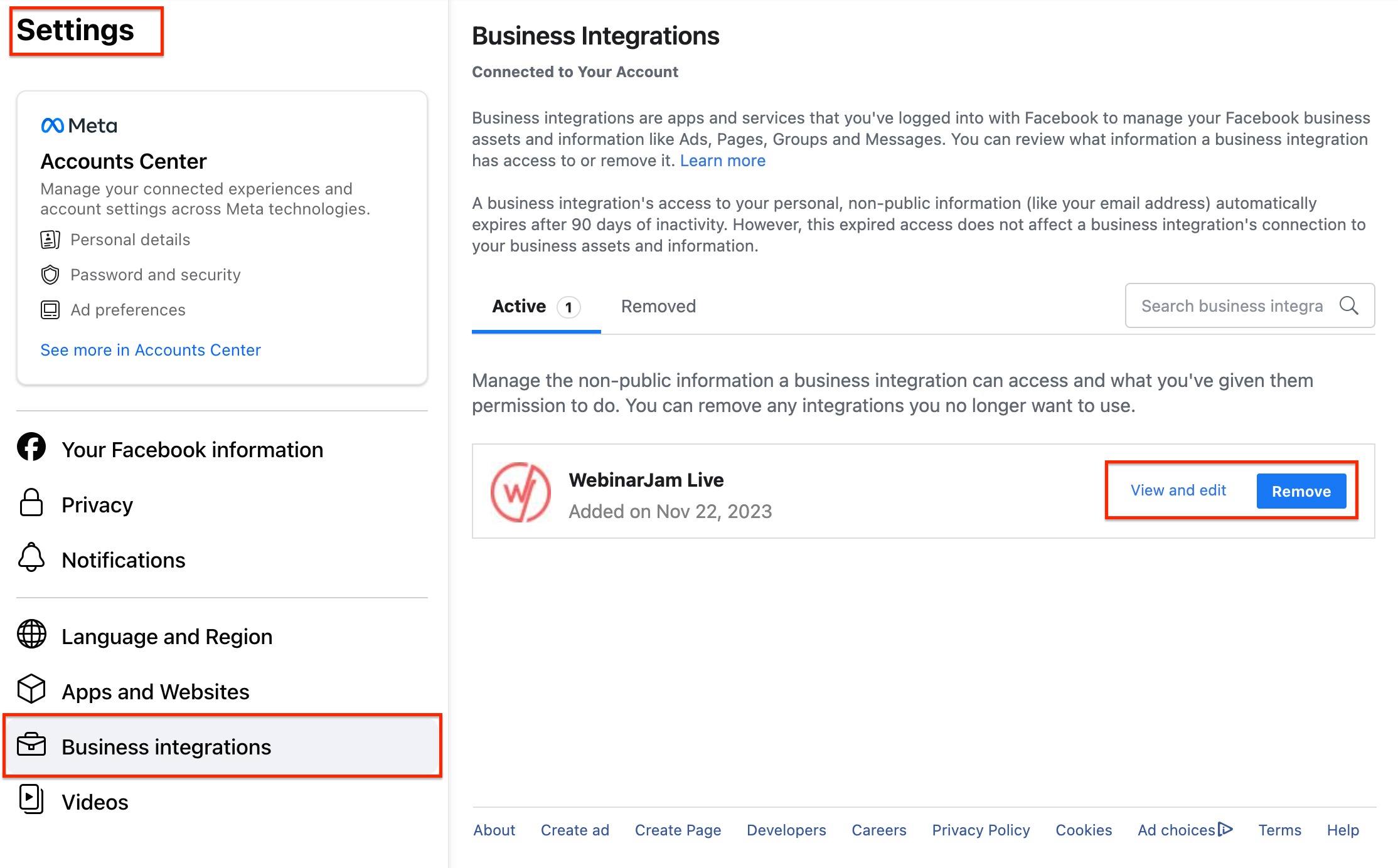
If you want to revoke WebinarJam’s access entirely:
- Log in to Facebook
- Go to Settings > Business Integrations
- Locate WebinarJam Live and select Remove
Disconnecting the Facebook account can impact other webinars using the same connection. After resetting or removing access, review all connected webinars to avoid unintended interruptions.
Test a Facebook Live webinar
Before promoting your event, test the Facebook Live connection.
To start your test:
- Set post visibility to a restricted option (such as Only me) in Facebook. This ensures that your test doesn’t have an audience.
- Launch the webinar from your WebinarJam account
- Enter the live room as the host or presenter
- Click Go Live to start the broadcast
- Visit the selected Facebook Page or profile to confirm the stream is visible