
Applies to: WebinarJam and EverWebinar
Add polls or quizzes to a webinar to survey your attendees and prompt engagement with your presentation.
To configure a poll, go to the Live step of the webinar configuration.
WebinarJam
Add a Poll
- Go to the Live step of the webinar setup.
- Open Polls and quizzes and click Add new poll
- Add the poll question
- Add answer options
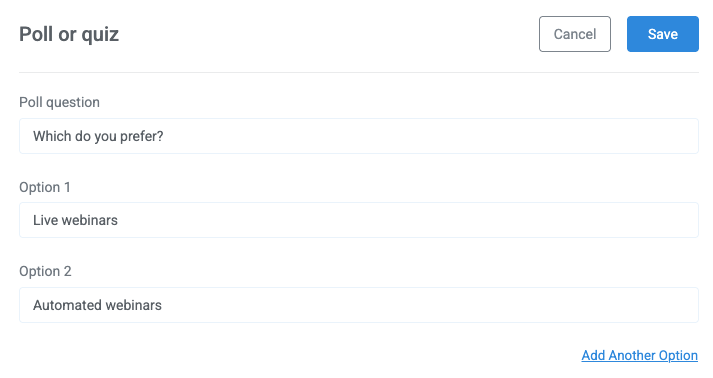
- Click Add another option at the bottom of the window to add more than two possible answers.
- Save the poll or quiz window and click Confirm to continue the webinar setup
Launch polls in the live room
Polls are deployed and new polls are added inside the live webinar room.
Key behavior:
- Only one poll can be active at a time.
- To start another poll, you must end the current poll first.
- There is no limit to the number of polls you can configure for a webinar.
Show poll results
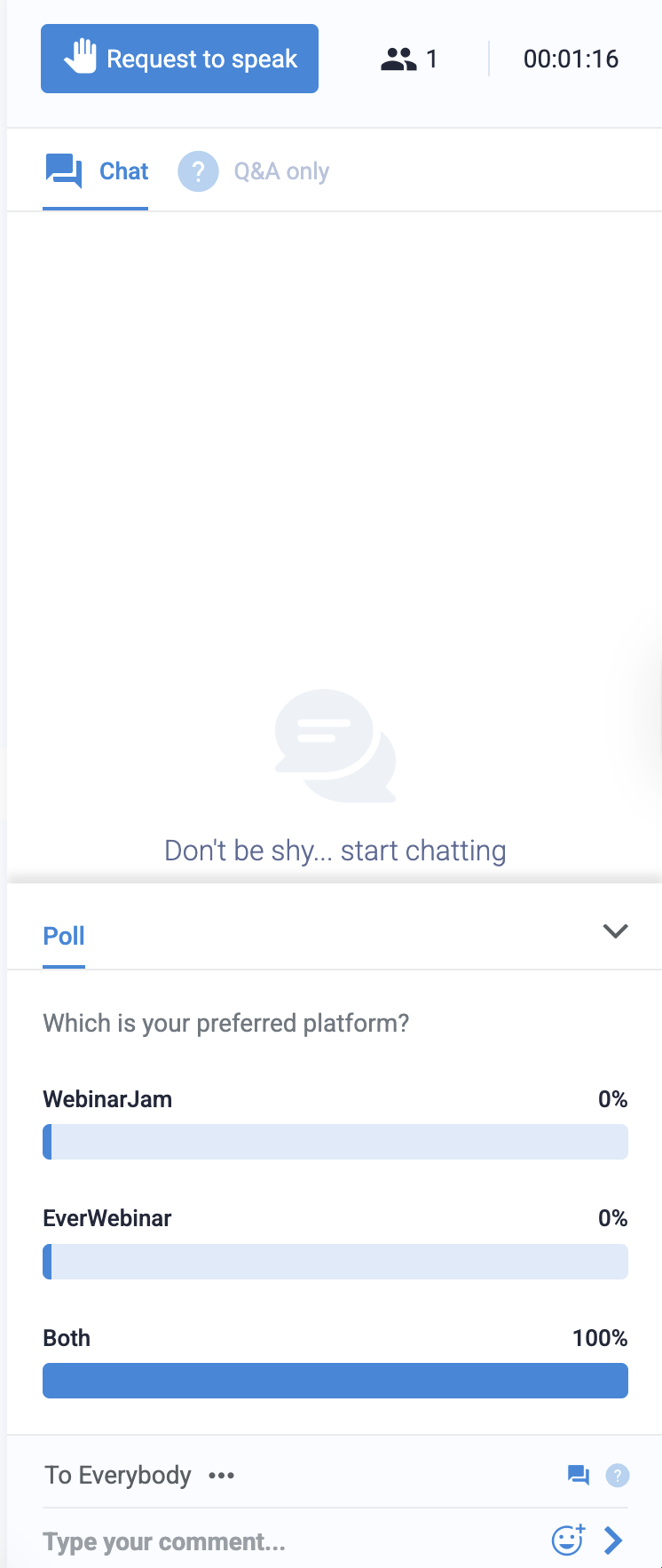
You can choose to display the results of the poll to your audience.
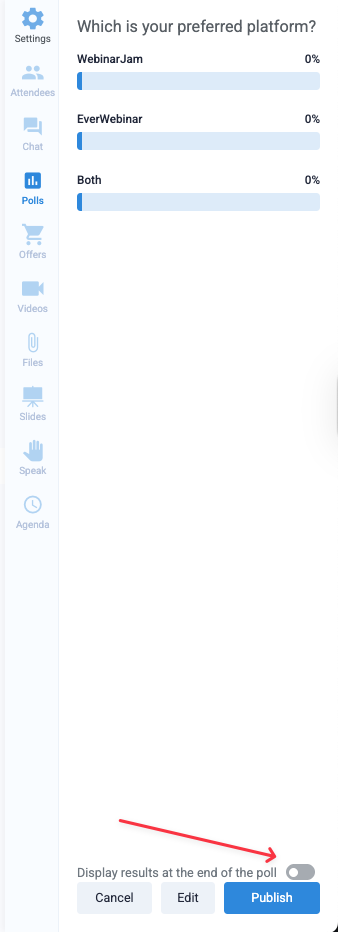
When you end the poll, the audience will see the results.
After the webinar has ended, the poll results can be found under Log > Poll results in the webinar dashboard.
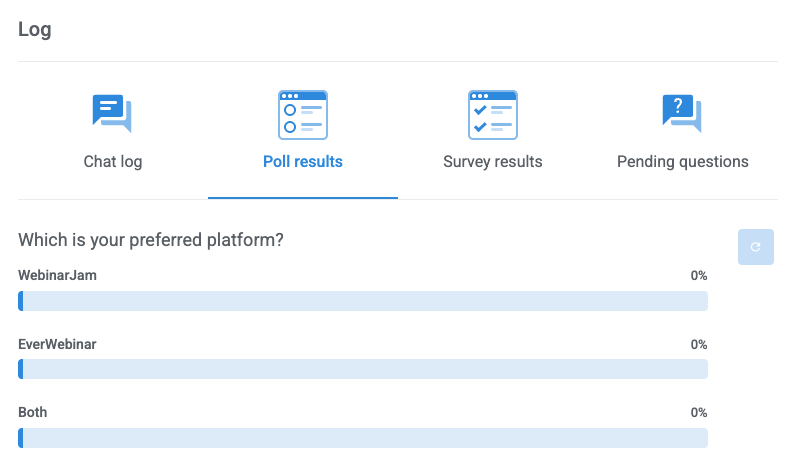
Important: If you reset the poll results using the reset icon, the results will be permanently removed.
EverWebinar
Important: Polls in EverWebinar are interactive for attendees to simulate the experience of a live event, but the results are fully preconfigured. No additional poll statistics are generated from attendee interaction in an EverWebinar event.

- Open Live content and click Add event > Poll
- Click to toggle Make the results public at the end of the poll (Optional)
- If ON, add simulated poll results by entering a percentage after each answer choice. Attendees will see the preconfigured results after submitting an answer during the webinar.
- Add the question and answer options
- Click Add Another Option to add additional answer choices.
- Add a Start and End time for the automatic poll
- Save the poll event and the Live content module to continue the webinar setup