
Applies to: WebinarJam and EverWebinar
Learn how to link an externally hosted confirmation page to your webinar.
WebinarJam includes built-in confirmation page templates you can customize inside your webinar setup. However, if you prefer to use a page hosted on your own website, you can redirect registrants there instead.
Link a custom confirmation page
To redirect registrants to your own page:
- Edit your webinar
- Go to the Thank You step
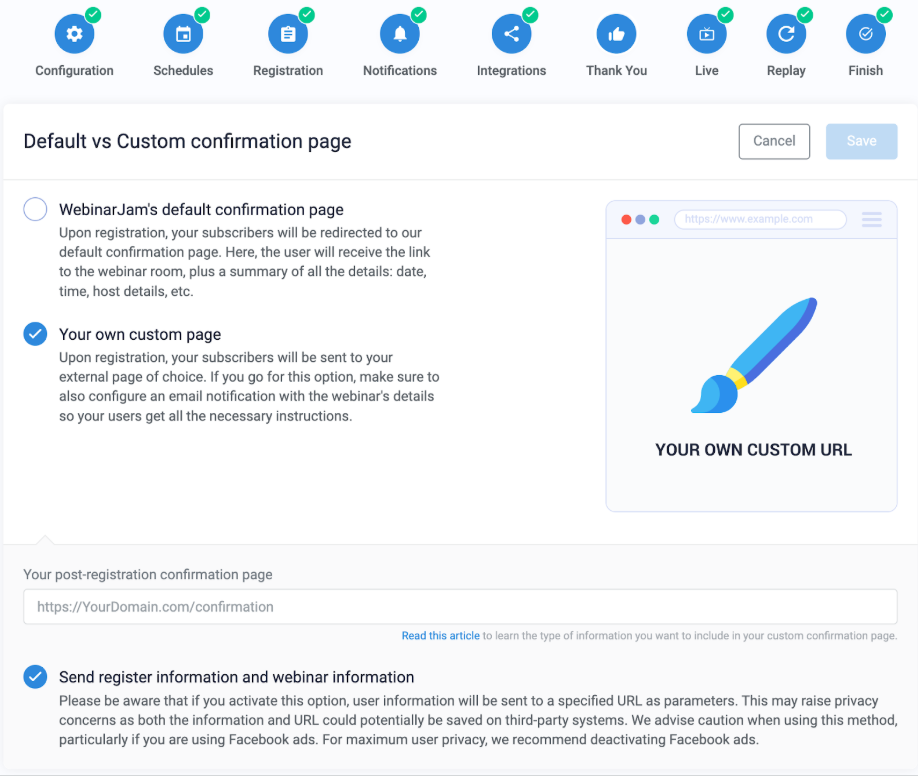
- Open Default vs Custom confirmation page
- Select Your own custom page
- Enter your page URL in the Your post-registration confirmation page field
- Choose whether to enable Send register information and webinar information (ON by default)
- Click Save and continue your webinar setup
If you:
- Turn OFF Send register information and webinar information, or
- Do not show registration details on your custom page
Make sure your Sign up confirmation notification is enabled. The confirmation email provides:
- The registrant’s unique access link
- The webinar date and time
Learn more about Webinar notifications.
Send registration data to your page
You can pass registration and webinar details to your custom page using URL parameters. When this option is enabled, WebinarJam automatically adds these parameters to the page URL.
This step is optional and intended for advanced customization.
Displaying this data on your page requires basic knowledge of JavaScript. Learn more about URL parameters in this SitePoint guide.
Available parameters
| Parameters | Example (Decoded) | Description |
wj_lead_first_name | John | Data entered in the First name registration form field. |
wj_lead_last_name | Smith | Data entered in the Last name registration form field (if collected). |
wj_lead_email | johnsmith@domain.com | Data entered in the Email address registration form field. |
wj_lead_phone_country_code | +1 | Country code selected in the registration form (if collected). |
wj_lead_phone_number | 1234567890 | Data entered in the Phone number registration form field (if collected). |
wj_lead_unique_link_live_room | UNIQUE | The registrant’s unique access link to the webinar room. |
wj_room_password | UNIQUE | An alphanumeric password for the webinar room (if enabled in the webinar configuration). IMPORTANT: The password is passed in plain text. |
wj_next_event_date | Monday, 31 August 2020 | Event date displayed as Day, DD MMMM YYYY. |
wj_next_event_time | 1:45 AM | Event time displayed as HH:MM AM/PM. The time displayed will match the standard format used in the country represented by the flag in the webinar's language selection. |
wj_next_event_timezone | Pacific Time (US and Canada) GMT-7 | Time zone displayed as location and GMT. |
wj_event_ts | 1598863500 | Event Unix timestamp. |
wj_event_tz | America/Los_Angeles | Time zone displayed as TZ identifier. |
How parameters behave
When enabled, parameters:
- Are included even if their value is empty
- Begin with ? and are separated by &
- Contain personal data
- Are automatically encoded. Example: email@domain.com will show as email%40domain.com
Note: The wj_room_password parameter appears only if password protection is enabled.
Example URL structure
A confirmation page URL consists of:
- Base URL: https://www.domain.com/YOUR-PAGE
- Parameters: ?wj_lead_first_name=John&wj_lead_email=johnsmith%40domain.com…
Below is a simplified example (values shortened for readability):
https://www.domain.com/YOUR-PAGE?wj_lead_email=johnsmith%40domain.com&wj_lead_first_name=John&wj_lead_unique_link_live_room=https%3A%2F%2Fevent.webinarjam.com%2Fgo%2Flive%2F...
This example is for illustration only. WebinarJam automatically generates the full redirect URL when parameters are enabled.