
Applies to: WebinarJam and EverWebinar
If you prefer not to use the WebinarJam-hosted registration page, you can embed your webinar registration form on your own website.
Embedding allows you to turn any existing page into a webinar registration page while keeping visitors on your domain.
- Basic HTML and CSS knowledge
- Access to the page’s source code
Get your embed code
To retrieve the embed code:
- Locate your webinar in the Webinars dashboard
- Click Your links

- Under Attendees, select Embed in your website
You can choose from four embed formats:
- Floating bar with pop-up form
- Static button with pop-up form
- Floating bubble with pop-over window
- Static in-line registration form
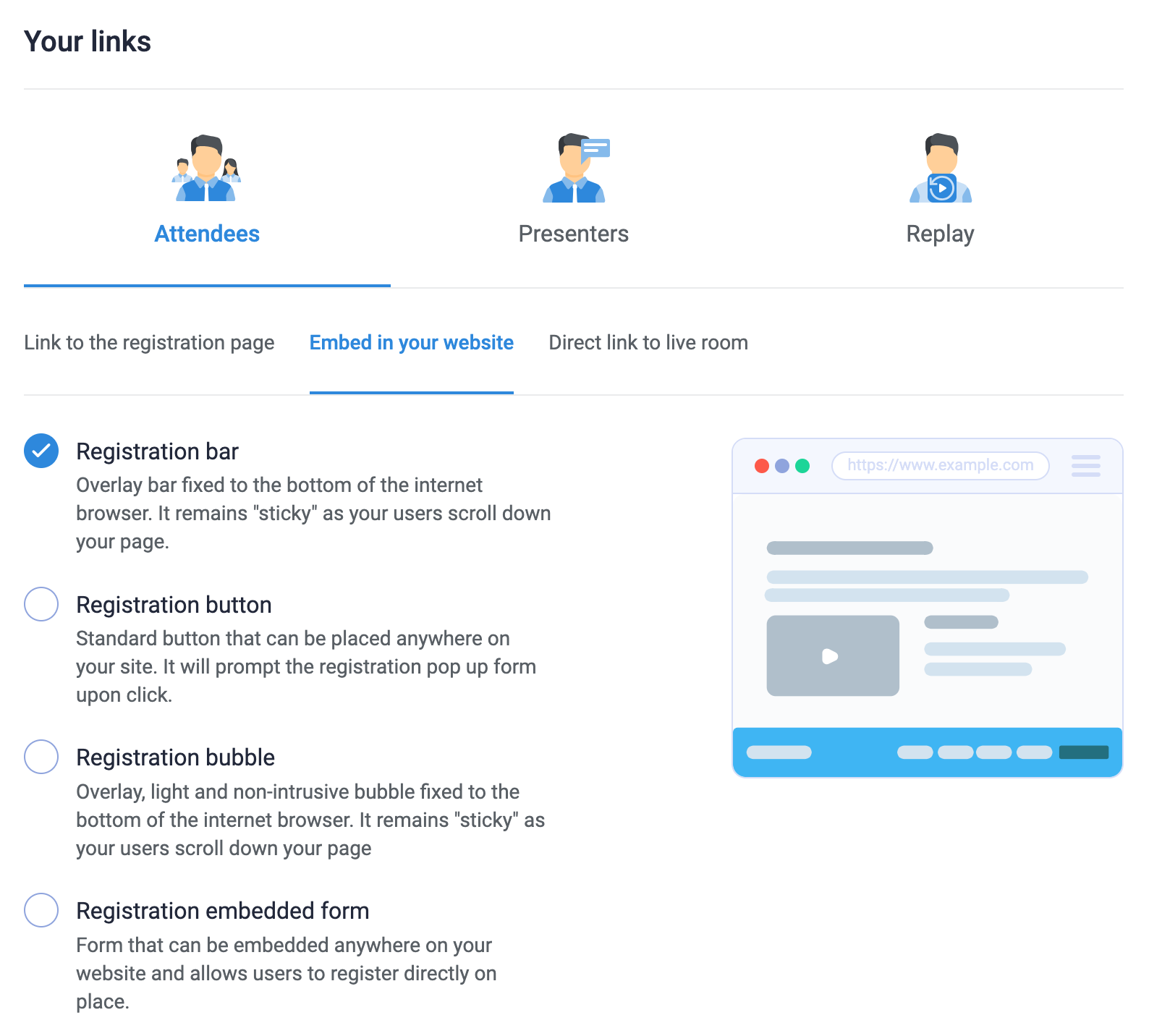
After choosing your preferred format:
- Copy the generated code snippet.
- Paste the code into the <body> section of your web page.
- Do not place the code inside the <head> section — the element will not display correctly.
- Embed only one registration snippet per page. Multiple snippets can cause conflicts.
Pro tip
Enable invisible captcha under Registration tab > Captcha to add bot protection to webinar registration and room login pages without requiring attendees to complete a visible captcha challenge.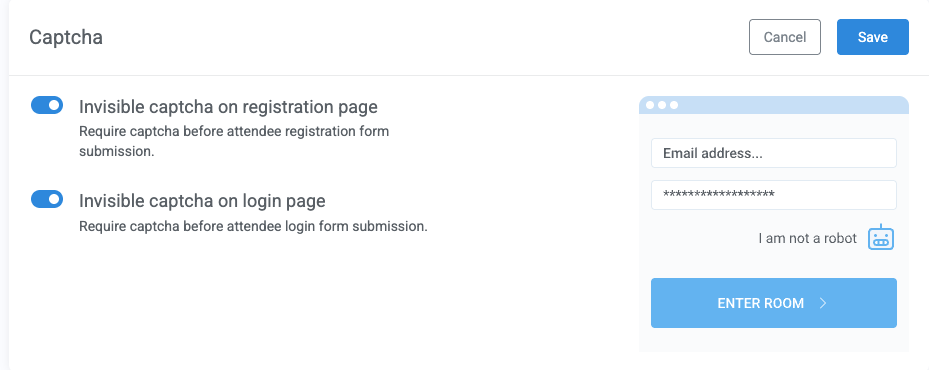
Embed format options
Registration bar
The registration bar appears as a floating footer at the bottom of your page. It includes a countdown timer and a button that opens a pop-up registration form. The bar remains visible while visitors scroll.
Customization options:
- Button text
- Bar and button colors
- Pop-up form style
Registration button
The registration button can be placed anywhere within your page content. When clicked, it opens a pop-up registration form.
Customization options:
- Button text
- Color
- Size
- Shape
- Border
- Shadow
- Pop-up form style
Registration bubble
The registration bubble appears as a floating icon in the bottom corner of the page. When clicked, it opens a pop-over window with webinar details and a registration button.
This format includes customizable style parameters within the embed code. Style parameters are separated in the code by an ampersand (&).
For example:

Modify the code to edit each parameter according to your preferred styling.
Custom style parameters:
| Style Element | Parameter | Default Value | Custom Value Guide |
| Button Text | buttonText | Register | Text |
| Button Color | buttonBgColor | #29b6f6 | Hex code for preferred color, URL-encoded |
| Button Opacity | buttonBgOpacity | 0.95 (95%) | Decimal value between 0 and 1 to set opacity percentage |
| Bar Color | barBgColor | #ffffff | Hex code for preferred color, URL-encoded |
| Bar Opacity | barBgOpacity | 1 (100%) | Decimal value between 0 and 1 to set opacity percentage |
| Pop-up Form Style | formTemplate | 2 | Template ID. Enter a template ID: 2, 4, 6, 8 |
| Pop-up Form Color | formColor | 1 | Color variation ID. Enter a variation ID: 1, 2, 3, 4, 5, 6 |
Registration embedded form
The embedded registration form appears directly within your page content without a pop-up. It functions as a standard opt-in form.
Custom style parameters:
| Style Element | Parameter | Default Value | Custom Value Guide |
| Button Text | formButtonText | Register | Text |
| Accent Color (Button and "Convert to another timezone" text) | formAccentColor | #29b6f6 | Hex code for preferred color, URL-encoded |
| Accent Opacity(Button and "Convert to another timezone" text) | formAccentOpacity | 0.95 (95%) | Decimal value between 0 and 1 to set opacity percentage |
| Background Color | formBgColor | #ffffff | Hex code for preferred color, URL-encoded |
| Background Opacity | formBgOpacity | 1 (100%) | Decimal value between 0 and 1 to set opacity percentage |
Style parameters
- All special characters (including #) must be URL-encoded.
- Spaces must also be encoded (for example, a space becomes +).
- Parameters are separated using & within the embed code.
If you're unsure how to encode values, use an online URL encoder before modifying the snippet.