
Applies to: WebinarJam and EverWebinar
You can send webinar confirmation emails, reminders, and follow-up messages using your own autoresponder or CRM instead of the built-in email system.
When enabled, WebinarJam sends webinar registration data to your autoresponder. Your autoresponder then sends emails using your own templates and automation rules.
Note: Due to limitations in their APIs, Maropost and Constant Contact do not support this feature. Additionally, the Zapier and Custom Webhook options do not support sending notifications.
How the integration works
- A user registers for your webinar.
- WebinarJam sends registration and webinar details to your connected autoresponder.
- The data is stored in custom fields inside your autoresponder
- Your autoresponder sends emails using those fields to insert webinar-specific details dynamically.
Data flows from WebinarJam to your autoresponder only. Email delivery and scheduling are controlled inside your autoresponder.
Create custom fields in your autoresponder
What are custom fields?
Autoresponders and CRMs include standard fields such as first name and email address.
Custom fields allow you to store additional webinar-specific information. These fields are used to dynamically insert webinar details into confirmation and reminder emails sent to registrants.
Required custom fields
Create the following fields in your autoresponder:
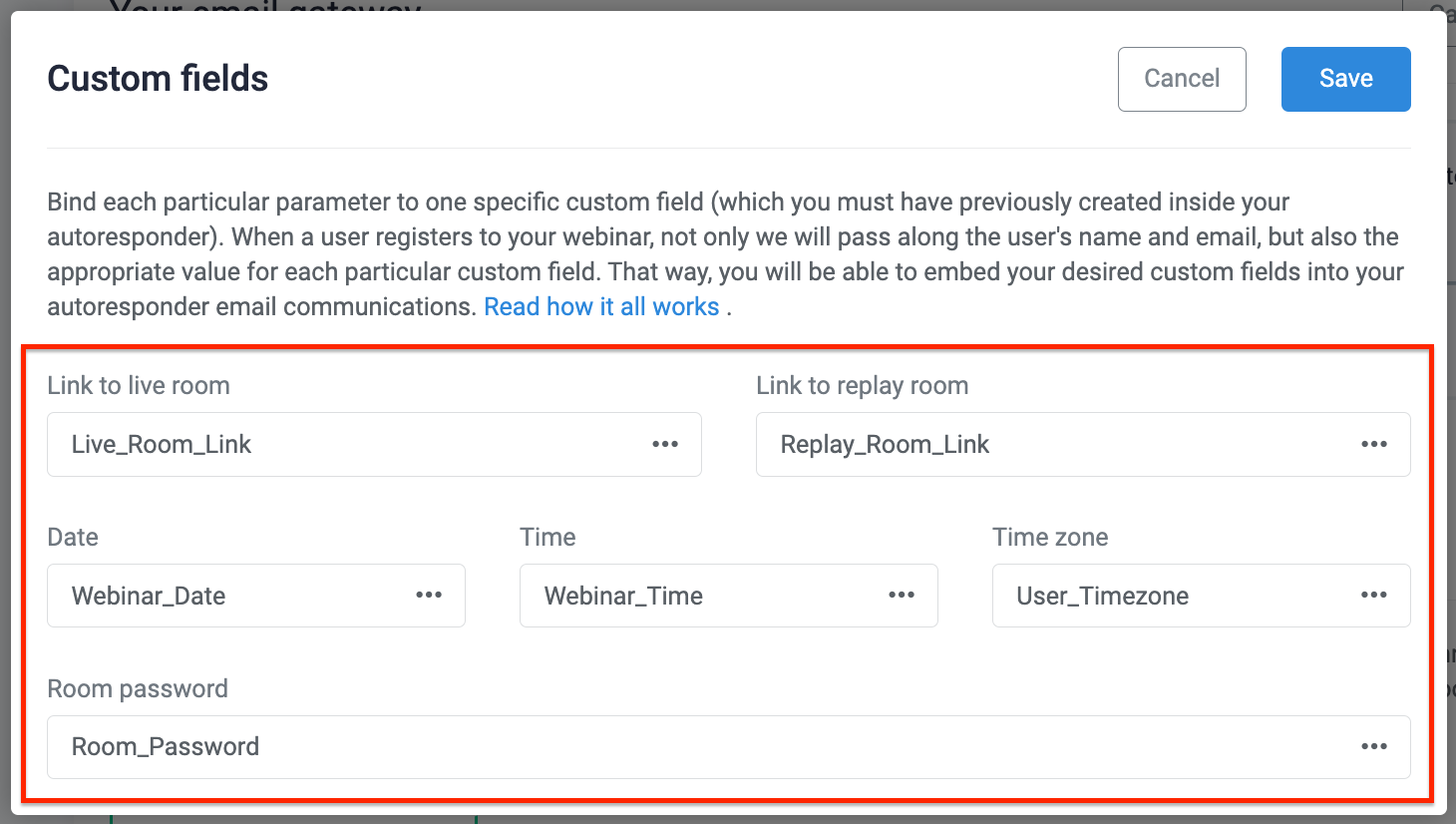
- Live_Room_Link
- Replay_Room_Link
- Webinar_Date
- Webinar_Time
- User_Timezone (Required if registered time shows in User's own time zone)
- Room_Password (Required if the webinar room is password protected)
Field Requirements:
- All fields must be text type
- Do not use dropdown, multi-select, or date-formatted fields
Running multiple webinars
If you run multiple webinars close together, consider creating unique custom fields per event, for example:
- Live_Room_Link_1
- Live_Room_Link_2
- Replay_Room_Link_1
- Replay_Room_Link_2
If a registrant signs up for another webinar, existing custom field values in your autoresponder are overwritten with the most recent webinar data.
If your webinar notification schedules do not overlap, multiple sets of custom fields are not required.
Add custom fields to the webinar
After creating the custom fields in your autoresponder, connect them to your webinar:
- Edit the webinar.
- Go to the Notifications tab in your webinar.
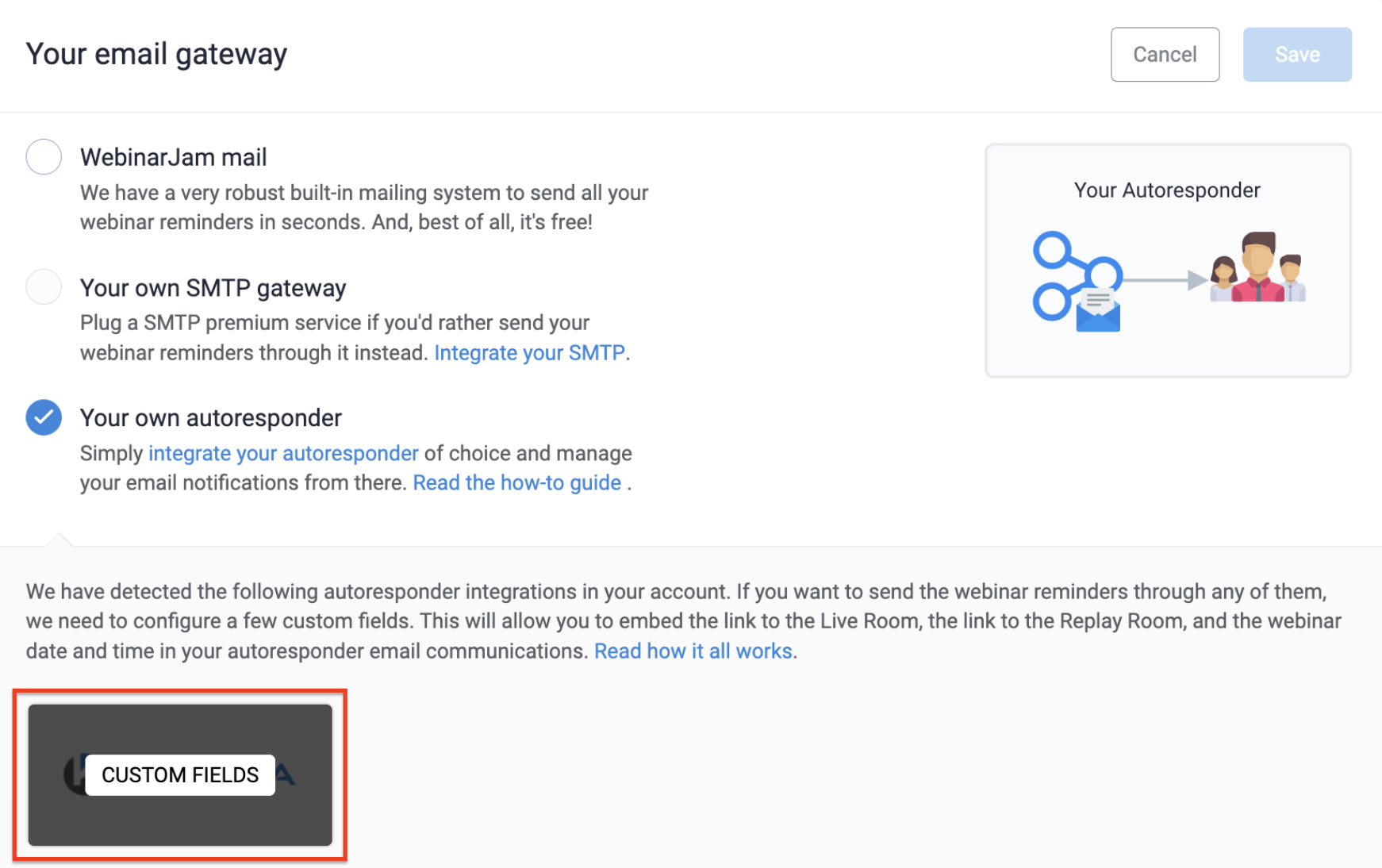
- Choose “Your own autoresponder” under “Your email gateway”.
- Hover over your preferred application and click Custom Fields.
- Match the details of your webinar to the custom fields created in your autoresponder.
- Click Save.

CRITICAL: Custom fields linked in a webinar configuration must remain active. If a field is deleted or renamed in your autoresponder, return to the webinar configuration and update the mapping.
Create an integration rule
To ensure registrants’ information is added to your chosen autoresponder, you will need to add them to a list at the time of registration that is created inside your autoresponder. To connect the list to the webinar:
- Go to the Integrations tab.
- Edit the Email autoresponder integration section.
- Click on your chosen autoresponder.
- Use the “If they register” condition and select your list under the “Then do this” dropdown.
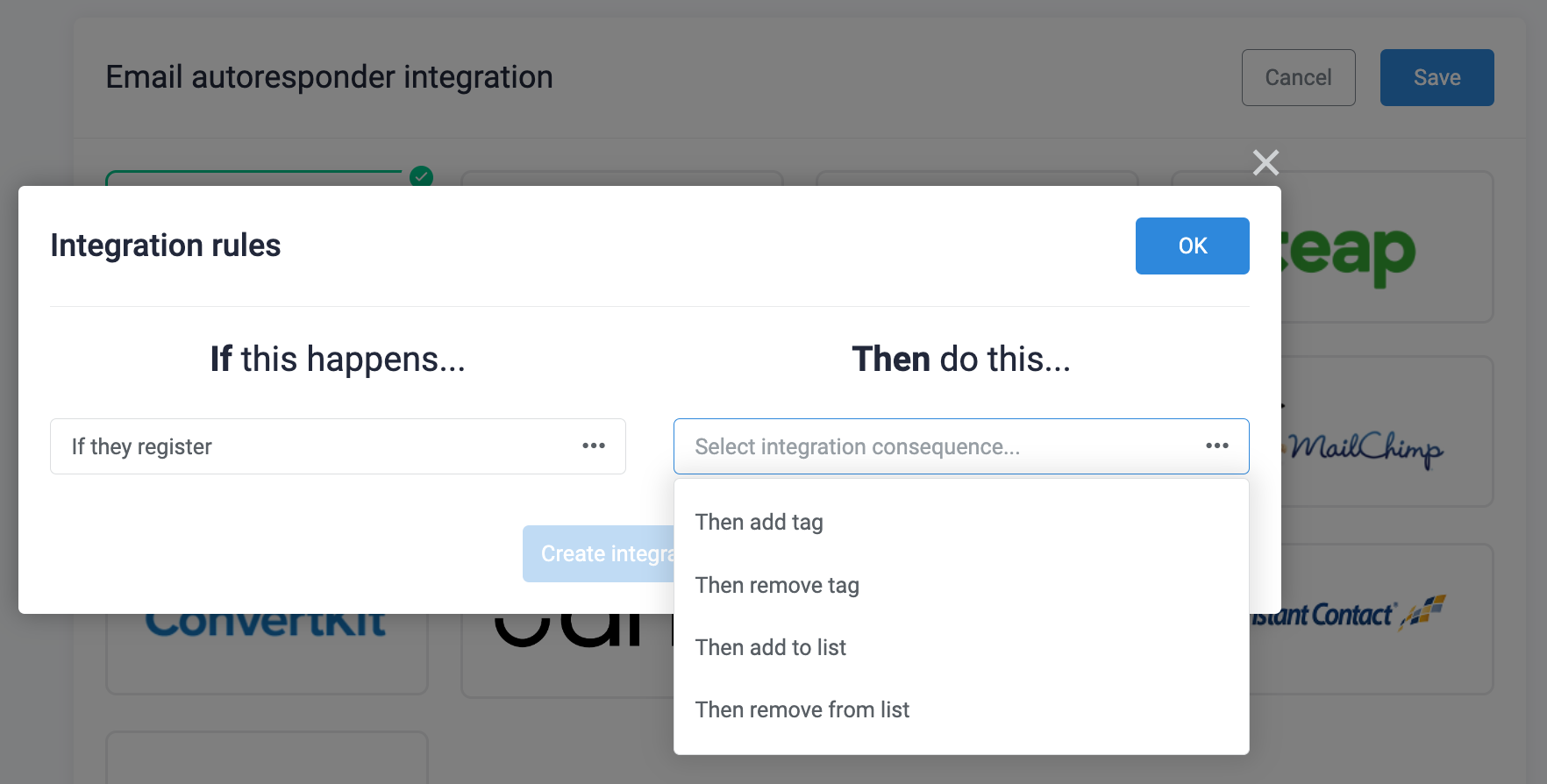
- Click on Create Integration Rule, followed by the OK button.
- Click Save.
Test the integration
Before opening the webinar for live registration:
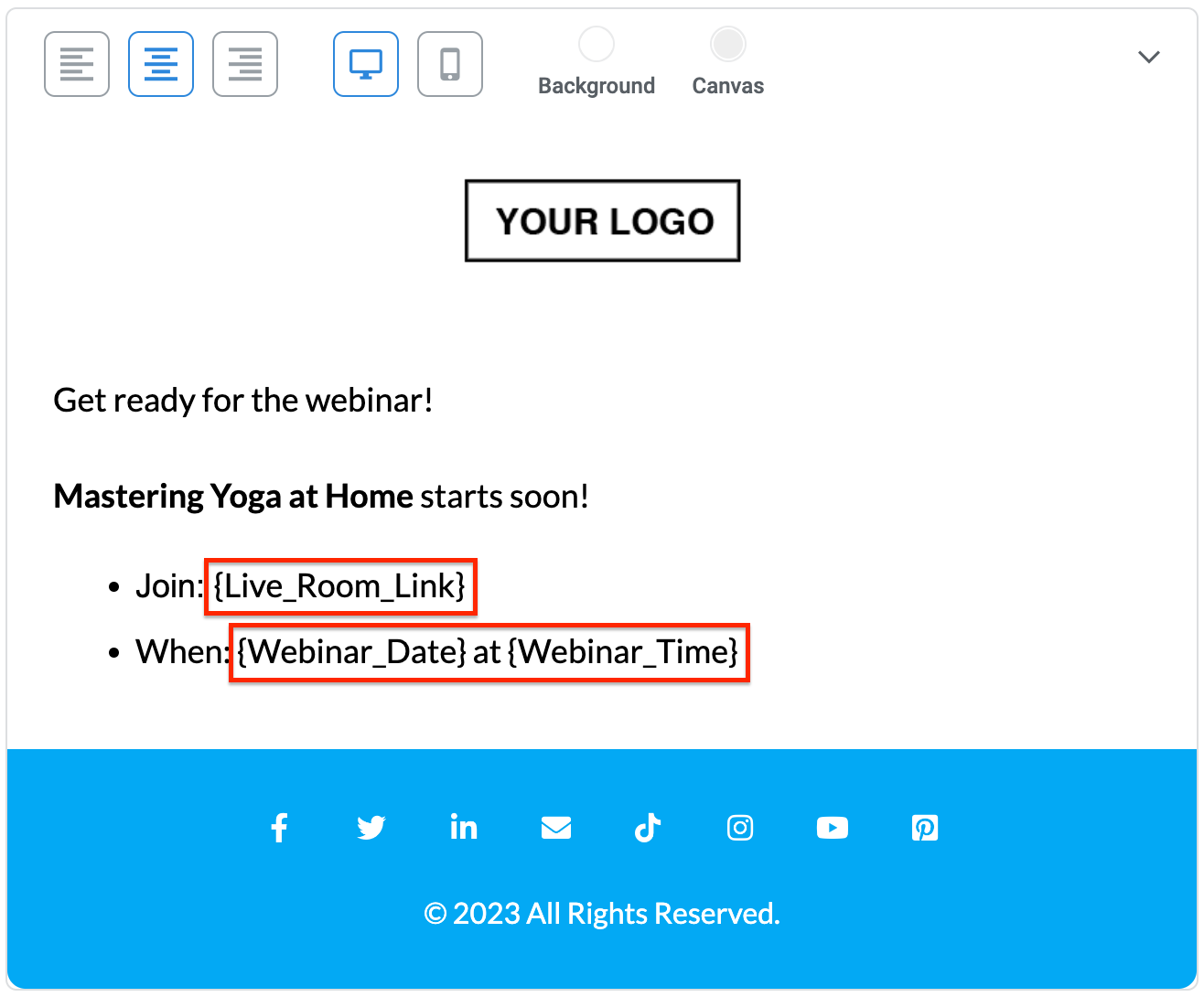
- In your autoresponder, create a test email that sends when a contact is added to the selected list.
- Use the webinar custom fields inside the email body to insert event details.
- Register using your webinar’s public registration link.
Then confirm:
In your autoresponder
- The contact was added to the correct list
- Custom fields contain the correct webinar data
In your inbox
- The test email was delivered
- Webinar details appear correctly
If the data and emails appear correctly, your integration is configured properly. Use the custom field variables with the webinar information to create more notifications, a replay follow-up, and any custom funnel designs that are possible in your autoresponder.