
Applies to: WebinarJam and EverWebinar
You can add a survey to your webinar registration confirmation (Thank You) page to learn more about your registrants before the event.
Surveys can help you:
- Understand what topics your audience is most interested in
- Collect questions you can address during the webinar
- Learn more about attendee experience levels or goals
This information can help you tailor your presentation to better match your audience.
Important: Surveys are available with the Default confirmation page configured at the Thank You step of the webinar wizard. If you are using a custom confirmation page, post-registration surveys are not available.
Add a survey to the confirmation page
- Edit your webinar and go to the Thank You step in the webinar configuration wizard.
- Open the Default vs Custom confirmation page module.
- Select Default confirmation page, and Save.
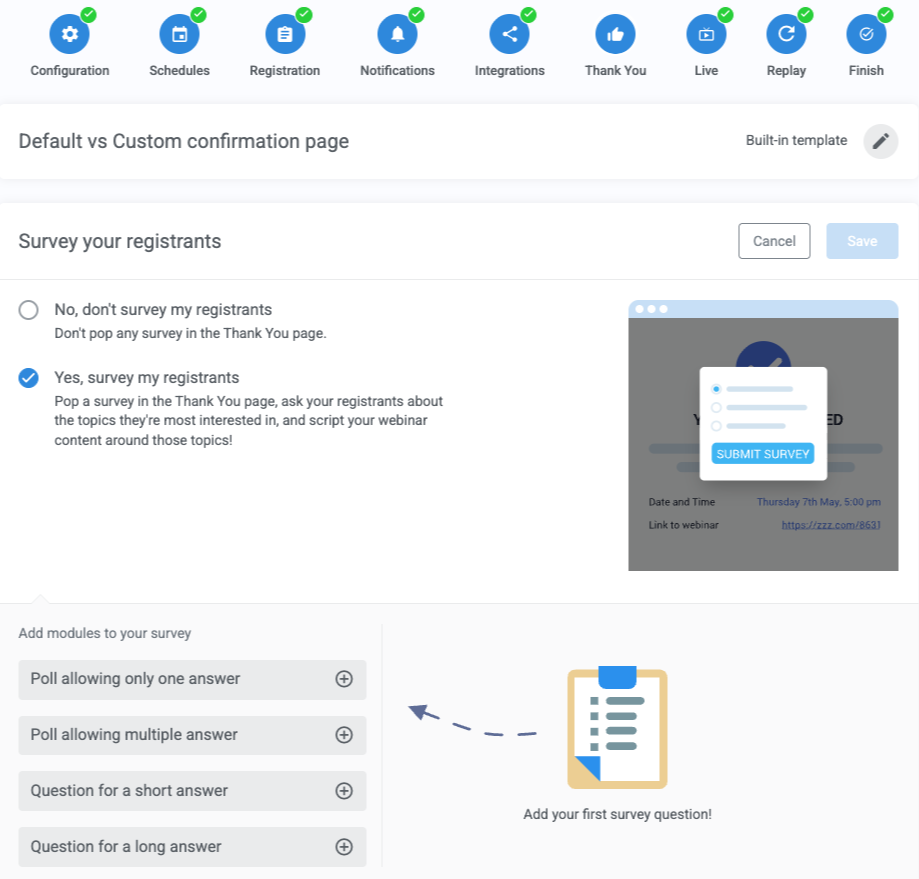
- Open the Survey your registrants module that appears.
- Choose Yes, survey my registrants and configure the survey. Choose a mix of four question types:
- Poll allowing only one answer: Requires a single response
- Poll allowing multiple answers: Allows multiple response selections
- Question for a short answer: Single-line text response
- Question for a long answer: Multi-line text response
- Save the survey module and continue.
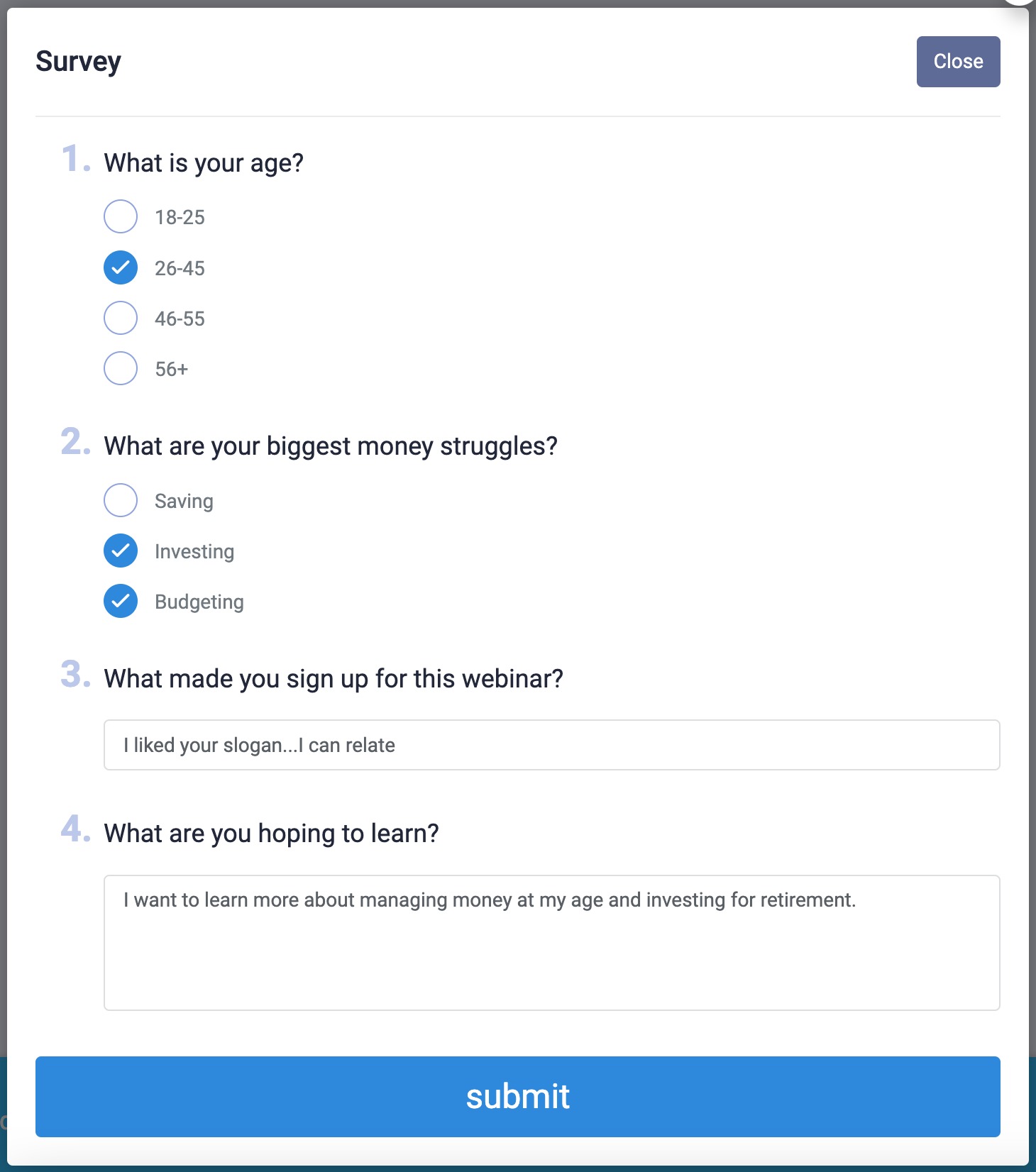
The following image shows an example of each survey question type.
How the survey appears to registrants
After registering, registrants see a survey bar on the confirmation page. A button opens the survey in a pop-up window.
Add a custom message and styling to the survey bar by customizing the Thank you page design.

Download survey results
To download the responses from the survey:
- Click the Log link.
- Click Survey results.
- The system will show the number of responses submitted and a button to download the responses.
- Click Download survey results.
- An XLS file will be downloaded with the responses.