
Applies to: WebinarJam and EverWebinar
You can update your login email or password from your account profile.
These changes affect how you access your account and should be handled carefully.
The email and password for your account are found in the Profile. Click the profile icon in the top-right corner of your account to access it.
Update email address
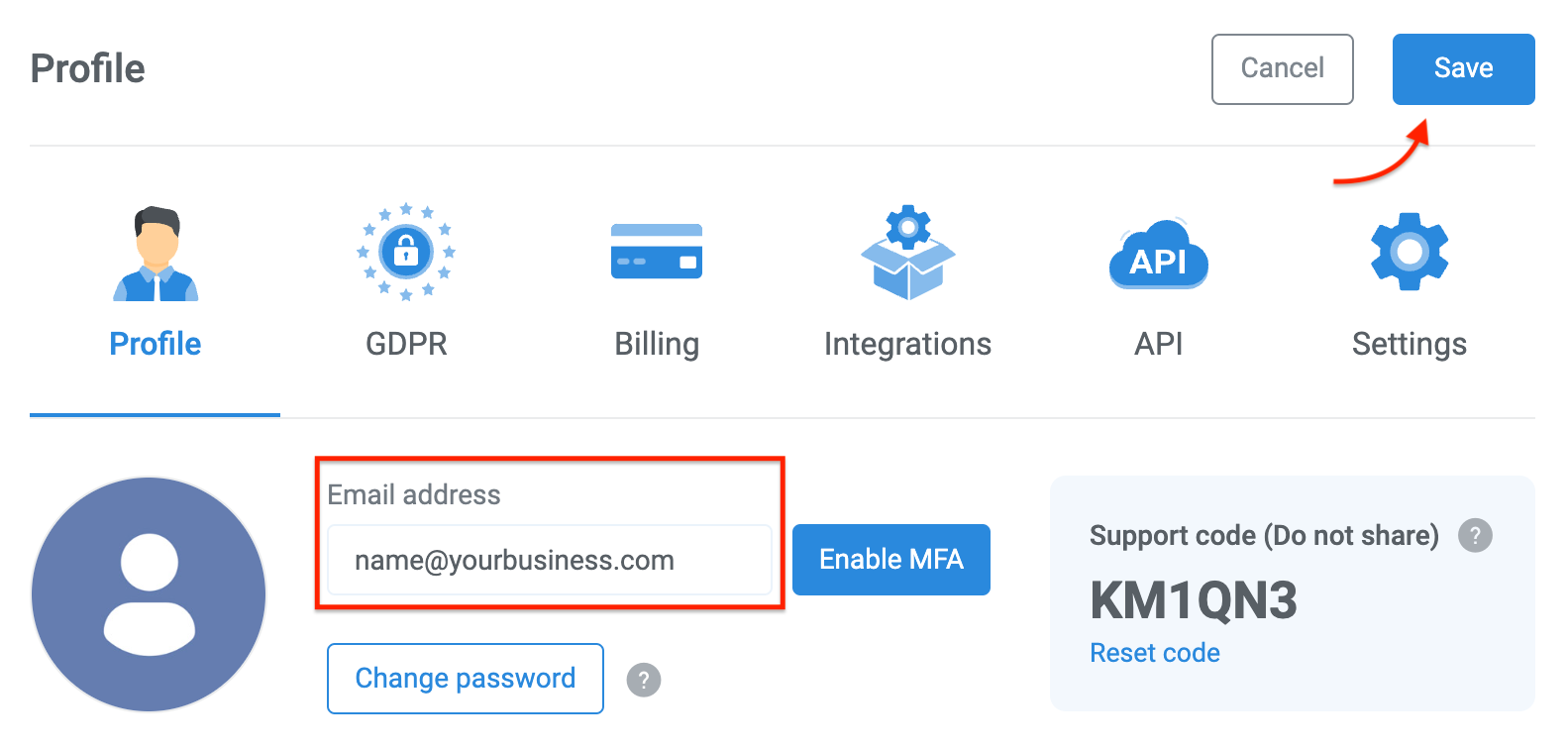
To update the email address of your account:
- Open your Profile
- Locate the Email address field
- Enter your preferred email address
- Click Save at the top right corner of the profile window
- Enter your current account password to confirm the change
Caution: Changing the email address or password affects the account's primary login access. Do not use an email address that is not valid or does not belong to you, and make sure you keep access to your business.
Update password
Reset the account password from the Profile section.
- Open your Profile
- Click Change password to request a reset
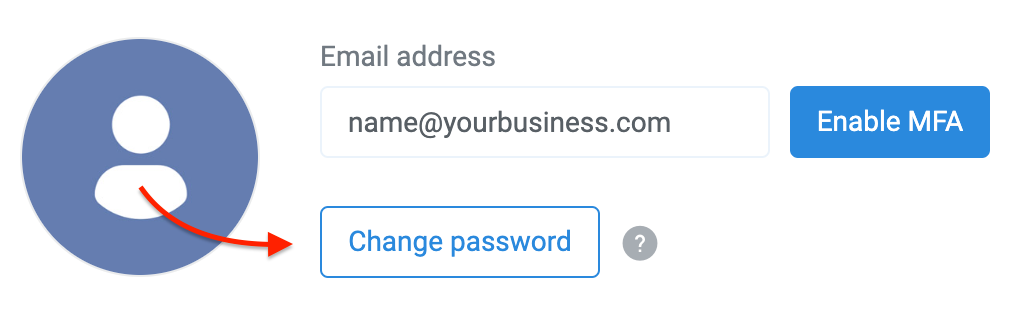
- A status message appears asking you to check your email. The password has not been changed yet.
- Go to your email inbox and look for a message from WebinarJam
- The message will be sent to the email address associated with your account. If you're not sure what it is, go back to your account Profile and look for the "email address" field.
- Click the reset link in the email message and follow the prompts to create a new password
Tip: Password must be between 8 and 16 characters. Choose a strong password that uses a combination of numbers, letters, and symbols to secure your account.