Applies to: WebinarJam and EverWebinar
To pass custom field values through the Register API endpoint, you must first retrieve the custom field configuration from your webinar.
Step 1: Retrieve custom field details
Run the Get details about one particular webinar from your account call.
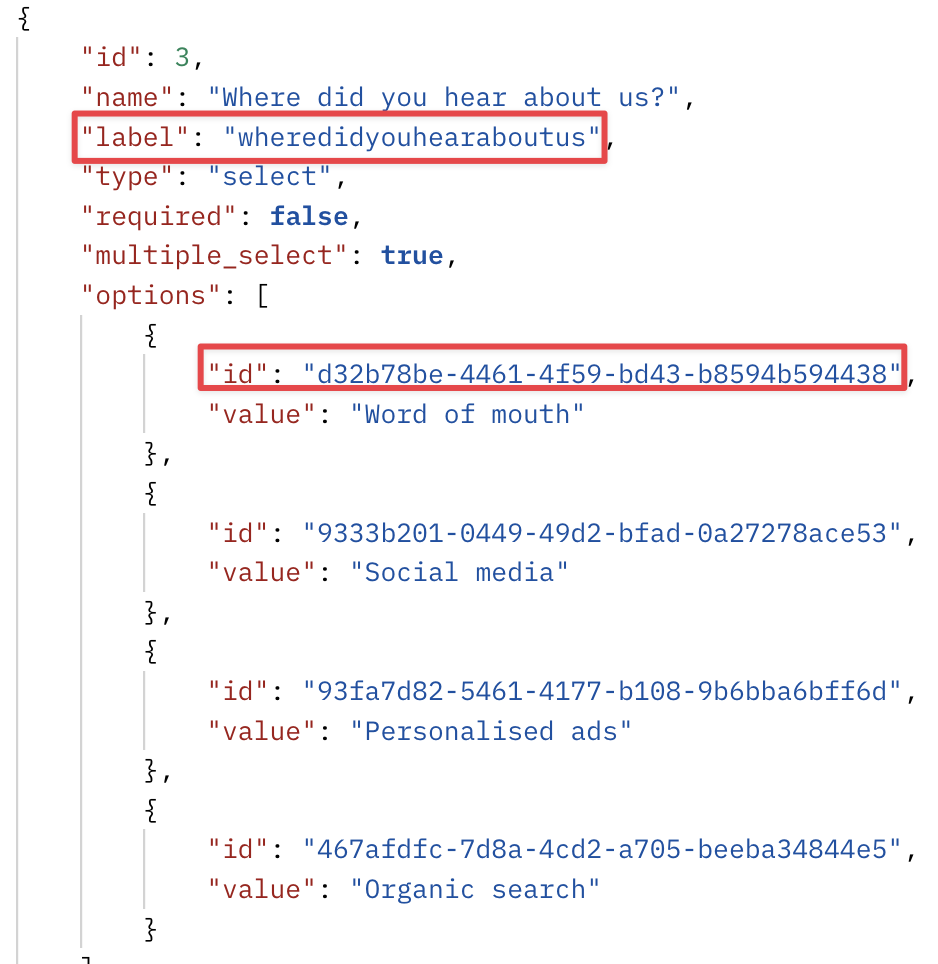
From the response, identify:
- The label associated with the custom field
- The answer ID values (for Dropdown fields only)
Refer to the screenshot below for an example of the custom field response structure.
Step 2: Use the field label in your registration call
- Each custom field has a label.
- The label must be used as the parameter name in your registration API request.
Example:
- Custom field question: “Where did you hear about us?”
- Associated label: whereDidYouHearAboutUs
In your registration request, use:
- “whereDidYouHearAboutUs”: …..
Step 3: Pass the Field Value
If the field type is Dropdown
- Each answer option has a unique ID.
- Pass the corresponding option ID in your registration request.
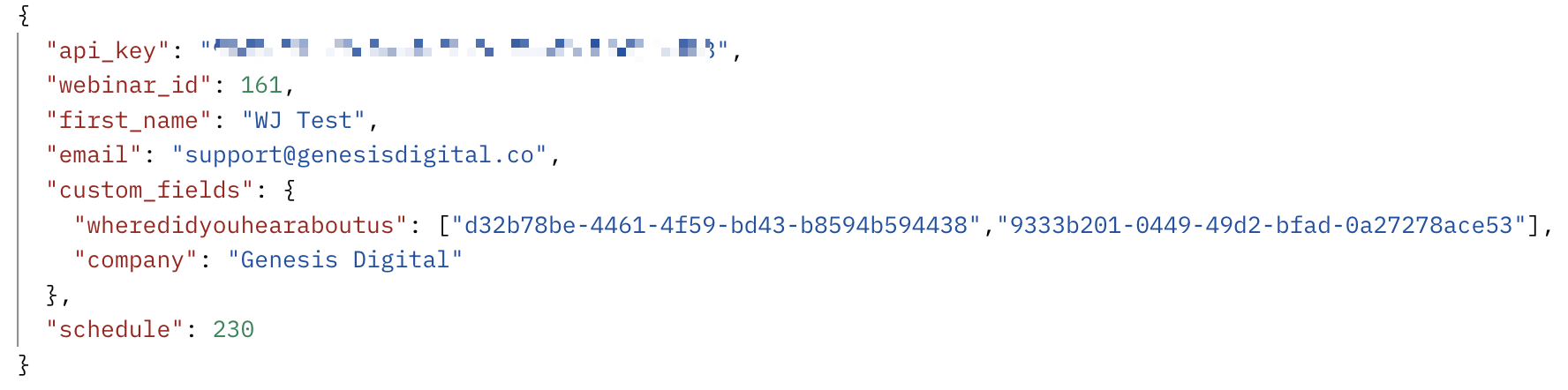
- If multiple answers are selected, include their IDs inside square brackets separated by commas:
- Example: “whereDidYouHearAboutUs”: ["id_1","id_2"]
If the field type is Text Field
- No option ID is required.
- Pass the text value directly.
- Example: “company”: “XYZ”
Below is a complete registration API call example, including a text field and a dropdown custom field with two selected answers: