
Applies to: WebinarJam and EverWebinar
Learn how to download invoices for your WebinarJam or EverWebinar subscription from the billing portal.
Access the billing portal
To download an invoice, first open the self-service billing portal:
- Click your profile icon in the top-right corner of your account
- Select the Billing tab
- Click Go to self-billing

- On the login page, enter:
- Your account email address
- Your Order ID
Where to find your Order ID:
- In the Billing tab of your account
- In any payment confirmation email
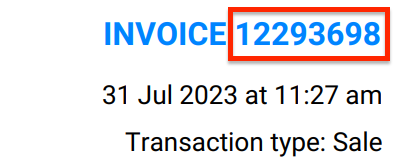
- On an existing invoice (top-right corner)
Download your invoice
Once inside the billing portal:
- If you have more than one subscription, locate the relevant one.
- Click Show details to view payment history
- Find the payment you need and click the download icon in the Actions column.
The invoice will download as a PDF file.

Repeat these steps if you need to download additional invoices.