
Applies to: WebinarJam and EverWebinar
Each webinar presenter and moderator receives unique access links that allow them to join and manage the live event.
These links ensure that each participant enters the webinar room with the correct permissions and appears properly in the broadcast.
Learn more about the presenter and moderator roles.
Find presenter and moderator links
To access these links:
- Go to the Webinars dashboard
- Locate your webinar
- Click Your links > Presenters
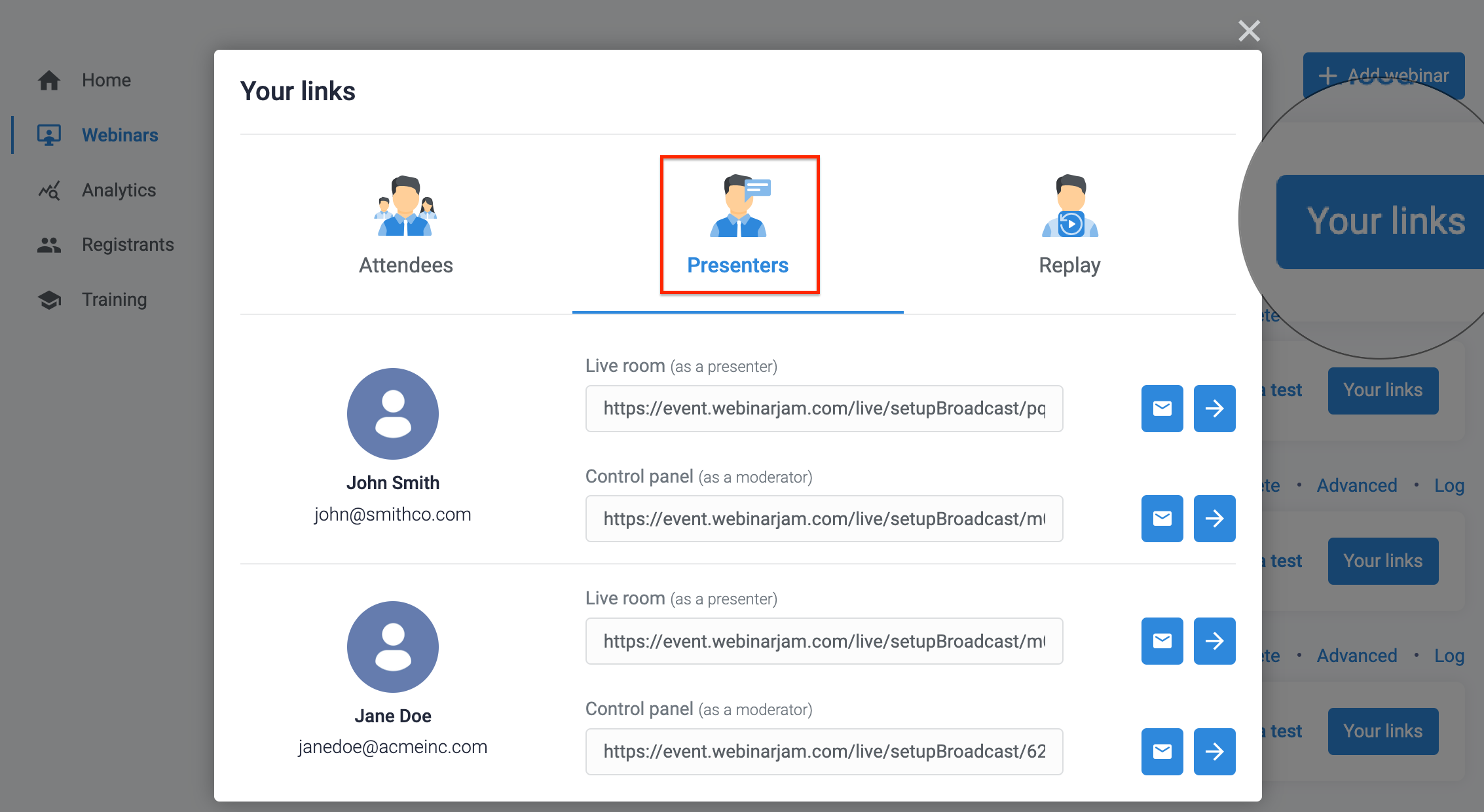
Each presenter or moderator has two unique links that you can share with them.
You can send these links by email or copy them to share through another channel.
Types of access links
Live room
The Live room link allows a presenter to enter the webinar room and join the broadcast.
When a presenter joins using their unique link:
- Their presence is registered in the webinar system
- A video panel appears in the broadcast with their name
This link should be used by presenters who will appear on camera during the webinar.
Control Panel
The Control Panel link opens the administrative dashboard for the webinar.
From the Control Panel, presenters or moderators can:
- Monitor chat and questions
- View attendee statistics
- Deploy live injections such as polls or offers
- Manage various live webinar controls
This link is typically used by moderators or team members assisting during the event.
Learn more:
- Moderate your WebinarJam event using the Control Panel
- Moderate your EverWebinar webinar using the Control Panel
Check your plan
Control Panel is only available for Enterprise Plans, on both WebinarJam and EverWebinar. Review or change your subscription in your account.
Share access links
Next to each presenter or moderator, you can choose how to share their access links:
- Email icon: Send the link directly to the participant by email
- Arrow icon: Launch the link immediately
- Copy button: Shows if you hover over the link so you can copy and share it manually
Always send each participant their own unique link so the system can correctly identify their role in the webinar.