
Applies to: WebinarJam
Video injections allow you to switch from live presenters to pre-recorded video during your webinar.
Use this option if you want to:
- Play short video clips during your session
- Deliver a polished pre-recorded presentation
- Create a hybrid webinar (pre-recorded content with a live introduction or Q&A)
Add a video injection
To configure a video injection:
- Edit your webinar and go to the Live step
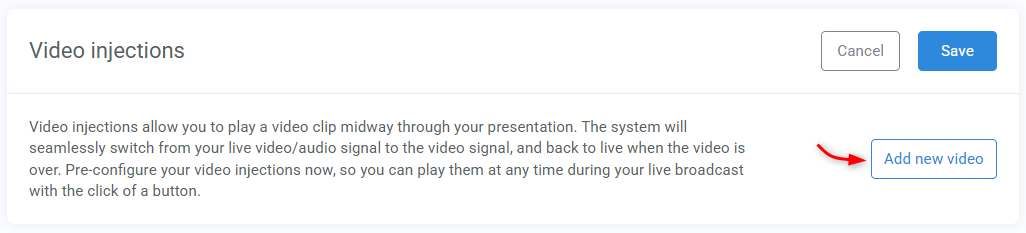
- Open the Video injections module and click Add new video
- Enter a name (for your reference), paste the video source URL, then Save
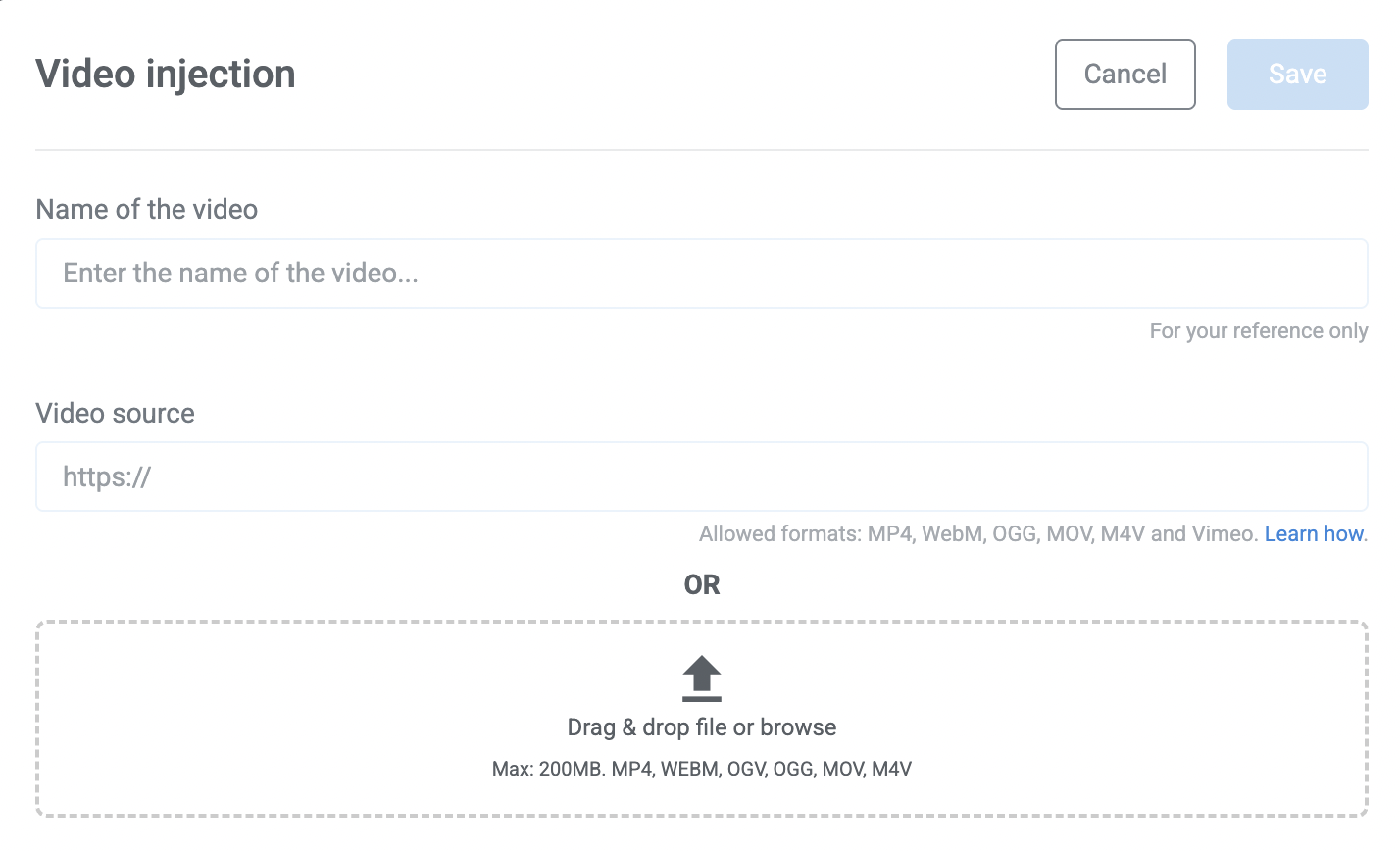
Once saved, your video injection will be available to launch inside the live room during your broadcast.
Pro tip
You can also add video injections directly in the live room during your webinar if needed.
Supported video sources
Video injections require a direct video source. You can add videos using either direct uploads or supported external sources.
Upload a video
Upload your video directly to WebinarJam. This removes the need for third-party hosting.
Requirements:
- Maximum file size: 200 MB
- Supported formats: MP4, WEBM, OGV, OGG, MOV, M4V
Use an external video source
Add a direct video URL from a supported provider.
Supported formats:
- Hosted MP4 files
- Vimeo links
Not supported:
- Platforms that do not provide a direct MP4 file link (such as Wistia or Dropbox preview links).
If unsure, make sure your video host provides a direct video file URL.