
Applies to: WebinarJam and EverWebinar
Zapier lets you automate workflows between WebinarJam or EverWebinar and other apps. Use it to send data, trigger actions, and build integrations without custom development. This article describes the process of creating automation between WebinarJam or EverWebinar and many third-party applications using Zapier.
Before getting started
- An API key is required to allow Zapier to communicate with your account. If you are not already approved to use the WebinarJam / EverWebinar API, apply for a key.
- Access to the API is not available for trial accounts. To access an API key for use with Zapier, upgrade to a paid plan if needed.
What you can automate:
Common use cases include:
- Send registrants to an autoresponder not in our integration list
- Tag registrants in an autoresponder not in our integration list
- Add new registrants to a Google Sheets Spreadsheet
- Send yourself a notification when someone registers
- Send registrants a survey or form for additional information
- Add registrants to an SMS service for additional messaging
- Create Trello boards for follow-up services
- Create tasks with Project Management Programs
- Create a purchase (for sending a free follow-up file)
How Zapier automations work
Zapier automations (called Zaps) follow a simple structure: one event triggers a single workflow that performs a defined action.
Each Zap includes:
- A trigger: the event that starts the workflow
- An action: what happens in another app after the trigger
Before creating your Zap, it is important to understand how Zapier processes data:
- Zaps run as a one-way workflow
- Data moves from WebinarJam or EverWebinar to another app
- Data will include the registrant name, email address, any custom field, chosen webinar date and time, room links, UTM fields, etc.
- Changes are not synced back automatically
- Each Zap uses one trigger only
- If you need the same action for multiple events, create separate Zaps
- Zaps process new data only
- Events that happened before the Zap was turned on will not trigger it
- Only new registrations or activity will be captured
- To force Zapier to process data that existed before your Zap, refer to this article on bulk importing existing data into zaps
Create a Zap
To create a zap:
- Log in to your Zapier dashboard
- Choose your preferred creation method (This article describes the Classic process. If not already selected, click Classic view in the dashboard to follow the article)
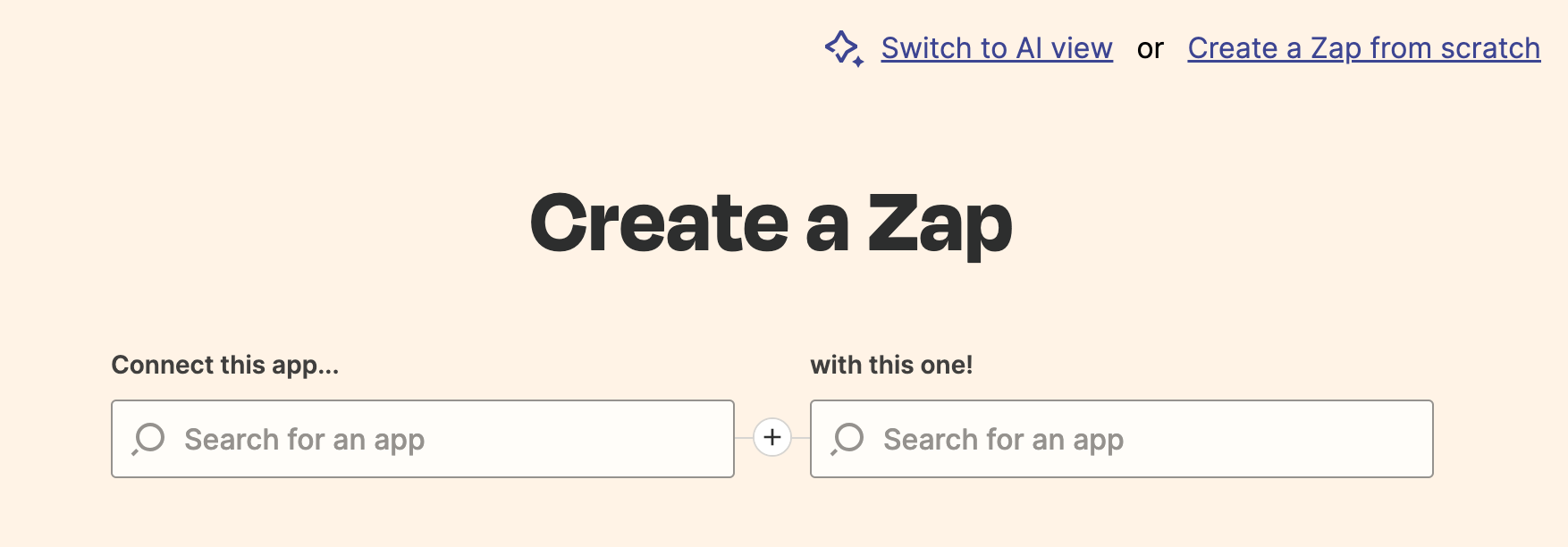
- Define your zap:
- Connect this app → WebinarJam or EverWebinar
- With this app → Select your destination app
- When this happens → Choose a WebinarJam/EverWebinar trigger
- Then do this → Define the action
- Click Try it to continue setup
Available triggers
Available WebinarJam / EverWebinar triggers include:
| Trigger | Timing | Description |
| New Live Attendee | Immediate | Triggers when a registrant joins a live webinar. |
| Registrant Joins Webinar After | After session | Triggers if a registrant was late for a live webinar. |
| Registrant Misses Webinar | After session | Triggers if a registrant missed the live webinar. |
| New Registration | Immediate | Triggers when a user registers for a webinar. |
| Registrant Attends Replay | Immediate | Triggers when a registrant joins the webinar replay. |
| Registrant Leaves Before | After session | Triggers if a registrant left the live webinar before a specific timestamp. |
| Registrant Purchases | Immediate | Triggers when a registrant buys a product during the live webinar. Dependent on active sales goal tracking. |
| Registrant Stays Until | After session | Triggers if a registrant stayed in a live webinar past a specific timestamp. |
Go to Zapier’s app catalog for the most up-to-date list of available WebinarJam / EverWebinar triggers.
Connect with WebinarJam
To connect Zapier with WebinarJam:
- Select Sign in when prompted in Zapier or select one that is already connected
- If you select Sign In, a popup appears to authorize the access request. Enter your WebinarJam API key in the field to authorize access.
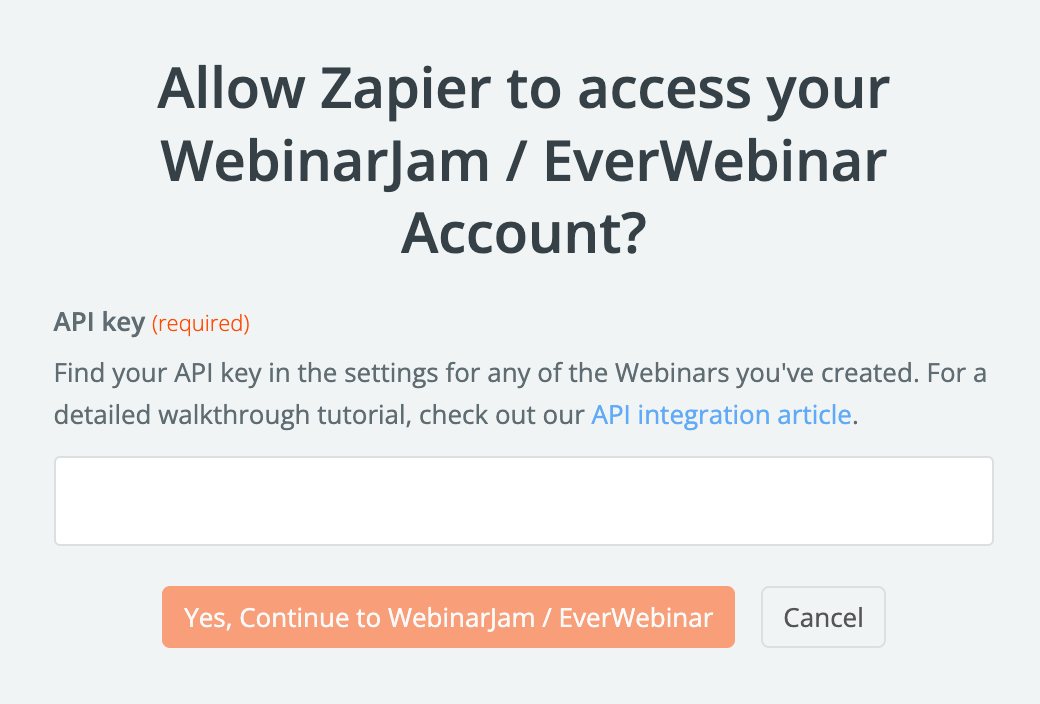
- Click Yes, Continue to WebinarJam/EverWebinar.
Complete the Zap
Use Zapier’s editor to finish setting up and testing the Zap.
- The API connection gives Zapier access to your WebinarJam / EverWebinar account so the editor can display your webinars in the configuration process.
- Choose the webinar you want the Zap to trigger from and configure the actions for the destination application as desired.
- When the setup is complete, turn the Zap ON by using the toggle in the editor or your Zapier dashboard.

Test the integration
As with any complex configuration, it is best to test your Zap with a demo webinar to make sure it works as expected before a live event.
Zapier resources
Zapier is a third-party program and cannot be supported in-depth by the WebinarJam team. For detailed information about Zapier and how to set up your Zaps, refer to the Zapier knowledge base: