
Applies to: WebinarJam and EverWebinar
Use a custom webhook to send registrant data to third-party tools or CRMs that are not natively supported. This allows you to automate communication and workflows using any external system.
What is a custom webhook?
A custom webhook sends real-time data from WebinarJam or EverWebinar to an external endpoint (URL).
When a specific action occurs, such as a user registering or attending a webinar, the system sends registrant data to the webhook URL you define.
Why use a custom webhook?
Use a custom webhook to:
- Connect with any CRM or autoresponder that WebinarJam/EverWebinar does not natively support
- Send data to tools that are not directly integrated
- Trigger workflows based on attendee behavior
- Build custom automation using your own systems
Set up a custom webhook
To configure a custom webhook integration:
- Click Profile on the top-right side of your screen
- Go to Integrations > Autoresponder
- Select Custom Webhook
- Enter the required details
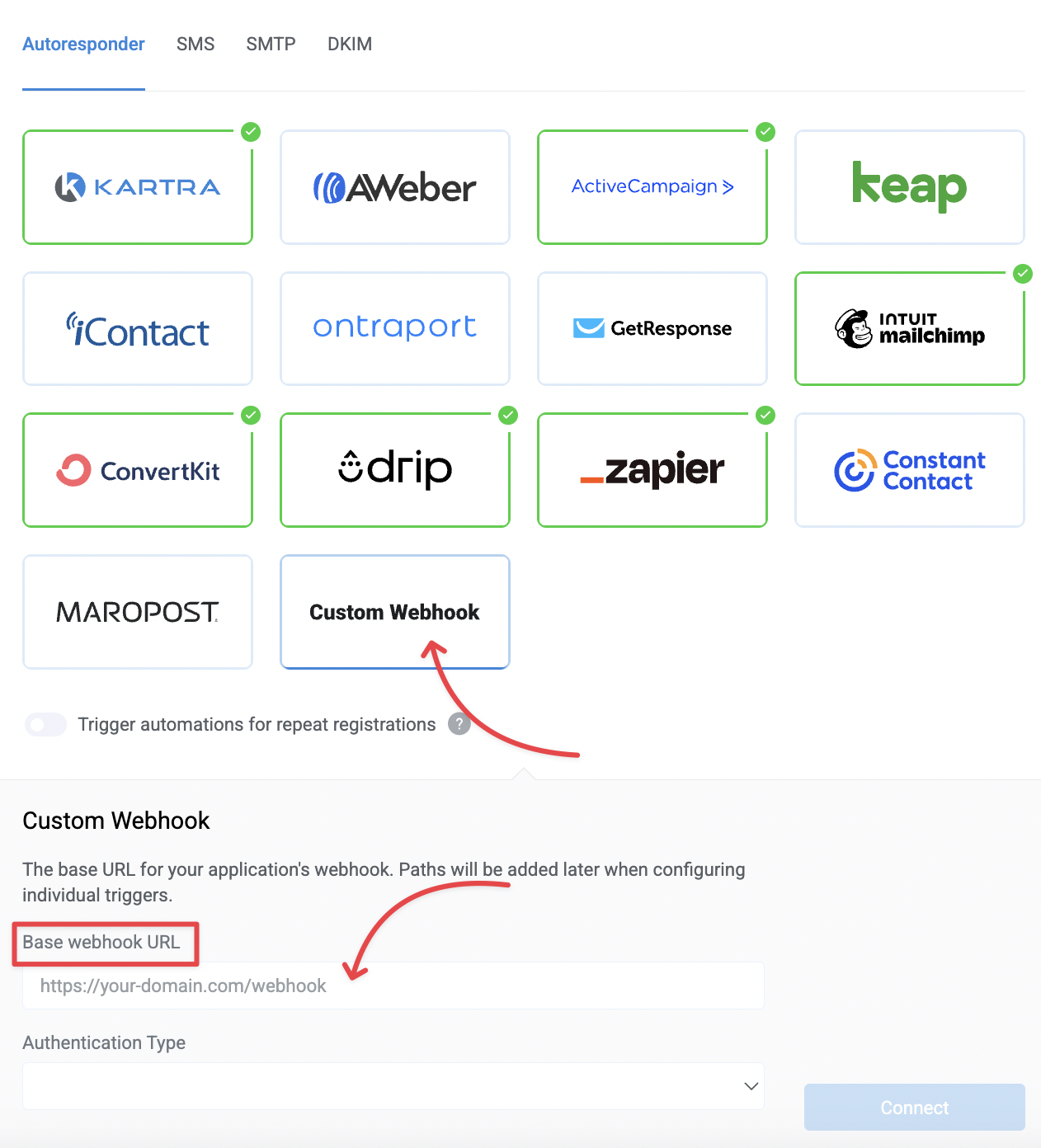
Base webhook URL
Enter the base URL for your webhook endpoint. This is the default destination where WebinarJam or EverWebinar will send registrant data.
When creating automation rules, you can:
- Use this base URL and add a path, or
- Enter a completely different URL for specific events
Authentication type
Select how your webhook endpoint authenticates requests. This is only required if your endpoint expects authentication.
Bearer token
Use this option when your provider gives you a token. The token will be sent as an authorization header with each request.
Custom header
Use this option when your provider requires a specific header name and value. Enter the header details based on your provider’s requirements.
How to choose:
- If your provider gives you a token → select Bearer token
- If your provider specifies a header name and value → select Custom header
- If no authentication is required → leave this unconfigured
Set up automation rules
After connecting your custom webhook, configure how and when data is sent.
To create automation rules:
- Edit your webinar
- Go to the Integrations tab
- Select Custom Webhook
- Choose a trigger condition
- Enter the webhook URL to which you wish to send the data
Webhook URL in rules
Enter the webhook URL where the data should be sent. This can be:
- A path appended to your base webhook URL, or
- A full URL to a different endpoint
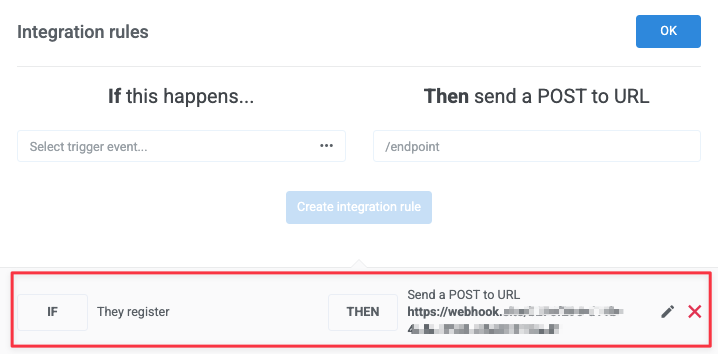
If you want to send data to a different domain than your base webhook URL, enter the full URL.
Each rule can use a different webhook URL, allowing you to handle events separately.