
Applies to: EverWebinar
Set up when and how your automated webinar sessions are available to registrants.
EverWebinar allows you to create scheduled sessions or on-demand experiences, depending on how you want attendees to access your webinar.
Before you begin
Important things to know before setting your schedule:
- On-demand options (Just-in-Time and Instant Replay) create dynamic sessions that behave differently from scheduled ones.
- Disabling on-demand options deletes related analytics and session data.
- Editing past sessions is not recommended: changing the date or time resets attendee access links, and previously sent links will no longer work.
Create your webinar schedule
To configure your schedule:
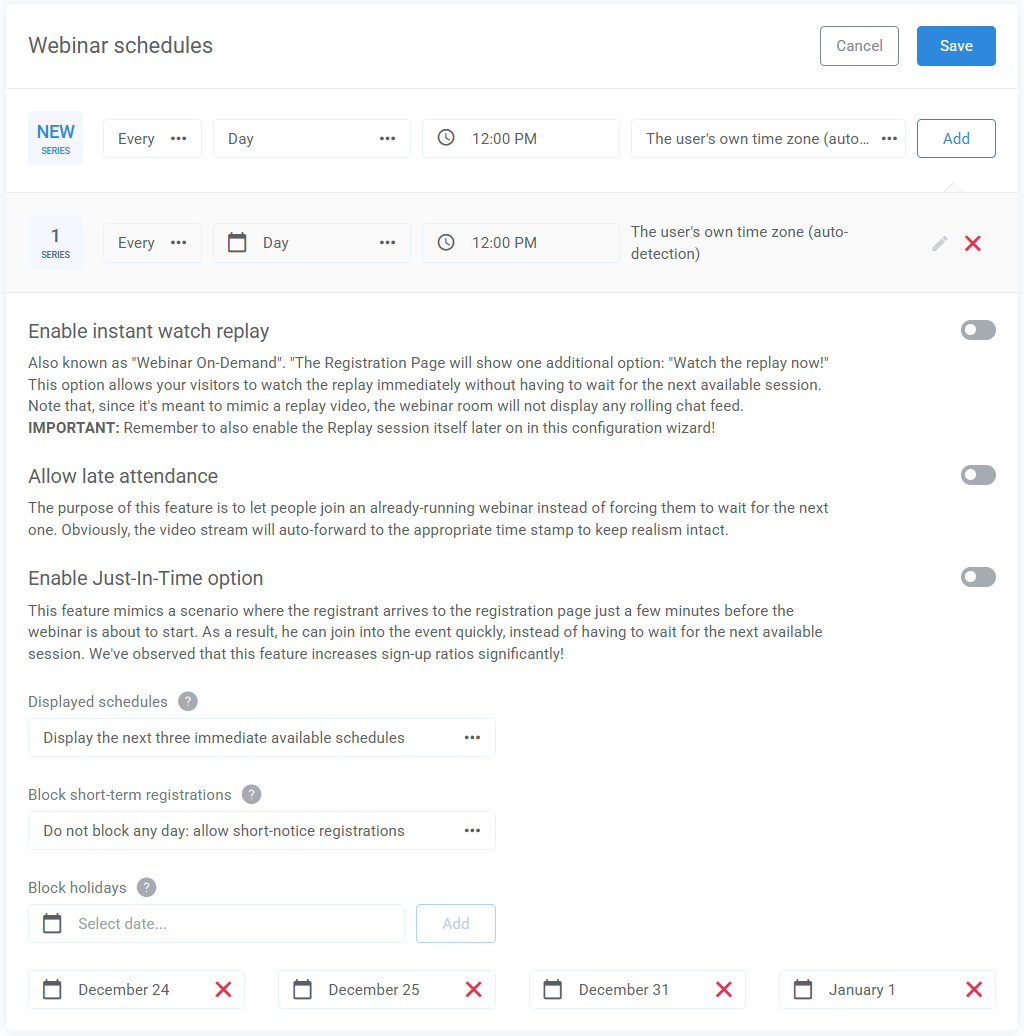
- Go to the Schedules step in the webinar configuration
- Choose how your webinar should run:
- Specific date and time
- Recurring schedule (daily or weekly)
- Click Add to create the schedule
- Add additional schedules if needed
Choose how time zones are handled
Decide how your webinar time is displayed to registrants.
Fixed time zone
Set a specific time zone for your webinar.
- Registrants can convert the time to their local time
- Multiple locations may appear if they share the same GMT offset
User’s own time zone
Automatically display the webinar time in each visitor’s local time zone.
- Makes it easier for attendees to choose a session
- Applies to all schedules once selected
Registration page scheduling options
These settings control how your schedule appears and behaves for visitors.
Allow time zone conversion
- Available only with a fixed time zone.
- Lets registrants view the webinar time in their local time zone.
Allow late attendance
- The webinar skips ahead to match the current time
- Creates a realistic “live” experience
Instant watch replay
- Adds a “Watch the replay now” option on your registration page.
- Attendees can watch immediately after registering
- Requires replay to be enabled in the Replay step
Just-in-Time scheduling
- Creates sessions that appear to start soon after someone visits the page.
- You can display sessions at:
- Every 15 minutes
- Every 30 minutes
- Every hour
- This creates a strong “live webinar” feel, even though the session is automated.
Hide night time schedules (Used with Just-in-Time scheduling)
- Prevents sessions from appearing during selected hours (e.g. overnight)
- Makes your schedule look more natural and intentional
Displayed schedules
- Choose how many available sessions are shown on the registration page at once.
If you select Just-in-Time or replay options here without enabling them, no sessions will be displayed.
Block short-term registrations
- Prevent last-minute sign-ups.
- You can block registrations up to 6 days in advance.
Block dates
- Exclude specific dates from your schedule.
- Useful for:
- Holidays
- Planned downtime
- Special events
Pro tip
The time format shown to registrants (12-hour or 24-hour) depends on the language and country settings in your webinar configuration.