
Applies to: WebinarJam and EverWebinar
Test two versions of your registration page to see which one gets more sign-ups.
Split testing (also known as A/B testing) lets you compare two versions of your webinar registration page. WebinarJam randomly shows visitors one of the two versions and tracks which page generates more registrations.
How split testing works
When split testing is enabled:
- You create two versions of your registration page (Version A and Version B).
- Visitors are randomly shown one version.
- WebinarJam tracks how many people sign up from each page.
- You compare the results to see which version performs better.
Example:
- 100 visitors see Version A and 10 register → 10% conversion rate
- 100 visitors see Version B and 15 register → 15% conversion rate
In this case, Version B performs better.
Pro tip
For clearer results, test one main difference at a time, such as:
- Headline wording
- Button text or color
- Registration form style (bar, button, form, etc.)
- Presenter image placement
You can test two completely different templates, but the more differences you introduce, the harder it becomes to understand why one version performs better.
How to enable split testing
To split test your registration pages:
- Edit or create a new webinar
- Go to the Registration step
- Edit the Registration page design module
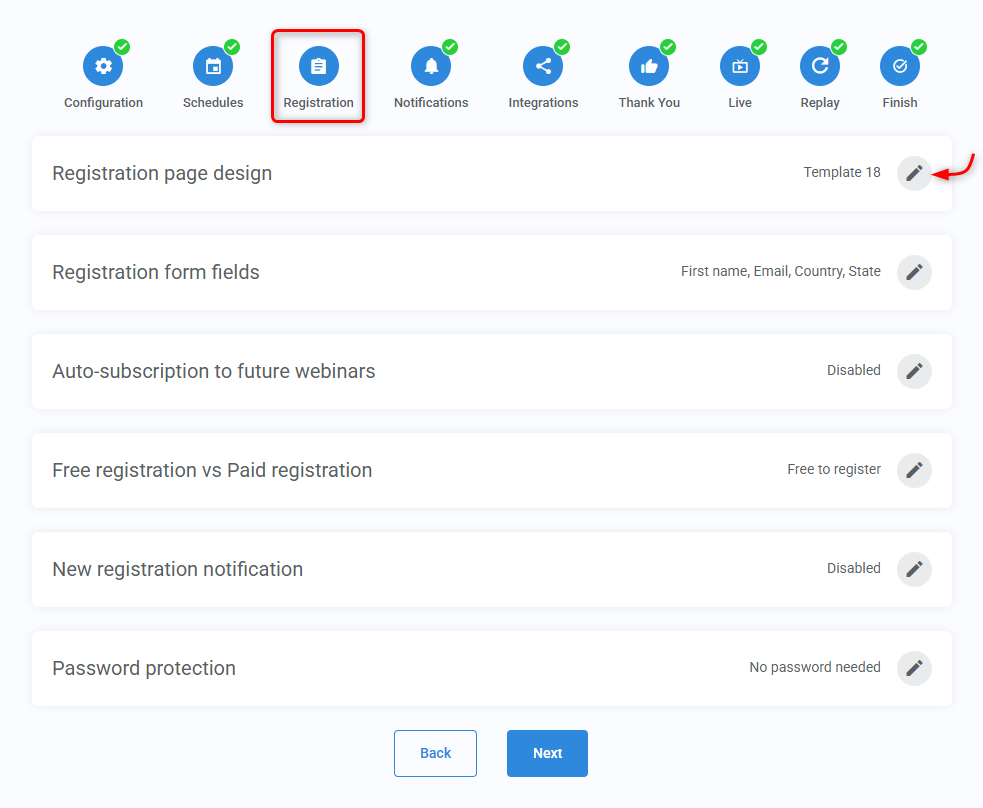
- Check the Enable split-testing box at the top of the module. An A/B toggle and percentage fields will appear.

To configure the test:
- Enter a percentage for Version B. Version A will automatically adjust so both equal 100%
- Use the toggle to switch between Version A and Version B
- Customize each version in the page builder
- Save the module and complete your webinar setup.
When visitors use your registration link, WebinarJam will randomly show them Version A or Version B.
Learn how to find your registration link to promote your webinar.
Edit an existing version
To update a version later:
- Go back to Registration page design
- Set the A/B toggle to the version you want to edit
- Hover over the selected template
- Click Customize
Always set the A/B toggle before opening the editor. Changes are applied to whichever version is currently selected.
Review split test results
To see performance data:
- Go to Analytics
- Select your webinar and session
The Split Test section displays:
- Number of visitors
- Number of sign-ups
- Conversion rate
The version with the higher conversion rate is generally the better-performing page.
Split test analytics only work with WebinarJam template registration pages. External registration pages are not tracked.
Learn more about webinar analytics.